Installation
This guide covers system requirements, installation, and first launch of HF Product Manager.
System Requirements
Minimum Requirements
| Component | Requirement |
|---|---|
| Operating System | Windows 10 (version 1809 or later) |
| Processor | 1 GHz or faster |
| Memory | 4 GB RAM |
| Storage | 200 MB available space |
| Display | 1280 x 720 resolution |
| Internet | Required for Shopify sync |
Recommended Requirements
| Component | Recommendation |
|---|---|
| Operating System | Windows 11 |
| Processor | 2 GHz quad-core or faster |
| Memory | 8 GB RAM |
| Storage | SSD with 500 MB available |
| Display | 1920 x 1080 or higher |
| Internet | Broadband connection |
Software Prerequisites
- .NET 8 Desktop Runtime - Installed automatically if missing
- WebView2 Runtime - Required for description editor (usually pre-installed on Windows 10/11)
Installation Steps
Download
- Obtain the HF Product Manager installer (ProductManagerSetup.exe)
- Verify the download completed successfully
Install
- Double-click the installer
- If prompted by Windows SmartScreen, click "More info" then "Run anyway"
- Accept the license agreement
- Choose installation location (default recommended)
- Click "Install"
- Wait for installation to complete
- Click "Finish" to launch HF Product Manager
First Launch
When you first launch HF Product Manager:
- Splash Screen - The application shows a splash screen while initializing
- .NET Check - Required runtimes are verified (installed if needed)
- Local Data Folders - Created in
%LocalAppData%\HFProductManager - First Run Dialog - Choose between "Set Up New Store" to connect your Shopify store, or "Import Settings File" to restore from a previous backup
- Store Setup - If setting up new, you'll be prompted to enter your Shopify store credentials
Splash Screen
The splash screen displays while HF Product Manager:
- Initializes application components
- Loads cached product data (if any)
- Checks for updates (if enabled)
- Prepares the main window
For stores with large product caches, this may take a few seconds.
Application Information
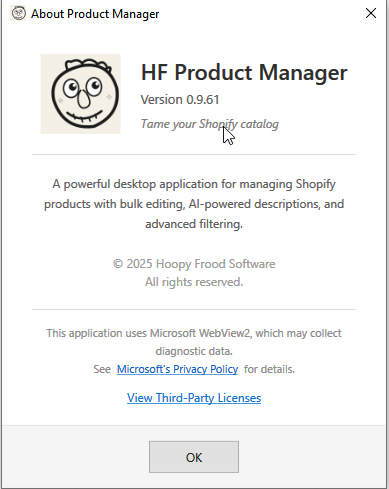
About Window
View application information via Help > About:
- Application version number
- Copyright information
- Logo and branding
The version number is also displayed in the main window title bar.
Version Information
HF Product Manager uses semantic versioning (e.g., 0.9.63-alpha):
- Major.Minor.Patch format
- Alpha/Beta suffixes indicate pre-release versions
- Check Help > About for your current version
Updating HF Product Manager
Automatic Update Notification
HF Product Manager checks for updates on startup (configurable). When an update is available:
- The Update Available dialog appears
- Review the version information and release notes
- Click Download to get the installer
- Close HF Product Manager and run the installer
See Check for Updates for details.
Manual Update
- Download the latest installer
- Close HF Product Manager completely
- Run the installer (it updates the existing installation)
- Launch HF Product Manager
What's Preserved During Updates
- All settings and preferences
- Connected store credentials
- Cached product data
- Backup history
- Window positions and sizes
Uninstalling
Via Windows Settings
- Open Windows Settings > Apps > Installed apps
- Find "HF Product Manager"
- Click the menu (...) and select "Uninstall"
- Follow the prompts
What Gets Removed
- Application files
- Start menu shortcuts
- Desktop shortcut (if created)
What Gets Kept
- Settings in
%AppData%\HFProductManager - Product cache, backups, and logs in
%LocalAppData%\HFProductManager
To remove all data, manually delete both folders after uninstalling.
Data Locations
| Data | Location |
|---|---|
| Settings | %AppData%\HFProductManager\settings.json |
| Product Cache | %LocalAppData%\HFProductManager\cache\ |
| Backups | %LocalAppData%\HFProductManager\ |
| Logs | %LocalAppData%\HFProductManager\Logs\ |
| Image Cache | %LocalAppData%\HFProductManager\ImageCache\ |
Troubleshooting Installation
"Windows protected your PC" message
This appears because the installer isn't signed with an EV certificate.
Solution:
- Click "More info"
- Click "Run anyway"
- Proceed with installation
.NET Runtime installation fails
Solution:
- Download .NET 8 Desktop Runtime directly from Microsoft
- Install it manually
- Retry HF Product Manager installation
Installation hangs
Solution:
- Cancel the installation
- Restart your computer
- Temporarily disable antivirus
- Try installing again
"Access denied" during installation
Solution:
- Right-click the installer
- Select "Run as administrator"
- Proceed with installation
Installer says .NET is missing but it's installed
Some registry or file system checks may fail even when .NET 8 is present.
Solution:
- The installer now checks multiple locations
- If it still fails, download the latest installer version
- Or manually install .NET 8 Desktop Runtime from Microsoft
Next Steps
After installation: