Import Products
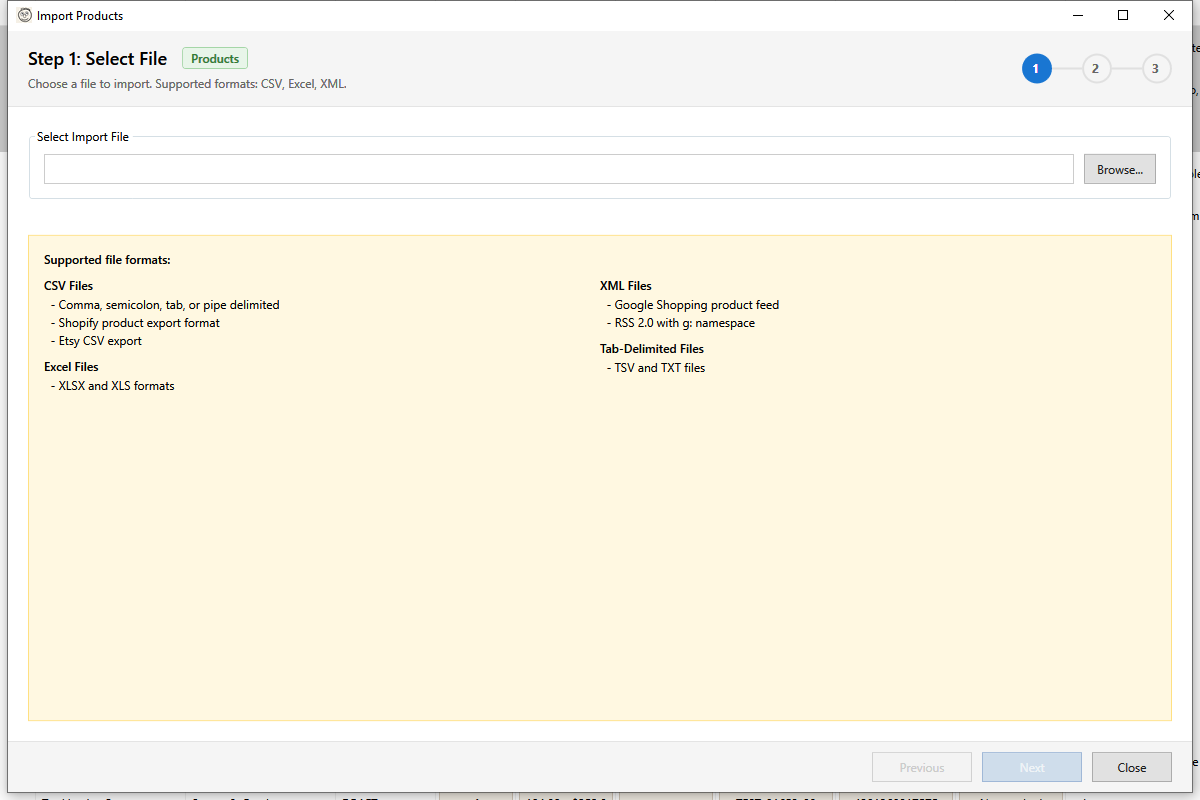
The Import feature allows you to create and update products from external files including CSV, Excel, TSV, and Google Shopping XML.
Opening Import
Open using one of these methods:
- Toolbar: Import/Export dropdown > Import > Import Products
Advanced Import Modes
The Import menu also includes advanced options under Import > Advanced:
| Mode | Description |
|---|---|
| Variant Data Only (by SKU) | Import variant-level data only, matching by SKU. Useful for updating prices, weights, or barcodes from a spreadsheet without touching product-level fields. |
| Image Data Only | Import product image URLs only, adding images to existing products. |
Supported Formats
| Format | Extension | Notes |
|---|---|---|
| CSV | .csv | Comma, semicolon, tab, or pipe delimited |
| TSV | .tsv | Tab-delimited |
| Excel | .xlsx | Microsoft Excel format |
| Google Shopping | .xml | RSS 2.0 with g: namespace |
Import Workflow
The import process has 5 steps:
- Select File - Choose the file to import
- Column Mapping - Map source columns to Shopify fields
- Preview - Review what will be imported
- Import - Execute the import
- Complete - Review results
Step 1: Select File
- Click Browse or drag-drop a file
- File is analyzed automatically
- Delimiter is auto-detected for CSV files
- Column headers are extracted
File Requirements
- Maximum file size: 500MB
- Must have header row
- UTF-8 encoding recommended
- Consistent column structure
Step 2: Column Mapping
Map source columns to Shopify product fields.
Mapping Editor
| Column | Description |
|---|---|
| Source Column | Column name from your file |
| Target Field | Shopify field to populate |
| Transform | Optional value transformation |
| Preview | Sample values from your file |
Target Fields
The following fields are available as import targets, organized by category.
Product Fields
| Field | Required | Notes |
|---|---|---|
| Title | Yes | Product name |
| Handle | No | URL slug (auto-generated if blank) |
| Body HTML | No | Product description (HTML or plain text) |
| Vendor | No | Brand or manufacturer name |
| Product Type | No | Product category/classification |
| Tags | No | Comma-separated list of tags |
| Status | No | active, draft, or archived |
| Template Suffix | No | Shopify theme template suffix |
| Category Name | No | Shopify product taxonomy category name |
| Category GID | No | Shopify product taxonomy category GID |
| Collection Names | No | Comma-separated collection names to add the product to |
Variant Fields
| Field | Required | Notes |
|---|---|---|
| Variant SKU | Recommended | Stock keeping unit (used for matching on update) |
| Variant Price | No | Sale price |
| Variant Compare At Price | No | Original/compare price |
| Variant Cost | No | Cost per item |
| Variant Barcode | No | UPC, EAN, ISBN |
| Variant Weight | No | Shipping weight (numeric value) |
| Variant Weight Unit | No | Weight unit: g, kg, lb, oz |
| Variant Title | No | Variant display title |
| Variant Position | No | Sort order position (numeric) |
| Variant Taxable | No | true or false |
| Variant Requires Shipping | No | true or false |
| Variant Inventory Policy | No | deny or continue (behaviour when out of stock) |
| Variant Inventory Management | No | shopify or blank |
| Variant Tracked | No | true or false (whether inventory is tracked) |
| Variant Fulfillment Service | No | Fulfillment service name |
| Variant ID | No | Shopify variant GID (for matching on update) |
Option Fields
| Field | Required | Notes |
|---|---|---|
| Option1 Name | No | Name of the first option (e.g., "Size") |
| Option2 Name | No | Name of the second option (e.g., "Color") |
| Option3 Name | No | Name of the third option (e.g., "Material") |
| Variant Option1 | No | Value for option 1 (e.g., "Large") |
| Variant Option2 | No | Value for option 2 (e.g., "Red") |
| Variant Option3 | No | Value for option 3 (e.g., "Cotton") |
Image Fields
| Field | Required | Notes |
|---|---|---|
| Image Src | No | Image URL to import |
| Image Alt | No | Image alt text for accessibility |
| Image Position | No | Image sort order (numeric) |
SEO Fields
| Field | Required | Notes |
|---|---|---|
| SEO Title | No | Meta title for search engines |
| SEO Description | No | Meta description for search engines |
Customs / Trade Fields
| Field | Required | Notes |
|---|---|---|
| Variant Country of Origin | No | Two-letter country code (e.g., US, CN) |
| Variant Province of Origin | No | Province/state code within country of origin |
| Variant HS Code | No | Harmonized System tariff code for customs |
| Variant Tax Code | No | Tax code for tax calculation services |
Publication Fields
These fields control which sales channels a product is published to during import. Each accepts true or false.
| Field | Notes |
|---|---|
| Published: Online Store | Publish to the Online Store channel |
| Published: Point of Sale | Publish to Point of Sale |
| Published: Instagram | Publish to Instagram Shopping |
| Published: Facebook | Publish to Facebook Shop |
| Published: TikTok | Publish to TikTok Shopping |
| Published: Google | Publish to Google & YouTube channel |
Note: Publication fields only affect products during import. If a channel is not configured in your Shopify store, the field is ignored. Omitting a publication field leaves the channel state unchanged for existing products.
Metafield Fields
You can import values into product and variant metafields. Map a source column to a metafield using the dot-separated format:
| Format | Example | Description |
|---|---|---|
Metafield.namespace.key |
Metafield.custom.color |
Product-level metafield |
Variant Metafield.namespace.key |
Variant Metafield.custom.material |
Variant-level metafield |
The import engine automatically looks up the metafield definition in your Shopify store to determine the correct type (number_integer, boolean, money, etc.). If no definition is found, the value is sent as plain text, which may fail for structured types like money or rating. A warning is shown in the preview when a definition cannot be found.
You can import any number of metafields by adding additional columns to your file. Each column maps to one metafield using the format above.
Variant Import Matching
When updating existing products, the importer needs to identify which variant in the existing product corresponds to each row in your file. Variants are matched using this priority:
- SKU match -- If the row has a Variant SKU value, it is matched against the existing product's variant SKUs (case-insensitive). This is the most reliable method.
- Single-variant auto-match -- If the row has no SKU and the existing product has only one variant, that variant is used automatically.
- No match -- If the row has no SKU and the product has multiple variants, the row is flagged as an error because the importer cannot determine which variant to update.
Tip: Always include a SKU column when updating multi-variant products. For single-variant products, SKU is optional but recommended.
Gift Card Restrictions
Shopify does not allow certain variant fields to be modified on gift card products. The following fields are automatically skipped during import for gift cards, and a warning is shown in the preview:
- Weight and Weight Unit
- Taxable
- Requires Shipping
- Inventory Policy, Inventory Management, and Tracked
Mapping Profiles
Save and reuse mapping configurations:
- Save Profile - Save current mappings
- Load Profile - Load saved profile
- Built-in Profiles:
- Shopify CSV (standard export format)
- Etsy CSV (from Etsy export)
- Google Shopping (product feed)
- Generic (common field names)
Transformations
Apply transformations to imported values:
| Transform | Description | Example |
|---|---|---|
| Trim | Remove leading/trailing whitespace | " shoes " → "shoes" |
| Uppercase | Convert to uppercase | "shoes" → "SHOES" |
| Lowercase | Convert to lowercase | "SHOES" → "shoes" |
| Title Case | Capitalise first letter of each word | "red running shoes" → "Red Running Shoes" |
| HTML Encode | Encode special characters as HTML entities | & → & |
| HTML Decode | Decode HTML entities to plain characters | & → & |
| Strip HTML | Remove HTML tags | <b>bold</b> → "bold" |
Step 3: Preview
Review what will be imported before executing:
Preview Grid
| Column | Description |
|---|---|
| Row | Source file row number |
| Title | Product title |
| Action | Create, Update, or Skip |
| Status | Valid, Warning, or Error |
| Message | Validation details |
Preview Actions
| Action | Description |
|---|---|
| Create | New product will be created |
| Update | Existing product will be updated |
| Skip | Row will be skipped (error or option) |
Validation
The preview validates:
- Required fields present
- Data types correct
- Duplicate detection
- SKU/Handle conflicts
Import Settings
Import Mode
| Mode | Description |
|---|---|
| Create Only | Only create new products (skip existing) |
| Update Only | Only update existing products (skip new) |
| Create & Update | Create new and update existing |
Match Key
How to identify existing products for updates:
- Handle - Match by URL handle
- SKU - Match by variant SKU
Other Options
| Option | Description |
|---|---|
| Skip rows with errors | Continue importing valid rows |
| Update only mapped fields | Don't clear unmapped fields |
| Publish new products | Set status to Active (vs Draft) |
Step 4: Import
- Click Start Import
- A progress window opens showing each step of the import
- Products are sent to Shopify and results update in real-time
- Errors are logged but don't stop the import -- valid products continue processing
How the Import Executes
The import system chooses the best method based on the size of your import:
- Small imports -- Products are created or updated one at a time through the Shopify API. This is straightforward and gives detailed per-product feedback.
- Large imports (typically 50+ new products) -- The system automatically switches to Shopify's Bulk API, which sends all new products in a single batch. This is significantly faster for large imports. Existing product updates still go through the standard API to preserve your variant data.
Progress Tracking
The progress window shows a step-by-step view of the import:
| Step | Description |
|---|---|
| Validating | Checks that your import data is valid |
| Creating Backup | Saves a backup of products being updated (update imports only) |
| Preparing Data | Builds the data to send to Shopify (bulk imports only) |
| Uploading to Shopify | Sends the data to Shopify (bulk imports only) |
| Waiting for Shopify | Shopify processes the batch (bulk imports only) |
| Processing | Creates or updates products in Shopify |
| Uploading Images | Uploads product images (if your file includes image URLs) |
| Updating Cache | Updates the local product cache so your grid is current |
Automatic Backup
Before any changes are made to existing products, a backup is automatically created. If something goes wrong, you can restore from the backup using the Backup Manager (accessible from the toolbar).
Post-Processing
After products are created or updated, the system handles additional data automatically:
- Images are uploaded from the URLs in your file
- Metafields are set on products and variants
- Collection assignments are made if you mapped a Collection Names column
- Sales channel publishing is applied if you mapped publication fields
Products appear in the main grid as they are processed, so you can see results before the entire import finishes.
During Import
- Cancel button available (partial import keeps already-processed products)
- Status updates in real-time
- Error count displayed
Step 5: Complete
Review import results:
| Metric | Description |
|---|---|
| Created | New products added |
| Updated | Existing products modified |
| Skipped | Rows not imported |
| Failed | Rows with errors |
Error Log
Click View Errors to see details:
- Row number
- Error message
- Source data
Export Log
Click Export Log to save results as CSV.
Etsy Import
Import products from your Etsy shop:
- Export from Etsy Dashboard > Shop Manager > Settings > Download Data
- Choose "Listings" export
- Import the CSV into HF Product Manager
- Use "Etsy CSV" mapping profile
Etsy Field Mapping
| Etsy Field | Shopify Field |
|---|---|
| Title | Title |
| Description | Description |
| Price | Price |
| Quantity | Inventory |
| SKU | SKU |
| Tags | Tags |
| Who Made | Metafield |
| When Made | Metafield |
| Materials | Tags or Metafield |
Note: Etsy supports 2 variants vs Shopify's 3. Some manual adjustments may be needed.
Google Shopping Import
Import from Google Shopping XML feed:
- Select the XML file
- Google Shopping profile auto-loads
- Review mappings (g:id, g:title, etc.)
- Preview and import
Best Practices
- Backup first - Export current products before importing
- Test small - Try with 5-10 products first
- Clean data - Fix issues in source file before import
- Use SKUs - Reliable matching for updates
- Check handles - Avoid duplicate URL handles
- Review preview - Always check before importing
Troubleshooting
"File not recognized"
- Check file extension
- Ensure proper encoding (UTF-8)
- Verify header row exists
"Column not found"
- Check column name spelling
- Remove special characters from headers
- Ensure consistent column structure
"Duplicate product"
- Check for duplicate handles/SKUs
- Use different match key
- Clean source data
"Import failed"
- Check internet connection
- Verify Shopify credentials
- Review error log for details
- Try smaller batches