Workflow Overview
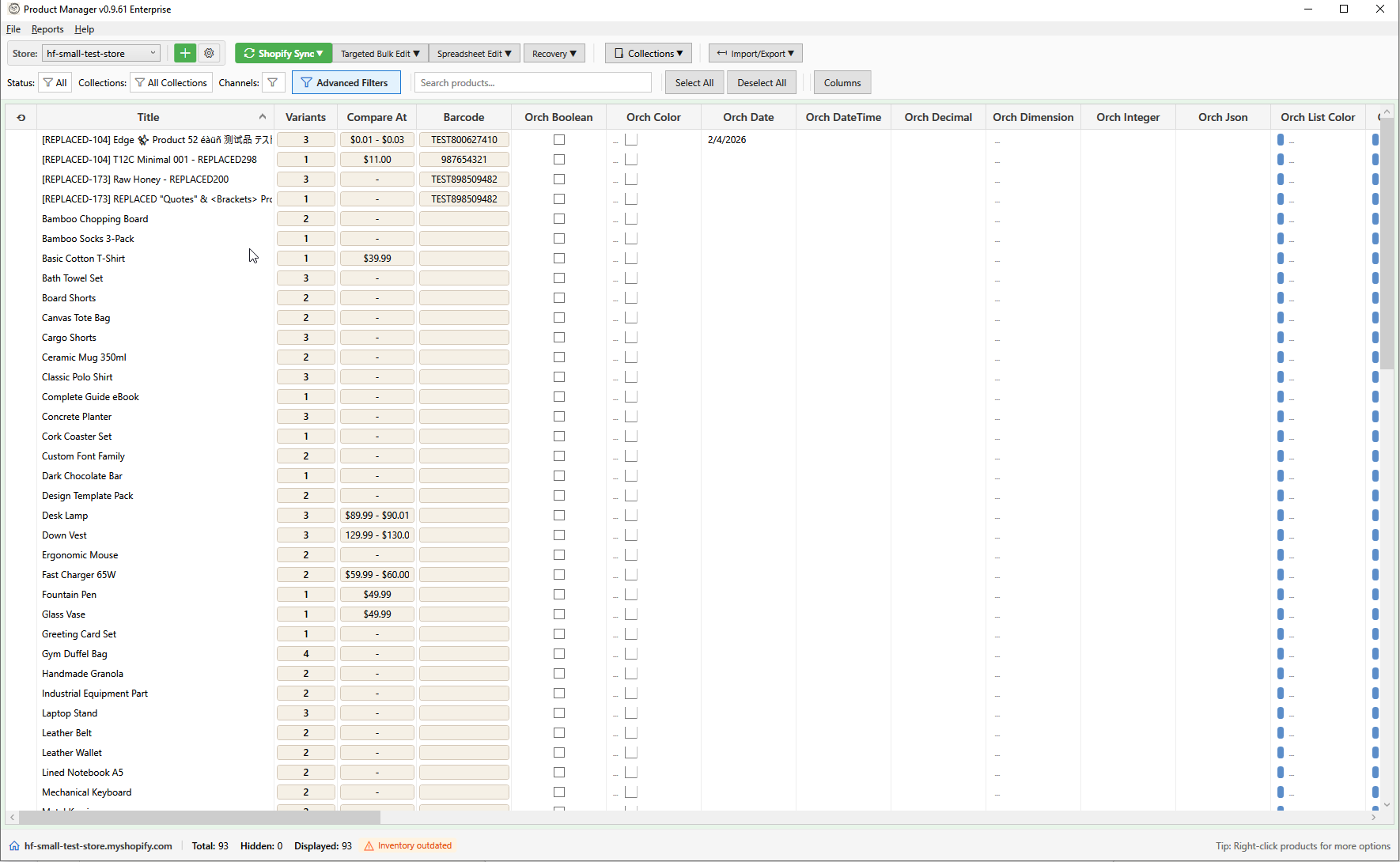
HF Product Manager is designed for efficiently managing large Shopify catalogs. Instead of editing products one at a time, you narrow down to exactly what you need, then apply changes to all of them at once.
This workflow is only practical because HF Product Manager caches your entire catalog locally. When you search, filter, or sort, you're working with data already on your machine — not waiting for the Shopify servers to respond. Scroll through thousands of products instantly. Apply a complex filter and see results in milliseconds. Preview exactly what a bulk edit will do before committing. This responsiveness transforms bulk editing from a tedious chore into something you can do confidently and quickly.
When you save changes, HF Product Manager batches your edits into optimized API calls. What might take an hour of repetitive clicking in the Shopify admin — update this product, wait, click next, update again — happens in seconds.
The Core Concept: Filter → Select → Edit
Think of HF Product Manager as a funnel for your catalog:
| FULL CATALOG 5,000 products |
| ▼ |
| FILTER Quick filters, search, advanced filters |
| ▼ |
| FILTERED VIEW 200 products match |
| ▼ |
| SELECT Click rows, Ctrl+click, Shift+click |
| ▼ |
| SELECTED PRODUCTS 50 products selected |
| ▼ |
| EDIT Choose your method |
| ▼ |
| CHANGES APPLIED Saved to Shopify |
Step 1: Filter
Start with your full catalog and use filters to narrow it down:
- Quick filters — Status, vendor, product type dropdowns in the toolbar
- Text search — Search across titles, descriptions, tags, and SKUs
- Advanced filters — Complex conditions like price ranges, inventory levels, creation dates, sales data
Combine multiple filters to get precise results. For example: "All products from Vendor X, priced over $50, with low inventory."
Step 2: Select
From your filtered results, select the specific products to edit:
- Click a row to select one product
- Ctrl+Click to add/remove individual products from selection
- Shift+Click to select a range of products
- Select All to select everything in the filtered view
The selection count appears in the toolbar and on bulk operation buttons.
Step 3: Edit
Apply changes to all selected products using the editing tool that fits your task.
Choosing the Right Editing Tool
HF Product Manager provides different tools depending on whether you're working with one product or many products.
| What are you editing? | |
| ▼ | ▼ |
|
ONE PRODUCT • Inline Grid Edit • Description Editor • Variant Editor • Media Editor |
MANY PRODUCTS • Targeted Bulk Edit • Spreadsheet Edit |
Single Product Tools
These tools work on one product at a time and are accessed by clicking or double-clicking on a specific row or cell.
Inline Grid Editing
Edit basic fields directly in the main product grid without opening any dialogs.
How to use:
- Double-click any editable cell (title, price, inventory, tags, vendor, etc.)
- Make your change
- Press Enter to save (or Escape to cancel)
Best for: Quick fixes — correcting a typo, adjusting one product's price, updating inventory for a single item.
Description Editor
Full rich-text editor for a single product's description with AI assistance and snippet templates.
How to access: Click on a product's description cell in the grid.
Features:
- Rich text formatting (bold, italic, lists, links, tables)
- AI-powered description generation and improvement
- Snippet library for reusable content blocks
- Full-color emoji support
- HTML source view
Best for: Writing or rewriting a product description, using AI to improve copy, inserting standard content blocks.
Variant Editor
Complete variant management for a single product — options, pricing, inventory, and variant images.
How to access: Select a product row and click the Variant Editor button, or double-click the variants column.
Features:
- Add, edit, or remove variant options (Size, Color, Material, etc.)
- Set price, compare-at price, and cost per variant
- Manage inventory levels per variant
- Assign images to specific variants
Best for: Setting up a new product's variants, reorganizing option values, managing variant-specific images, detailed variant-level pricing.
Media Editor
Manage images and media for a single product.
How to access: Select a product row and click the Media Editor button, or double-click the image/thumbnail column.
Features:
- View all product images in a gallery
- Reorder images (drag and drop)
- Add new images (upload or URL)
- Delete images
- Set featured image
- Edit alt text for SEO
Best for: Uploading product photos, reordering the image gallery, replacing outdated images, adding alt text.
Multi-Product Tools
These tools work on many products at once and operate on your current selection in the grid. Select products first, then choose your tool.
Targeted Bulk Edit
Apply the same value to a specific field across all selected products.
| One Value | → | Product 1 |
| → | Product 2 | |
| → | Product 3 | |
| → | Product 4 | |
| → | ... |
How to use:
- Filter and select your target products
- Click Targeted Bulk Edit dropdown in the toolbar
- Choose the field to edit:
- Inventory
- Prices
- Descriptions
- Tags / Status / Vendor
- Variant Fields (weight, SKU, barcode, HS code)
- SEO Fields
- Activate at Location
- AI Descriptions
- AI Titles
- Resync from Shopify
- Delete Products
- Enter the value or change to apply
- Save — all selected products are updated
Best for:
- Adding the same tag to 200 products
- Setting all selected products to "Draft" status
- Applying a 20% price reduction to a collection
- Changing vendor for a product line
Key concept: One value → many products. Every selected product gets the same change.
Spreadsheet Edit
Edit different values for each product/variant in an Excel-like grid view.
| $19.99 | → | Product 1 |
| $24.99 | → | Product 2 |
| $15.00 | → | Product 3 |
| $29.99 | → | Product 4 |
How to use:
- Filter and select your target products
- Click Spreadsheet Edit → Variants in the toolbar
- View all selected products' variants in a spreadsheet grid
- Edit each row individually — different values per row
- Save all changes at once
Features:
- Excel-like navigation (Tab, Enter, arrow keys)
- Copy/paste support (including from Excel)
- See all variants from selected products in one view
- Edit price, compare-at price, inventory, SKU, barcode, weight, etc.
Best for:
- Reviewing and adjusting prices across products (where each needs a different price)
- Updating SKUs or barcodes (each variant has a unique value)
- Setting different inventory levels per variant
- Bulk data entry from a spreadsheet
Key concept: Many values → many products. Each row can have different values.
Targeted Bulk Edit vs Spreadsheet Edit
Use this table to choose the right tool:
| Scenario | Use This |
|---|---|
| Set ALL prices to $29.99 | Targeted Bulk Edit |
| Set EACH price individually | Spreadsheet Edit |
| Add same tag to all products | Targeted Bulk Edit |
| Update unique SKUs per variant | Spreadsheet Edit |
| Change vendor for product line | Targeted Bulk Edit |
| Adjust various inventory levels | Spreadsheet Edit |
Simple rule:
- Same value for everyone? → Targeted Bulk Edit
- Different value for each? → Spreadsheet Edit
Keeping Data Up to Date: Sync Modes
HF Product Manager works with a local copy of your catalog, so it needs to sync with Shopify to stay current. There are two sync modes:
Full Sync
Downloads your entire product catalog from Shopify. Used the first time you connect a store, or when you want a complete refresh.
Quick Sync (Delta)
Only downloads products that have changed since your last sync. This is much faster and is used automatically on subsequent startups. If you have 5,000 products but only 12 changed overnight, quick sync downloads just those 12.
How Sync Happens
By default, sync runs automatically when the app starts. You can also trigger it manually from the Sync dropdown in the toolbar. If you have multiple stores connected, all stores sync on startup -- the active store syncs first so you can start working immediately.
The sync strategy (Standard API vs. Bulk Operations) is chosen automatically based on your store size. For more details, see Product Sync.
Common Workflows
Scenario 1: Seasonal Sale — Apply Same Discount
- Filter by Collection = "Summer"
- Select All (or pick specific products)
- Targeted Bulk Edit → Prices → Apply -20%
Scenario 2: Update Prices Individually
- Filter by Vendor = "Acme Corp"
- Select products to reprice
- Spreadsheet Edit → Variants → Edit each price in grid
Scenario 3: Rewrite One Product's Description with AI
- Find product (filter or search)
- Click description cell → Description Editor opens
- Use AI Assistant to generate/improve description
Scenario 4: Set Up Variants for New Product
- Find product in grid
- Open Variant Editor
- Add options (Size, Color), set prices per variant
Scenario 5: Quick Inventory Correction
- Find product in grid
- Double-click inventory cell (Inline Edit)
- Type new value, press Enter
Scenario 6: Replace Product Images
- Find product in grid
- Open Media Editor
- Delete old images, upload new ones, reorder
Summary
| 1. NARROW DOWN | 2. SELECT | 3. EDIT |
|---|---|---|
|
• Quick Filters • Text Search • Advanced Filters |
• Click rows • Ctrl+Click • Shift+Click • Select All |
Single Product: • Inline Edit • Description Editor • Variant Editor • Media Editor Multiple Products: • Targeted Bulk Edit • Spreadsheet Edit |
The key to efficient product management is using the right tool for the job:
- Filter to find the products you need
- Select exactly what you want to change
- Edit using the tool that matches your task
With this workflow, updating 500 products takes the same effort as updating 5.