Bulk Operations
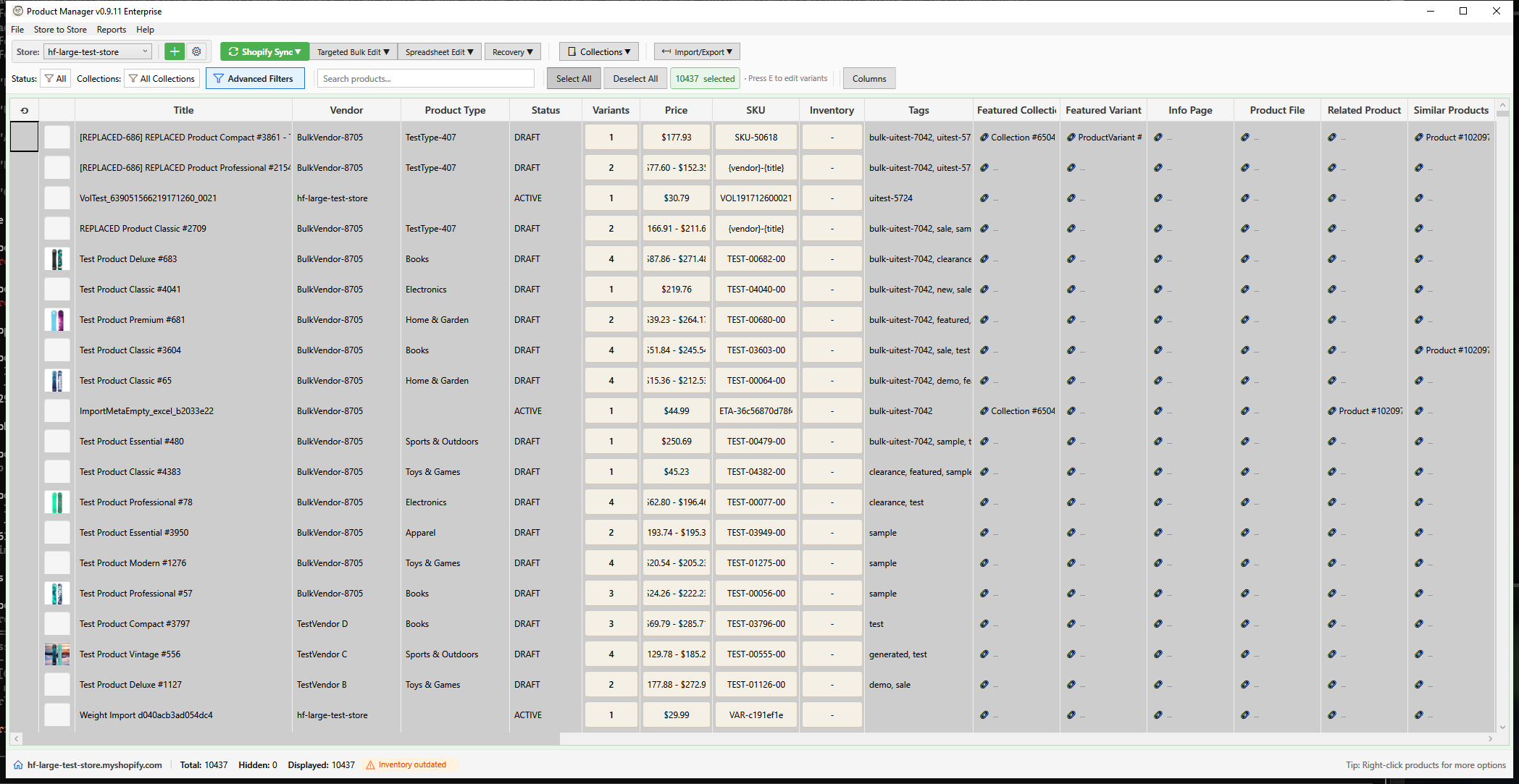
Bulk operations allow you to make changes to multiple products at once, saving hours of manual work in the Shopify admin.
Available Bulk Operations
Targeted Bulk Edit
These operations apply the same change to all selected products:
| Operation | Description | Access |
|---|---|---|
| Bulk Price Edit | Change prices by percentage, amount, or fixed value | Toolbar > Targeted Bulk Edit |
| Bulk Inventory | Adjust stock levels across locations | Toolbar > Targeted Bulk Edit |
| Bulk Description | Insert, find/replace, or remove description content | Toolbar > Targeted Bulk Edit |
| Bulk Fields | Edit tags, vendor, type, status | Toolbar > Targeted Bulk Edit |
| Bulk Variant Fields | Edit weight, SKU, barcode, HS code on variants | Toolbar > Targeted Bulk Edit |
| Bulk SEO | Update SEO titles and meta descriptions | Toolbar > Targeted Bulk Edit |
| Activate at Location | Enable inventory tracking for variants at a location | Toolbar > Targeted Bulk Edit |
| AI Descriptions | Generate descriptions using AI | Toolbar > Targeted Bulk Edit |
| AI Titles | Generate product titles using AI | Toolbar > Targeted Bulk Edit |
| Resync from Shopify | Refresh selected products with latest data from Shopify | Toolbar > Targeted Bulk Edit |
| Delete Products | Permanently delete selected products from Shopify (creates backup first) | Toolbar > Targeted Bulk Edit |
Spreadsheet Edit
For editing different values per product/variant:
| Operation | Description | Access |
|---|---|---|
| Variant Grid Editor | Excel-like grid for variant data | Toolbar > Spreadsheet Edit > Variants |
Tip: Use Targeted Bulk Edit when applying the same value to all. Use Spreadsheet Edit when each product needs a different value.
How Bulk Operations Work
- Select Products - Use the product grid to select one or more products
- Choose Operation - Open the desired bulk operation from the toolbar or context menu
- Configure Settings - Set the operation parameters (e.g., price increase %)
- Preview Changes - Review calculated changes before applying
- Apply Changes - Confirm and apply changes to your Shopify store
Progress Tracking
When you apply a bulk operation, a progress window appears showing:
- Step-by-step progress — Validation, backup creation, API calls, cache updates
- Current step details — What's happening right now
- Elapsed time — How long the operation has been running
- Cancel button — Stop the operation if needed
After a successful operation, the window shows a summary and auto-closes after 5 seconds (click to close immediately).
Automatic Backups
All bulk operations automatically create a backup before making changes. If something goes wrong, you can restore from the Backup Manager.
Best Practices
- Always preview first - Review changes before applying
- Start with a small selection - Test operations on a few products first
- Use filters - Narrow down your selection before bulk editing
- Check backups - Know how to restore if needed
- Schedule wisely - Avoid bulk operations during peak sales periods
Selecting Products for Bulk Operations
You can select products in several ways:
- Click - Select a single product
- Ctrl+Click - Add products to selection
- Shift+Click - Select a range of products
- Ctrl+A - Select all visible products
- Filter first - Use search/filter to narrow down, then select all