Bulk Description Edit
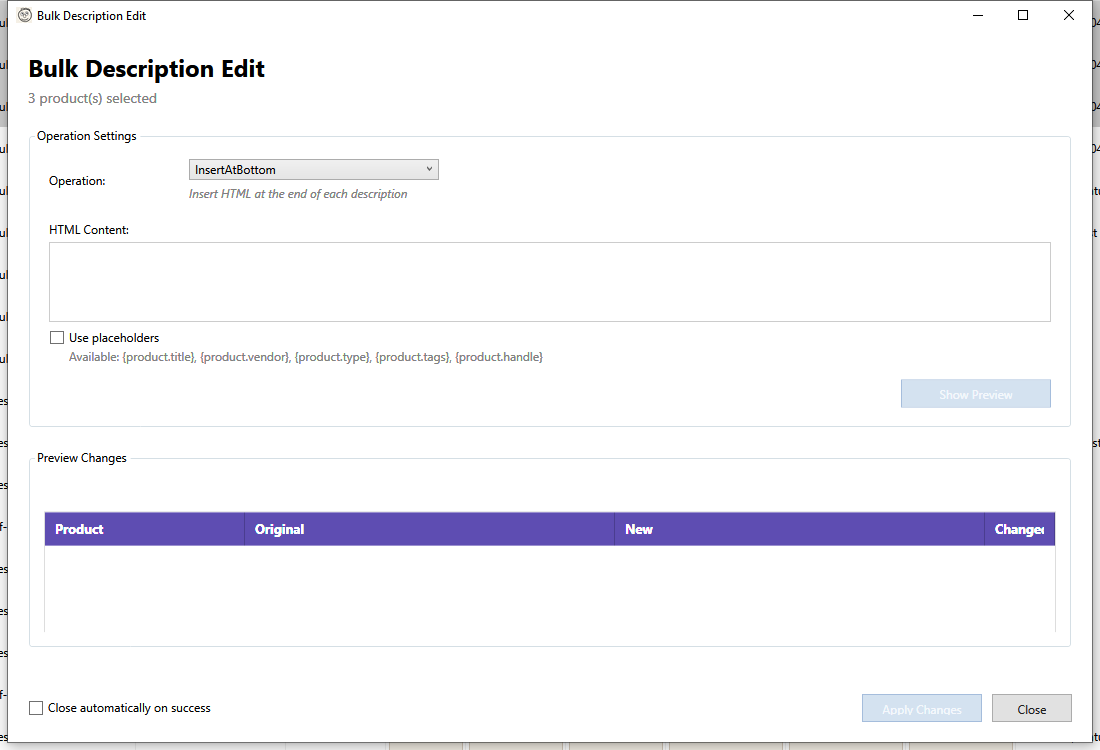
The Bulk Description Edit feature allows you to modify product descriptions for multiple products simultaneously using various operations.
Opening Bulk Description Edit
- Select one or more products in the grid
- Open using one of these methods:
- Click Targeted Bulk Edit > Description in the toolbar
- Right-click and select Bulk Description Edit
Description Operations
| Operation | Description | Use Case |
|---|---|---|
| Insert at Top | Add HTML at the beginning | Add promotional banner |
| Insert at Bottom | Add HTML at the end | Add warranty info, shipping notes |
| Find & Replace | Replace text (literal or regex) | Update outdated information |
| Find & Remove | Delete matching text | Remove old promotional text |
| Replace Entire | Replace whole description | Standardize descriptions |
| Remove Empty Tags | Clean up HTML | Remove empty <p>, <div>, etc. |
Insert Operations
Insert at Top
Add content before existing description:
- Select "Insert at Top"
- Enter HTML to insert
- Preview and apply
Example: Add a "New Arrival" banner to selected products.
Insert at Bottom
Append content after existing description:
- Select "Insert at Bottom"
- Enter HTML to insert
- Preview and apply
Example: Add shipping information or size charts.
Find and Replace
Literal Replace
Replace exact text matches:
- Select "Find & Replace"
- Enter text to find
- Enter replacement text
- Leave "Use Regex" unchecked
- Preview and apply
Regex Replace
Use regular expressions for complex patterns:
- Select "Find & Replace"
- Enter regex pattern
- Enter replacement (can use capture groups)
- Check "Use Regex"
- Preview and apply
Common regex examples:
| Pattern | Matches | Replacement | Result |
|---|---|---|---|
\d{4} |
Years like 2023 | 2025 | Updates years |
<br\s*/?> |
Break tags | <br /> |
Standardizes breaks |
\s+ |
Multiple spaces | |
Single space |
(?i)free shipping |
Case-insensitive | Fast Shipping | Updates text |
Case Sensitivity
- Literal mode - Case-sensitive by default
- Check "Ignore Case" for case-insensitive matching
- Regex mode - Use
(?i)flag for case-insensitive
Find and Remove
Delete matching text without replacement:
- Select "Find & Remove"
- Enter text/pattern to remove
- Toggle "Use Regex" as needed
- Preview and apply
Example: Remove old promotional text like "Summer Sale 2023"
Replace Entire Description
Replace complete descriptions:
- Select "Replace Entire"
- Enter new description HTML
- Use placeholders for dynamic content
- Preview and apply
Warning: This completely replaces existing descriptions.
Placeholders
Available placeholders for dynamic content:
| Placeholder | Replaced With |
|---|---|
{product.title} |
Product title |
{product.vendor} |
Vendor name |
{product.type} |
Product type |
{product.tags} |
Comma-separated tags |
{product.handle} |
URL handle |
Example template:
<h2>{product.title}</h2>
<p>By {product.vendor}</p>
<p>Category: {product.type}</p>
Remove Empty Tags
Clean up HTML by removing empty elements:
- Select "Remove Empty Tags"
- Preview shows affected descriptions
- Apply to clean all
Removes:
<p></p>- Empty paragraphs<div></div>- Empty divs<span></span>- Empty spans<strong></strong>- Empty formatting- Nested empty elements
Preview
Always preview before applying:
- Configure your operation
- Click Preview
- Review each product's before/after
The preview shows:
- Product - Product title
- Before - Original description (truncated)
- After - New description (truncated)
- Changed - Whether the description will change
Applying Changes
- Review the preview
- Click Apply
- Confirm when prompted
- Wait for changes to sync
A backup is automatically created before applying.
HTML Best Practices
Do Use
- Semantic tags:
<h2>,<p>,<ul>,<li> - Simple formatting:
<strong>,<em> - Links:
<a href="..."> - Line breaks:
<br />
Avoid
- JavaScript (will be stripped)
- External CSS files
- Inline styles (may be modified)
<iframe>elements
Restoring from Backup
If you need to undo changes:
- Go to Toolbar > Recovery > Undo Field Changes
- Filter by "Description" type
- Find the backup by date/time
- Click Restore
- Select items to restore (or all)
Troubleshooting
"No matches found"
- Check spelling and case sensitivity
- Try a simpler search pattern
- Verify the text exists in descriptions
"Regex error"
Common regex issues:
- Escape special characters:
\.\$\( - Check bracket matching
- Test regex on a single product first
"HTML looks different after save"
Shopify sanitizes HTML:
- Some tags may be removed
- Styles may be modified
- JavaScript is always stripped
"Changes not applying"
- Check for API errors in the log
- Verify internet connection
- Try smaller batches