Bulk Field Edit
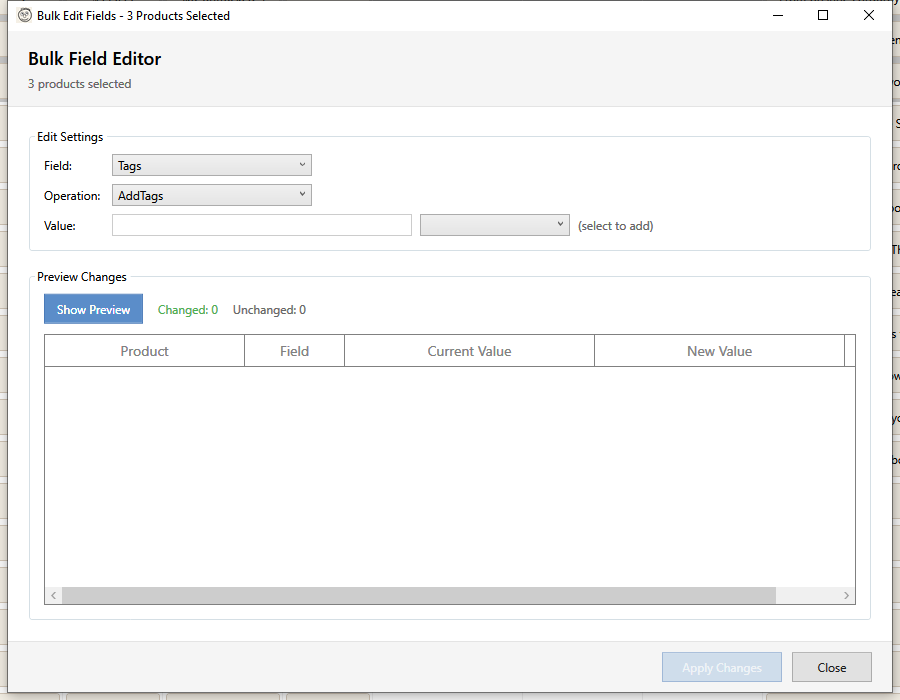
The Bulk Field Edit feature allows you to modify common product fields across multiple products simultaneously.
Opening Bulk Field Edit
- Select one or more products in the grid
- Open using one of these methods:
- Click Targeted Bulk Edit > Tags/Status/Vendor in the toolbar
- Right-click and select Bulk Field Edit
Available Fields
| Field | Description | Operations |
|---|---|---|
| Tags | Product tags/labels | Add, Remove, Replace, Clear |
| Status | Publication status | Set to Active/Draft/Archived |
| Vendor | Brand or manufacturer | Set, Clear |
| Product Type | Category/classification | Set, Clear |
| Title | Product title | Set, Add Prefix, Add Suffix, Find & Replace |
| Template Suffix | Theme template override | Set, Clear |
| Category | Shopify product taxonomy category | Set |
| Publications | Sales channel visibility | Publish To, Unpublish From, Set To Exactly, Unpublish All |
Tag Operations
Add Tags
Append tags without removing existing:
- Select "Tags" field
- Choose "Add Tags" operation
- Enter tags (comma-separated)
- Preview and apply
Example: Add "sale, featured" to selected products.
Remove Tags
Remove specific tags while keeping others:
- Select "Tags" field
- Choose "Remove Tags" operation
- Enter tags to remove (comma-separated)
- Preview and apply
Example: Remove "summer-sale" from products.
Replace Tags
Replace all existing tags:
- Select "Tags" field
- Choose "Replace Tags" operation
- Enter new tags (comma-separated)
- Preview and apply
Warning: This removes all existing tags.
Clear Tags
Remove all tags from products:
- Select "Tags" field
- Choose "Clear Tags" operation
- Preview and apply
Status Operations
Change product publication status:
| Status | Description |
|---|---|
| Active | Visible in online store |
| Draft | Hidden, work in progress |
| Archived | Discontinued, hidden |
Set Status
- Select "Status" field
- Choose the target status
- Preview and apply
Common uses:
- Draft → Active: Publish new products
- Active → Draft: Temporarily hide products
- Active → Archived: Discontinue products
Vendor Operations
Set Vendor
Assign or update the vendor name:
- Select "Vendor" field
- Choose "Set To" operation
- Enter vendor name
- Preview and apply
Clear Vendor
Remove vendor from products:
- Select "Vendor" field
- Choose "Clear" operation
- Preview and apply
Product Type Operations
Set Product Type
Assign or update product type:
- Select "Product Type" field
- Choose "Set To" operation
- Enter product type
- Preview and apply
Example: Set all selected products to "Accessories"
Clear Product Type
Remove product type:
- Select "Product Type" field
- Choose "Clear" operation
- Preview and apply
Title Operations
Bulk edit product titles with four operation modes:
Set Title
Replace all selected product titles with a specific value:
- Select "Title" field
- Choose "Set To" operation
- Enter the new title
- Preview and apply
Add Prefix
Add text to the beginning of each product title:
- Select "Title" field
- Choose "Add Prefix" operation
- Enter the prefix text (e.g., "[SALE] ")
- Preview and apply
Example: "Widget" becomes "[SALE] Widget"
Add Suffix
Add text to the end of each product title:
- Select "Title" field
- Choose "Add Suffix" operation
- Enter the suffix text (e.g., " - On Sale")
- Preview and apply
Example: "Widget" becomes "Widget - On Sale"
Find & Replace
Find and replace text within product titles:
- Select "Title" field
- Choose "Find & Replace" operation
- Enter the text to find and the replacement text
- Preview and apply
Example: Replace "2025" with "2026" in all selected product titles.
Template Suffix Operations
The template suffix controls which Shopify theme template is used to render the product page. By default, products use the standard product template, but custom templates (e.g., product.special) can be assigned.
Set Template Suffix
- Select "Template Suffix" field
- Choose "Set To" operation
- Enter the template suffix (e.g.,
special,landing-page) - Preview and apply
Clear Template Suffix
Reset products to use the default product template:
- Select "Template Suffix" field
- Choose "Clear" operation
- Preview and apply
Category Operations
Set the Shopify product taxonomy category for selected products. This is the standardized product category used by Shopify for tax calculations, reporting, and marketplace integrations.
Set Category
- Select "Category" field
- Choose the target category from the taxonomy browser
- Preview and apply
Example: Set all selected products to "Apparel & Accessories > Clothing > Shirts & Tops"
Publications / Sales Channels
Control which sales channels your products are visible on. This operates on Shopify publication channels such as Online Store, Point of Sale, Instagram, Facebook, TikTok, and Google.
Publish To
Add products to specific sales channels without affecting their visibility on other channels:
- Select "Publications" field
- Choose "Publish To" operation
- Select the target channels
- Preview and apply
Example: Make selected products visible on Instagram and Facebook while keeping their existing Online Store visibility unchanged.
Unpublish From
Remove products from specific sales channels without affecting other channels:
- Select "Publications" field
- Choose "Unpublish From" operation
- Select the channels to remove from
- Preview and apply
Example: Remove selected products from the Point of Sale channel.
Set To Exactly
Set product visibility to exactly the selected channels, removing them from any channels not selected:
- Select "Publications" field
- Choose "Set To Exactly" operation
- Select the channels the products should be visible on
- Preview and apply
Warning: Products will be unpublished from any channel that is not selected. Use this when you want precise control over exactly which channels display the product.
Unpublish All
Remove products from all sales channels:
- Select "Publications" field
- Choose "Unpublish All" operation
- Preview and apply
Warning: This makes the products invisible on all sales channels. The products remain in your Shopify admin but are not displayed anywhere to customers.
Preview
Before applying changes:
- Configure field and operation
- Click Preview
- Review each product's change
Preview columns:
- Product - Product title
- Current Value - Existing field value
- New Value - Value after change
- Status - Whether it will change
Applying Changes
- Review the preview carefully
- Click Apply
- Confirm when prompted
- Wait for sync to complete
A backup is created automatically before applying.
Product Metafields Tab
The Bulk Product Fields window includes a Metafields tab for editing product-level metafield values in bulk.
Supported Operations
| Operation | Description |
|---|---|
| Set | Set metafield to a specific value |
| Clear | Remove metafield value |
| Increase | Increase numeric metafield (number_integer, number_decimal) |
| Decrease | Decrease numeric metafield |
Supported Metafield Types
All product metafield types defined in your store are available, including text, numeric, boolean, date, money, rating, measurement, colour, URL, JSON, rich text, references, and list types.
How It Works
- Switch to the Metafields tab
- Select the metafield from the dropdown
- Choose the operation (Set, Clear, Increase, Decrease)
- Enter the new value (editor adapts to the metafield type)
- Click Preview to see current vs new values
- Click Apply to save changes
Values are validated against the metafield type and any defined validation rules before applying. A backup is created automatically.
Best Practices
Tags
- Use consistent tag naming (lowercase, no spaces)
- Create a tag taxonomy for your store
- Use tags for filtering and collections
- Remove outdated promotional tags
Status
- Use Draft for incomplete products
- Test with Draft before publishing
- Archive instead of delete for history
- Batch publish for coordinated launches
Vendor
- Use consistent vendor names
- Match exactly for filtering
- Use official brand names
- Keep capitalization consistent
Product Type
- Use a consistent category structure
- Match Shopify's product taxonomy when possible
- Use for collections and navigation
- Keep types specific but not too granular
Tag Suggestions
Common tag categories:
| Category | Examples |
|---|---|
| Season | spring, summer, fall, winter |
| Promotion | sale, clearance, new-arrival |
| Collection | best-seller, featured, gift-guide |
| Attribute | eco-friendly, handmade, limited-edition |
| Size | plus-size, petite, extended-sizes |
Restoring from Backup
If you need to undo changes:
- Go to Toolbar > Recovery > Undo Field Changes
- Filter by "Field" type
- Find the backup by date/time
- Click Restore
- Select items to restore
Troubleshooting
"No products selected"
Select at least one product before opening Bulk Field Edit.
"Tags not appearing in collection"
- Collection rules may use different conditions
- Check collection's tag requirements
- Tags are case-sensitive in collections
"Status change not visible"
- Clear browser cache on storefront
- Allow time for CDN propagation
- Verify change saved in Shopify admin
"Vendor/Type filter not working"
- Exact match required for filters
- Check for trailing spaces
- Verify the value saved correctly
Keyboard Shortcuts
| Shortcut | Action |
|---|---|
| Tab | Move between fields |
| Enter | Apply operation |
| Escape | Close dialog |