Bulk Price Edit
The Bulk Price Edit feature allows you to modify prices for multiple products simultaneously, saving hours of manual work.
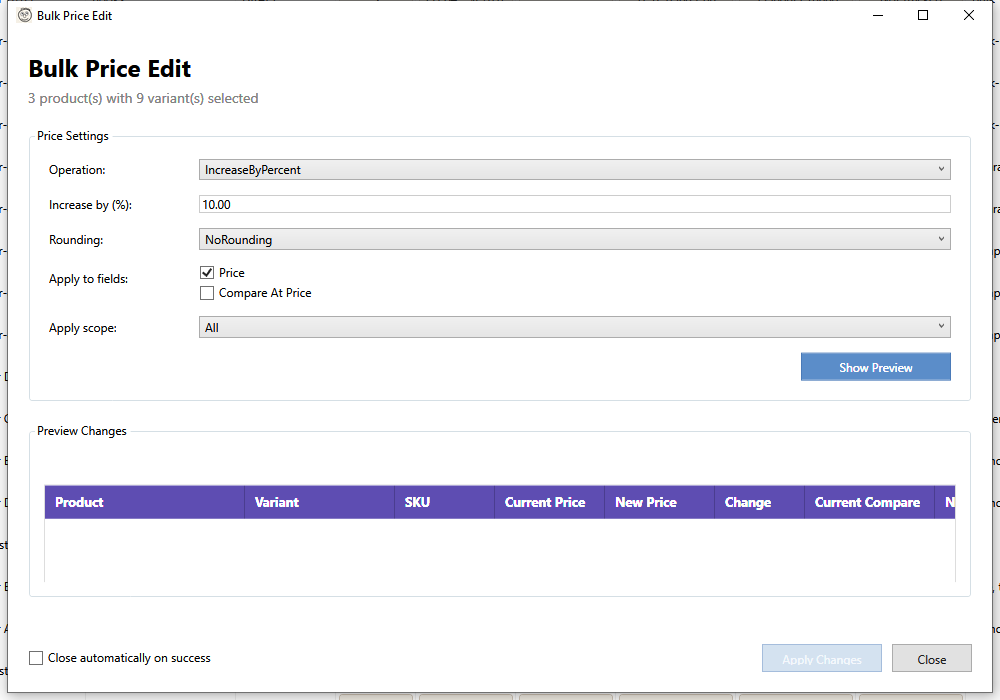
Opening Bulk Price Edit
- Select one or more products in the grid
- Open using one of these methods:
- Click Targeted Bulk Edit > Prices in the toolbar
- Right-click and select Bulk Price Edit
- Use the keyboard shortcut (if configured)
Price Operations
| Operation | Description | Example |
|---|---|---|
| Increase by % | Increase prices by a percentage | 10% increase: $100 → $110 |
| Decrease by % | Decrease prices by a percentage | 10% decrease: $100 → $90 |
| Increase by amount | Add a fixed amount to all prices | +$5: $100 → $105 |
| Decrease by amount | Subtract a fixed amount | -$5: $100 → $95 |
| Set to | Set all prices to a specific value | Set to $50: all become $50 |
| Round to | Round prices to nearest value | Round to 0.99: $10.45 → $10.99 |
Compare-at Price Options
You can also modify compare-at prices (original/strikethrough prices):
- Keep unchanged - Don't modify compare-at prices
- Clear all - Remove all compare-at prices
- Set to current price - Copy current prices before changing
- Apply same operation - Apply the same % or amount change
Preview Changes
Before applying changes, always preview:
- Configure your operation and value
- Click Preview
- Review the calculated changes in the grid
The preview shows:
- Product/Variant - Which items will be affected
- Current Price - The existing price
- New Price - The calculated new price
- Change - The difference (amount and percentage)
Applying Changes
- Review the preview carefully
- Click Apply
- Confirm the operation when prompted
- Wait for changes to sync to Shopify
Note: A backup is automatically created before applying changes. You can restore from the Backup Manager if needed.
Rounding Options
Control how final prices are rounded:
| Option | Example |
|---|---|
| No rounding | $10.456 → $10.46 |
| Round to .00 | $10.45 → $10.00 |
| Round to .99 | $10.45 → $10.99 |
| Round to .95 | $10.45 → $10.95 |
| Round to .50 | $10.45 → $10.50 |
Scope Options
Choose which products to modify:
- Selected products only - Only the products you selected
- All variants - All variants of selected products
- Specific variants - Choose which variants to include
Currency Display
HF Product Manager displays prices using your store's currency symbol. When you connect a store, its currency (USD, EUR, GBP, etc.) is fetched from Shopify and the appropriate symbol is displayed in all price dialogs and warnings.
Supported currencies include USD (\(), EUR (€), GBP (£), JPY (¥), CAD (C\)), AUD (A$), and 25+ others.
Best Practices
- Always preview first - Review changes before applying
- Start small - Test with a few products before bulk operations
- Use backups - Know how to restore if something goes wrong
- Consider timing - Major price changes may affect active orders
- Round appropriately - Prices like $9.99 look better than $9.87
Restoring from Backup
If you need to undo changes:
- Go to Toolbar > Recovery > Undo Field Changes
- Find the backup (listed by date/time)
- Select the backup and click Restore
- Confirm the restoration
Troubleshooting
"No products selected"
Select at least one product in the grid before opening Bulk Price Edit.
"Invalid value"
Enter a valid number for the price operation. Percentages should be positive numbers (e.g., 10 for 10%).
"Some products failed to update"
Check the error log for details. Common causes:
- Network connectivity issues
- Product was deleted on Shopify
- API rate limiting (try again in a moment)