Product Grid
The Product Grid is the main interface for viewing and managing your Shopify products. It displays all products from your connected store with key information at a glance.
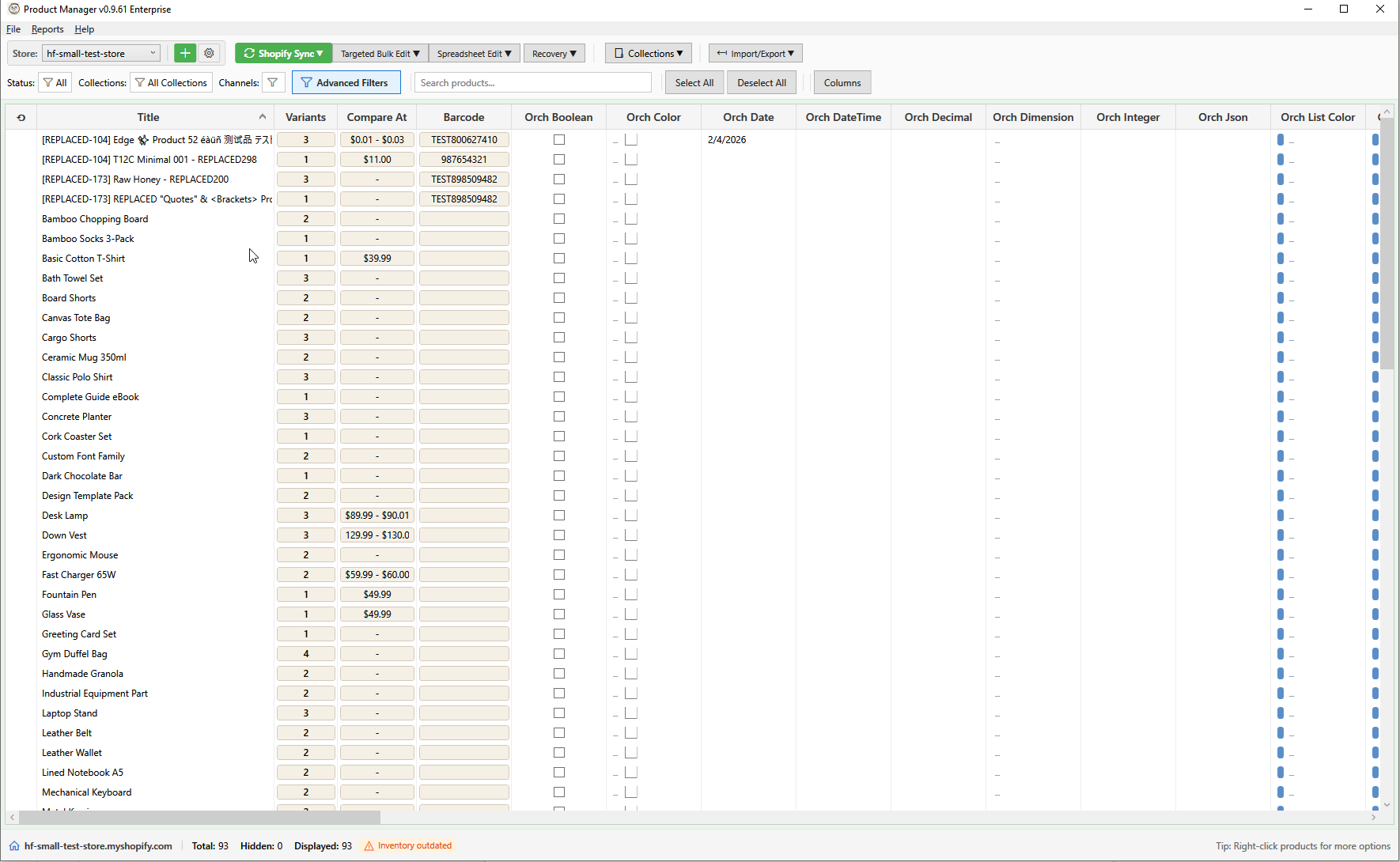
Toolbar
The compact toolbar provides quick access to all major functions:
Store Selection
The store dropdown on the left shows your connected Shopify stores:
- Click to switch between stores
- Add Store (+) button to connect a new store
- Manage Stores button to edit or remove stores
Sync Dropdown
Control product synchronization:
| Button | Action |
|---|---|
| Sync Now | Fetch changes since last sync |
| Full Sync | Reload all products from Shopify |
| Refresh Inventory | Update only inventory levels |
| Clear Cache | Clear local cache and reload |
Bulk Actions Dropdown
Access all bulk editing features:
- Bulk Price Edit
- Bulk Inventory Edit
- Bulk Description Edit
- Bulk Field Edit (tags, status, vendor, type)
- Bulk Variant Fields
- Bulk SEO Edit
- AI Descriptions
- AI Titles
Collections Dropdown
Manage collection membership:
- Manage Collections - Open Collection Manager
- Add to Collection - Add selected products to a collection
- Remove from Collection - Remove selected from a collection
Import/Export Dropdown
Data import and export:
- Import Products - Import from CSV/Excel
- Import Variants - Import variant data
- Import Images - Bulk import images
- Export Products - Export to CSV/Excel
Grid Columns
The default columns shown in the grid:
| Column | Description |
|---|---|
| Image | Product thumbnail (click to open Media Editor) |
| Title | Product title (editable) |
| Status | Active, Draft, or Archived |
| Price | Primary variant price (editable) |
| Compare At | Compare-at/original price (editable) |
| Inventory | Total inventory across all variants |
| Variants | Number of variants |
| Type | Product type |
| Vendor | Product vendor |
Customizing Columns
- Click View > Column Settings (or right-click the column header)
- Check/uncheck columns to show/hide
- Drag columns to reorder
- Click Save to apply changes
Selecting Products
| Action | Method |
|---|---|
| Single select | Click a row |
| Add to selection | Ctrl+Click a row |
| Range select | Click first row, Shift+Click last row |
| Select all | Click Select All button or Ctrl+A |
| Deselect all | Click Deselect All or Escape |
The selection count is shown in the toolbar: "3 products selected"
Inline Editing
Edit product fields directly in the grid:
- Double-click an editable cell
- Make your changes
- Press
Enterto confirm orEscapeto cancel - Modified cells show a yellow highlight
- Click Save Changes (
Ctrl+S) to sync to Shopify
Editable columns:
- Title
- Price
- Compare-at Price
- Inventory (if single location)
Sorting
Click any column header to sort:
- First click: Sort ascending (A-Z, low-high)
- Second click: Sort descending (Z-A, high-low)
- Third click: Remove sort
Multi-column sort: Hold Ctrl and click additional columns.
Grouping
Group products by a column:
- Drag a column header to the grouping area (above the grid)
- Products are grouped by that column's values
- Click group headers to expand/collapse
- Drag the column back to ungroup
Context Menu
Right-click any row for quick actions:
- Copy to Store - Transfer selected products to another connected store
- Bulk Inventory Edit - Open inventory editor for selection
- Bulk Price Edit - Open price editor for selection
- Bulk Description Edit - Open description editor for selection
- Bulk Field Edit - Open field editor for selection
- Bulk Variant Field Edit - Open variant field editor
- Activate at Location - Enable inventory at a location
- Spreadsheet Edit - Variants - Open variant grid editor (shortcut: E)
- Add to Collection - Add selected to a collection
- Remove from Collection - Remove selected from a collection
- Resync from Shopify - Re-download selected products from Shopify
- Delete Products - Delete selected products (creates backup first)
- View in Shopify Admin - Open product in Shopify admin panel
- View in Storefront - Open product in your online store
Keyboard Shortcuts
| Shortcut | Action |
|---|---|
Ctrl+F |
Focus search box |
Ctrl+A |
Select all products |
Ctrl+S |
Save all changes |
E |
Open Variant Grid Editor for selected products |
Enter |
Open Description Editor for selected product |
Delete |
Delete selected products |
Escape |
Deselect all / cancel editing |
F5 |
Refresh products from Shopify |
Ctrl+/ |
Keyboard shortcuts reference |
F1 |
Open help |
Copy and Paste
The grid supports clipboard operations for quick data entry:
- Ctrl+C copies the selected cell value to the clipboard
- Ctrl+V pastes clipboard content into the selected cell
- Multi-row paste is supported: copy a column of values from Excel or a spreadsheet, select the starting cell in the grid, and paste. Values are applied row by row down the column.
- Pasted values are validated against the target column type (text, number, metafield type, etc.). Invalid values are skipped with an error summary.
- Read-only columns (Handle, ID, Created Date, etc.) reject paste operations.
- Metafield columns validate against their declared type and any definition constraints.
Performance
For large catalogs:
- Products load in batches automatically
- Scroll to load more products
- Use filters to reduce the visible set
- The status bar shows: "Showing 250 of 5,000 products"
Status Bar
The status bar at the bottom shows:
- Connected store - The active store domain
- Product counts - Total, hidden (filtered out), and displayed product counts
- Inventory sync status - Last inventory sync time
- Stale inventory warning - Orange clickable warning when inventory data is older than 24 hours (click to refresh)
- Status messages - Current operation status or helpful tips