Search and Filter
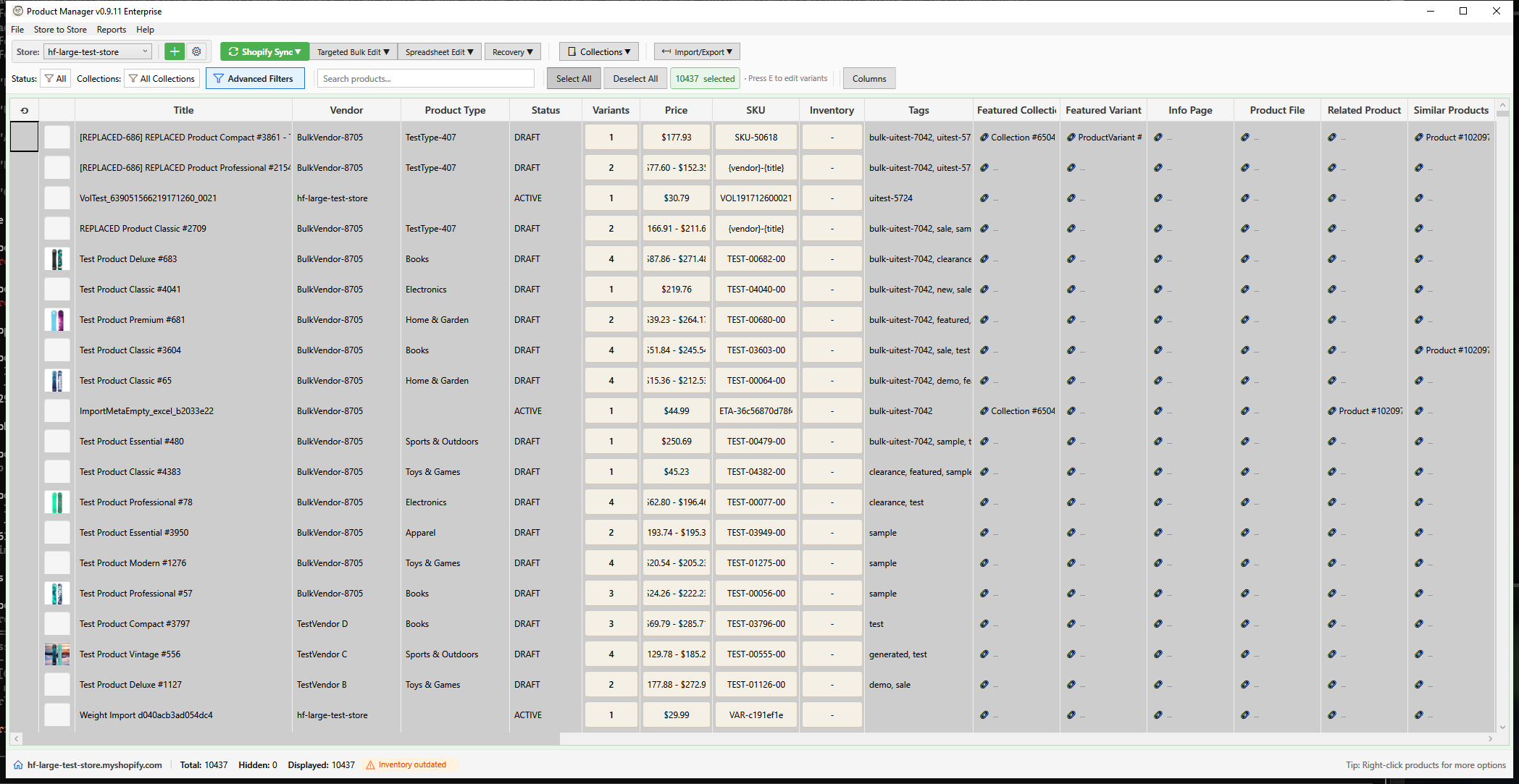
HF Product Manager provides powerful search and filtering capabilities to help you quickly find the products you need.
Quick Search
The search box at the top of the product grid allows you to search across multiple fields simultaneously.
How to Search
- Click in the search box or press Ctrl+F
- Type your search term
- Press Enter or wait for auto-search
- Results filter automatically
Searchable Fields
The quick search looks in these fields:
- Title - Product name
- SKU - Stock keeping unit codes
- Vendor - Product vendor/brand
- Product Type - Category classification
- Handle - URL slug
- Barcode - UPC, EAN, or ISBN codes
Search Tips
- Search is case-insensitive: "shirt" finds "Shirt" and "SHIRT"
- Use partial matches: "blue" finds "Blue T-Shirt" and "Navy Blue Pants"
- Multiple words search for products containing all terms
Status Filter
Filter products by their publication status using the dropdown:
| Status | Description |
|---|---|
| All | Show all products regardless of status |
| Active | Products visible in your online store |
| Draft | Unpublished products not yet live |
| Archived | Discontinued products hidden from store |
Collection Filter
Filter products by collection membership:
- Click the Collection Filter button (dropdown in toolbar)
- Choose a filter option:
| Option | Shows |
|---|---|
| All Collections | All products regardless of collection |
| Not in a Collection | Products not assigned to any collection |
| [Collection Name] | Products in the selected collection |
The filter applies immediately when you select an option.
Tag Filter
Filter by product tags using the tag dropdown:
- Click the Tag Filter button
- Search for tags using the search box
- Select one or more tags
- Products matching ANY selected tag appear
Tags are sourced from all products in your catalog.
Advanced Filter
For complex filtering needs, use the Advanced Filter dialog:
- Click Filter in the toolbar or press Ctrl+Shift+F
- Configure filter criteria
- Click Apply
For full details on advanced filtering, see Advanced Filter.
Available Filter Criteria
The Advanced Filter supports product fields, variant fields, metafields, and more:
Product Fields:
| Field | Type | Example |
|---|---|---|
| Title, Vendor, Product Type, Tags, Handle, Template Suffix | Text | Title contains "Summer" |
| Price, Compare At Price, Inventory Qty | Numeric | Price > $50 |
| Created At, Updated At, Published At | Date | Created after 2025-01-01 |
| Status | Selection | Status = Active |
| Has Images, Is Gift Card | Boolean | Has images = No |
| Total Sales, Total Revenue, Total Orders | Sales data | Revenue > $1000 |
Variant Fields:
| Field | Type | Example |
|---|---|---|
| Variant SKU, Variant Barcode, Variant Title, HS Code, Country of Origin | Text | SKU starts with "PROD-" |
| Variant Price, Variant Compare At, Variant Weight, Variant Cost | Numeric | Weight > 1.0 |
| Variant Taxable | Boolean | Taxable = Yes |
Metafield Fields: All product and variant metafield definitions are available as filter fields. The operator type adapts to the metafield type (text operators for text fields, numeric operators for number fields, etc.). Use ~empty and ~filled operators to find products with or without metafield values.
For complete filter documentation, see Advanced Filter.
Combining Filters
- Multiple criteria are combined with AND logic
- All conditions must be true for a product to appear
- Use the Clear button to remove all filters
Sorting
Click any column header to sort:
- First click - Sort ascending (A-Z, low to high)
- Second click - Sort descending (Z-A, high to low)
- Third click - Remove sort
Multi-Column Sort
Hold Ctrl while clicking column headers to sort by multiple columns.
Saved Filters
Save frequently used filter combinations:
- Configure your filters
- Click Save Filter
- Enter a name
- Access saved filters from the dropdown
Clearing Filters
To show all products again:
- Click the Clear button in the filter area
- Or select "All" from the Status dropdown
Performance Tips
For large catalogs:
- Use specific searches - More specific = faster results
- Filter by status first - Reduces the working set
- Use collection filters - Leverages indexed data
- Avoid "contains" on large fields - Use "starts with" when possible
Keyboard Shortcuts
| Shortcut | Action |
|---|---|
| Ctrl+F | Focus search box |
| Escape | Clear search box |