Advanced Product Filter
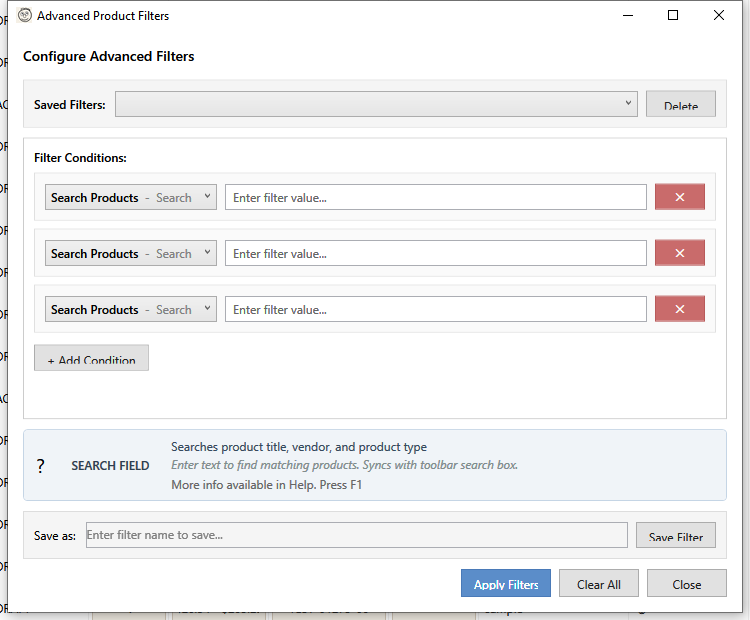
The Advanced Filter allows you to create complex, multi-condition filters to find exactly the products you need. Filter by product fields, variant attributes, and metafield values. Save frequently-used filters for quick access.
Opening the Filter
- Click the Filter button in the toolbar (funnel icon)
- Or use keyboard shortcut
Filter Interface
Saved Filters
At the top, select from previously saved filters:
- Choose a saved filter from the dropdown
- Click Delete to remove a saved filter
- Loading a saved filter populates all conditions
Filter Conditions
Each condition consists of:
- Field - Which attribute to filter (grouped by Product, Variant, Metafield)
- Value/Operator - The filter criteria
Add multiple conditions to narrow results.
Product Fields
Text Fields
| Field | Description | Example Values |
|---|---|---|
| Search Products | Searches title, vendor, and product type (syncs with toolbar) | "Blue Widget" |
| Title | Product name | "Summer Dress" |
| Vendor | Brand/manufacturer | "Nike", "Apple" |
| Product Type | Category | "Shirts", "Electronics" |
| Handle | URL slug | "blue-widget-large" |
| Category | Shopify product taxonomy category | "Apparel" |
| Template Suffix | Theme template override | "product.landing-page" |
Numeric/Price Fields
| Field | Description | Example Values |
|---|---|---|
| Price | Product price | "29.99", ">50", "10-100" |
| Compare At Price | Original/sale price | ">0" (has compare price) |
| Total Inventory | Stock quantity | "<10", "0", ">=100" |
Boolean Fields
| Field | Description | Options |
|---|---|---|
| Gift Card | Whether product is a gift card | Yes, No |
Status & Selection Fields
| Field | Description | Options |
|---|---|---|
| Product Status | Publication status | Active, Draft, Archived (multi-select) |
| Collection | Collection membership | Multi-select with "Not in any collection" option |
| Tag | Product tags | Searchable multi-select |
Date Fields
| Field | Description |
|---|---|
| Created Date | When product was created |
| Updated Date | Last modification date |
| Published Date | When product went live |
Sales Fields (requires sales sync)
| Field | Description |
|---|---|
| Units Sold | Units sold in date range |
| Sales Revenue | Net revenue in date range |
| Order Count | Number of orders in date range |
| Days Since Sale | Days since last sale |
Variant Fields
Filter products by their variant attributes. Products match if any variant meets the criteria.
Variant Text Fields
| Field | Description |
|---|---|
| Country of Origin | 2-letter country code |
| HS Code | Harmonized System code |
| Tax Code | Variant tax code |
| Inventory Policy | DENY or CONTINUE |
Variant Numeric Fields
| Field | Description |
|---|---|
| Weight | Variant weight |
| Cost | Cost per item |
Variant Boolean Fields
| Field | Description | Options |
|---|---|---|
| Taxable | Whether variant is taxable | Yes, No |
| Requires Shipping | Whether variant requires shipping | Yes, No |
Metafield Fields
Filter by any product or variant metafield defined in your store. Metafield filters appear dynamically based on your store's metafield definitions.
Product Metafields
Product metafields appear in the field dropdown under a Product Metafields group. The filter type adapts to the metafield's data type:
| Metafield Type | Filter Behaviour |
|---|---|
single_line_text_field, multi_line_text_field, url, color |
Text operators (contains, exact, exclude) |
number_integer |
Numeric operators (>, >=, <, <=, =, range) |
number_decimal, money, rating, weight, dimension, volume |
Decimal operators (>, >=, <, <=, =, range) |
boolean |
Yes/No dropdown |
date, date_time |
Date range picker |
rich_text_field, json |
Text operators |
Reference types (product_reference, etc.) |
Text operators + empty/filled |
Variant Metafields
Variant metafields appear under a Variant Metafields group. Products match if any variant has a matching metafield value.
Metafield-Specific Operators
All metafield filters support these special operators:
- ~empty -- Find products where the metafield has no value set (null or blank)
- ~filled -- Find products where the metafield has any value
For numeric and decimal metafields (number_integer, number_decimal, money, rating, weight, dimension, volume), you can also use range syntax:
| Syntax | Meaning | Example |
|---|---|---|
min-max |
Value falls within range (inclusive) | 10-100 matches 10, 50, 100 |
>number |
Greater than | >25.00 |
~empty |
No value set | Finds products without a value |
~filled |
Has any value | Finds products with any value |
For JSON-based numeric types (money, rating, weight, dimension, volume), the filter automatically extracts the numeric value from the JSON structure. For example, filtering a money metafield with >50 checks the amount field inside the JSON.
Filter Syntax
Text Field Operators
| Syntax | Meaning | Example |
|---|---|---|
value |
Contains | blue matches "Blue Widget" |
=value |
Exact match | =Blue matches only "Blue" |
!=value |
Does not contain | !=draft excludes drafts |
~empty |
Field is empty | Finds products with no value |
~filled |
Field has a value | Finds products with any value |
Numeric Field Operators
| Syntax | Meaning | Example |
|---|---|---|
number |
Equals | 100 matches price of 100 |
>number |
Greater than | >50 matches 51+ |
>=number |
Greater or equal | >=50 matches 50+ |
<number |
Less than | <10 matches 0-9 |
<=number |
Less or equal | <=10 matches 0-10 |
!=number |
Not equal | !=0 excludes zero |
min-max |
Range | 10-50 matches 10 to 50 |
~empty |
No value set | Finds empty fields |
~filled |
Has any value | Finds non-empty fields |
Date Field Selection
For date fields, use the date picker:
- From date - Start of range
- To date - End of range
- Leave either blank for open-ended range
Sales Field Syntax
Sales fields use a threshold value with an optional date range to scope the sales period.
Threshold value: Enter a number with a comparison operator. Supported operators:
| Syntax | Meaning | Example |
|---|---|---|
>number |
Greater than | >10 (more than 10 units) |
>=number |
Greater or equal | >=100 (at least 100 units) |
<number |
Less than | <5 (fewer than 5 units) |
<=number |
Less or equal | <=0 (no sales) |
=number |
Equals | =0 (exactly zero) |
number |
Equals (shorthand) | 0 (same as =0) |
For revenue fields, decimal values are supported (e.g., >99.99).
Date range (optional): Use the From and To date pickers to limit the sales period. Leave both blank to use all available sales data. Leave one blank for an open-ended range (e.g., From only = "since this date").
When multiple sales conditions are applied, they use AND logic and share the widest date range.
Example: Find products with more than 100 units sold in Q4 2025:
Field: Units Sold
Value: >100
From: 2025-10-01
To: 2025-12-31
Using Multiple Conditions
Adding Conditions
- Click + Add Condition
- Select field from dropdown (fields are grouped by category)
- Enter value/criteria
- Repeat for additional conditions
Condition Logic
All conditions use AND logic:
- Product must match ALL conditions to appear
- More conditions = narrower results
Removing Conditions
Click the X button on any condition to remove it.
Saving Filters
Save Current Filter
- Configure your conditions
- Enter a name in "Save as" field
- Click Save Filter
Using Saved Filters
- Select from "Saved Filters" dropdown
- Conditions auto-populate
- Modify if needed
- Apply or save as new name
Deleting Saved Filters
- Select the filter to delete
- Click Delete button
- Filter is removed from list
Common Filter Examples
Low Stock Items
Field: Total Inventory
Value: <10
High-Value Products
Field: Price
Value: >100
Recent Products
Field: Created Date
From: [30 days ago]
To: [today]
Inactive Products
Field: Product Status
Value: Draft
Products by Tag
Field: Tag
Value: [Select "Sale", "Featured"]
Uncategorized Products
Field: Collection
Value: [Not in any collection]
Best Sellers (requires sales sync)
Field: Units Sold
Value: >50
From: [start of quarter]
To: [today]
Heavy Variants (variant field)
Field: Weight (Variant)
Value: >5
Products with Empty Metafield
Field: custom.material (Product Metafield)
Value: ~empty
Taxable Variants Only
Field: Taxable (Variant)
Value: Yes
Field-Specific Help
When you select a field, the help panel shows:
- Field type (Text, Numeric, Date, Boolean)
- Available operators for that type
- Examples of valid input
The help panel updates dynamically as you work.
Validation
Invalid Input
Invalid filter values show:
- Red border on input field
- Warning icon
- Tooltip with error message
Common Validation Errors
| Error | Cause | Fix |
|---|---|---|
| "Invalid number" | Text in numeric field | Enter numbers only |
| "Invalid date range" | From after To | Swap dates |
| "Empty value" | No criteria entered | Enter a value |
Best Practices
Building Effective Filters
- Start broad - Begin with one condition
- Add gradually - Add conditions one at a time
- Check results - Apply and verify after each addition
- Save useful filters - Don't recreate complex filters
- Use ~empty/~filled - Quickly find products with missing data
Filter Performance
- Simple filters are fastest
- Text "contains" is slower than "equals"
- Variant and metafield filters check all variants per product
Organizing Saved Filters
- Use descriptive names
- Include criteria in name (e.g., "Low Stock < 10")
- Delete unused filters
Keyboard Shortcuts
| Shortcut | Action |
|---|---|
| Enter | Apply filters |
| Escape | Cancel / Close |