Description Editor
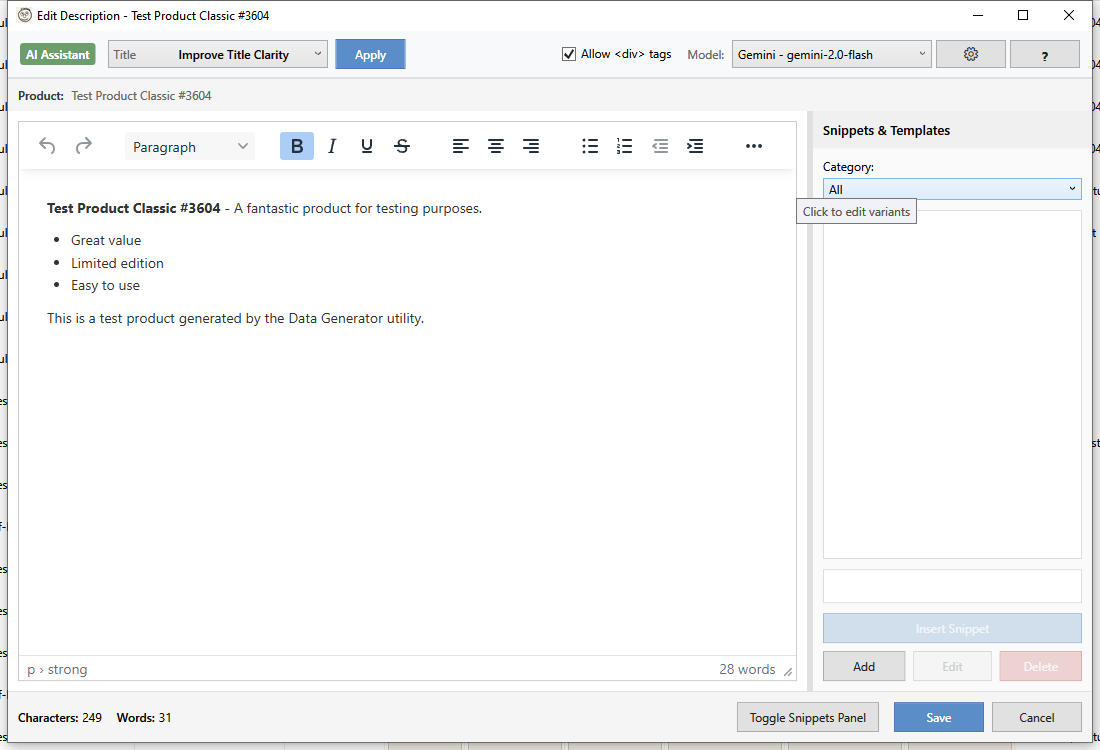
The Description Editor provides a full-featured rich text editor (TinyMCE) for creating and editing product descriptions with AI-powered assistance. The same editor is also used for editing rich_text_field metafields.
Opening the Editor
- Select a product in the grid
- Open using one of these methods:
- Double-click the Description column
- Click Edit Description in the toolbar
- Right-click and select Edit Description
- Press Ctrl+E
Editor Interface
The editor includes:
- Ribbon toolbar - Formatting controls (like Microsoft Word)
- Editor area - WYSIWYG editing surface
- Preview panel - See how it will look on your store
- AI buttons - Generate or improve content with AI
Formatting Options
Text Formatting
| Button | Shortcut | Effect |
|---|---|---|
| Bold | Ctrl+B | Bold text |
| Italic | Ctrl+I | Italic text |
| Underline | Ctrl+U | Underlined text |
| Strikethrough | - | |
| Subscript | - | H₂O |
| Superscript | - | E=mc² |
Paragraph Formatting
- Headings - H1, H2, H3, H4, H5, H6
- Alignment - Left, Center, Right, Justify
- Lists - Bulleted and numbered
- Indentation - Increase/decrease indent
- Line spacing - Single, 1.5, Double
Insert Elements
- Links - Add hyperlinks to text
- Images - Insert images (URL or upload)
- Tables - Create data tables
- Horizontal Rule - Add divider lines
- Special Characters - Symbols and emojis
AI Assistance
The editor includes three configurable AI buttons for content generation.
Default AI Buttons
| Button | Purpose |
|---|---|
| Improve | Enhance clarity and engagement |
| Shorten | Make more concise |
| SEO Optimize | Add keywords and SEO best practices |
Using AI
- Write or select existing text
- Click an AI button
- Review the generated suggestion
- Accept to replace or reject to keep original
Configuring AI Buttons
Customize the AI buttons for your workflow:
- Click Configure Prompts (gear icon)
- Edit button labels and prompts
- Use
{description}placeholder for current text - Click Save
AI Providers
Configure your preferred AI provider in Settings:
- Google Gemini - Fast and capable
- Anthropic Claude - Excellent writing quality
- OpenAI GPT - Widely used, reliable
Note: You need to provide your own API key for AI features.
HTML Mode
Switch between visual and HTML editing:
- Click HTML in the toolbar
- Edit raw HTML directly
- Click Visual to return to WYSIWYG
Supported HTML
The editor supports standard HTML tags:
- Headings:
<h1>-<h6> - Text:
<p>,<span>,<strong>,<em> - Lists:
<ul>,<ol>,<li> - Tables:
<table>,<tr>,<td>,<th> - Media:
<img>,<a> - Layout:
<div>,<br>,<hr>
HTML Cleanup
Click Clean HTML to:
- Remove empty tags
- Fix malformed HTML
- Standardize formatting
- Remove unnecessary styles
Snippets
Save and reuse common content blocks:
Creating a Snippet
- Select text in the editor
- Click Save as Snippet
- Enter a name
- Click Save
Using a Snippet
- Click Insert Snippet
- Select from your saved snippets
- Content is inserted at cursor position
Managing Snippets
- Edit - Modify snippet content
- Delete - Remove unwanted snippets
- Rename - Change snippet name
Preview
The preview panel shows how your description will appear:
- Desktop view - Full-width preview
- Mobile view - Narrow width simulation
- Theme preview - Uses your store's CSS (if configured)
Saving
Click Save or press Ctrl+S to save:
- Changes are sent to Shopify immediately
- Original description is backed up automatically
- Success message confirms the save
Undo/Redo
- Undo - Ctrl+Z (reverts last change)
- Redo - Ctrl+Y (re-applies undone change)
- Full history available during editing session
Keyboard Shortcuts
| Shortcut | Action |
|---|---|
| Ctrl+S | Save description |
| Ctrl+Z | Undo |
| Ctrl+Y | Redo |
| Ctrl+B | Bold |
| Ctrl+I | Italic |
| Ctrl+U | Underline |
| Ctrl+K | Insert link |
| Ctrl+Shift+L | Bulleted list |
| Ctrl+Shift+N | Numbered list |
Best Practices
- Use headings - Structure content with H2, H3 for readability
- Keep paragraphs short - 2-3 sentences per paragraph
- Use bullet points - Easy to scan for shoppers
- Include keywords - Help with SEO naturally
- Add calls to action - Encourage purchases
- Preview on mobile - Most shoppers use phones
Troubleshooting
"AI not working"
- Check AI provider settings
- Verify API key is entered correctly
- Ensure you have API credits remaining
"Formatting lost after save"
Shopify sanitizes HTML. Some unsupported tags may be removed:
- JavaScript is always stripped
- Some CSS styles may not persist
- Use standard HTML for best results
"Images not showing"
- Images must be hosted on accessible URLs
- Use Shopify's file hosting or CDN
- Avoid local file paths