Column Settings
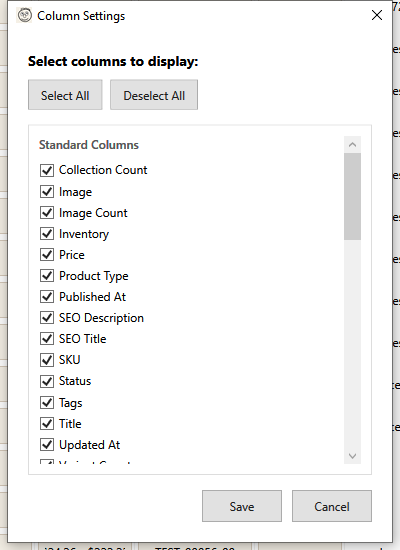
Customize which columns appear in the product grid to focus on the information most relevant to your workflow.
Opening Column Settings
- Click the Columns button in the toolbar
- Or right-click the grid header and select "Column Settings"
Column Categories
Standard Columns
These are the built-in Shopify product fields:
| Column | Description |
|---|---|
| ID | Shopify product ID |
| Image | Product thumbnail |
| Title | Product name |
| Vendor | Brand/manufacturer |
| Product Type | Category |
| Status | Active, Draft, Archived |
| Variants | Number of variants |
| Price | First variant price |
| Compare At | Original/compare price |
| SKU | Stock keeping unit |
| Inventory | Stock quantity |
| Tags | Product tags |
| Description | Product body HTML |
| Images | Image count |
| Handle | URL slug |
| Published At | Publication date |
| Created At | Creation date |
| Updated At | Last modified date |
Metafield Columns
If your products have metafields, they appear in a separate section:
- Metafields are custom data fields defined in Shopify
- Only metafields present in your products are shown
- Pinned metafields appear at the top
Managing Columns
Show/Hide Columns
- Check the box next to a column to show it
- Uncheck to hide it
- Changes preview immediately
Quick Selection
| Button | Action |
|---|---|
| Select All | Show all available columns |
| Deselect All | Hide all columns |
Metafield Filter
For stores with many metafields:
| Option | Shows |
|---|---|
| Pinned Only | Only metafields you've pinned |
| Show All | All available metafields |
Pinned metafields are marked with "(pinned)" label.
Saving Settings
- Configure your preferred columns
- Click Save to apply changes
- Settings are saved per store
Click Cancel to discard changes.
Column Recommendations
Minimal View
For quick scanning:
- Image
- Title
- Status
- Price
- Inventory
Full Editing View
For comprehensive editing:
- All standard columns
- Relevant metafields
Inventory Focus
For stock management:
- Title
- SKU
- Variants
- Inventory
- Status
SEO Focus
For search optimization:
- Title
- Handle
- Description
- Tags
- Product Type
Tips
Column Order
Column order in the grid matches the order in Shopify's product schema. To reorder columns in the grid, drag column headers directly in the grid view.
Performance
- Fewer columns = faster grid loading
- Hide columns you don't need
- Description column can slow large grids
Per-Store Settings
Column settings are saved separately for each connected store, so you can have different views for different stores.
Keyboard Shortcuts
| Shortcut | Action |
|---|---|
| Enter | Save settings |
| Escape | Cancel |