AI Description Generator
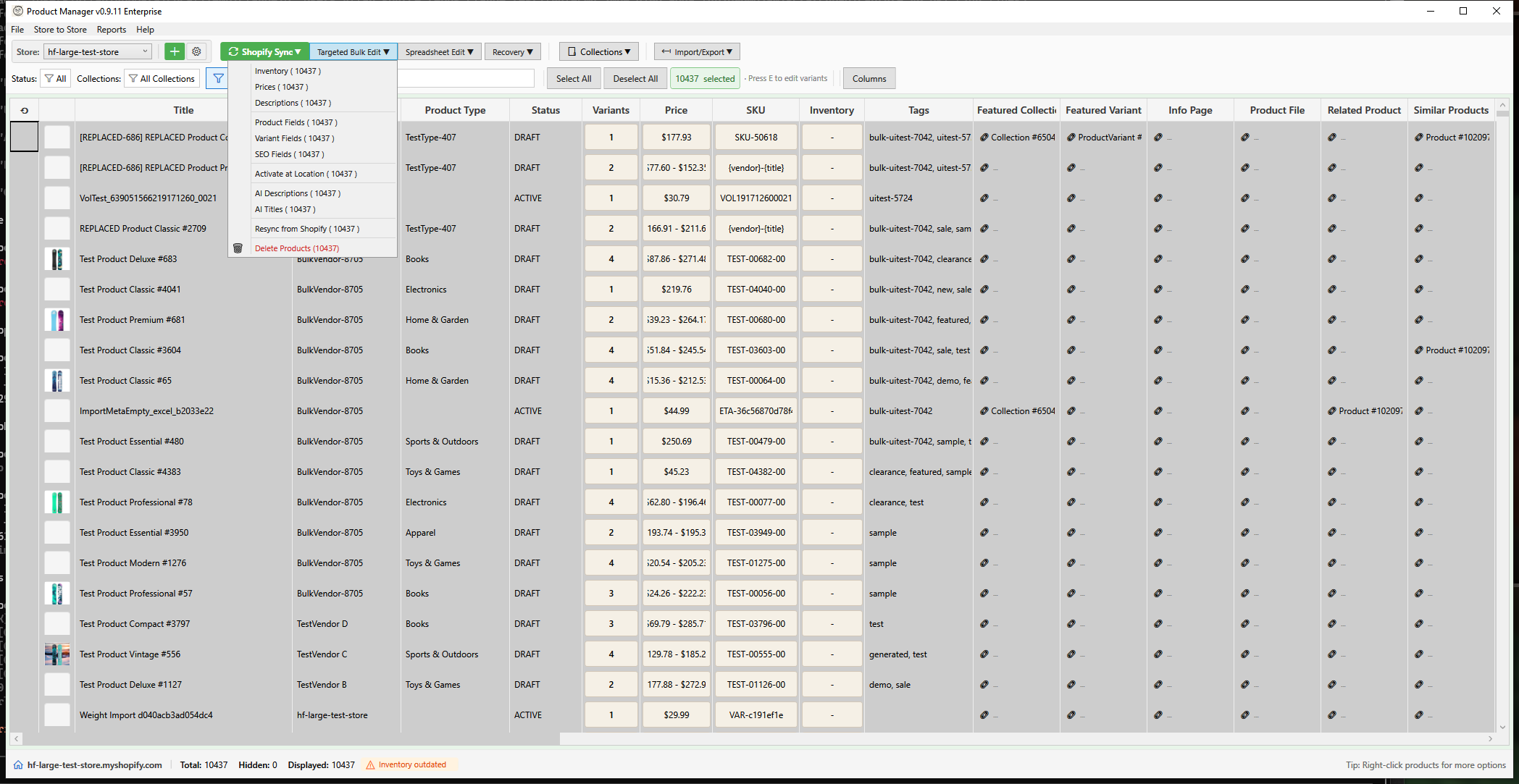
HF Product Manager's AI Description Generator creates professional product descriptions using your choice of AI provider, with automatic text cleanup and HTML sanitization for safe, consistent output.
How It Works
Your Prompt + Product Data
         │
         ▼
    ┌─────────┐
    │ AI API  │  (Gemini, Claude, or OpenAI)
    └────┬────┘
         │
         ▼
  ┌────────────────┐
  │  Text Cleanup  │  Remove quotes, prefixes, code blocks
  └───────┬────────┘
          │
          ▼
  ┌────────────────┐
  │ HTML Sanitizer │  Whitelist-based tag filtering
  └───────┬────────┘
          │
          ▼
    Clean, Safe HTML
Opening the Generator
Bulk AI Descriptions
- Select products in the main grid
- Open via:
- Toolbar: Targeted Bulk Edit > AI Descriptions
- Context Menu: Right-click > AI Descriptions
Single Product (Description Editor)
- Click the Description cell for any product
- Use the AI panel on the right side
Available Placeholders
Use placeholders in prompts to insert product data:
| Placeholder | Content |
|---|---|
{product.title} |
Product name |
{product.vendor} |
Brand/vendor |
{product.type} |
Product type/category |
{product.tags} |
Comma-separated tags |
{product.description} |
Current description |
Example Prompt
Write a product description for {product.title} by {product.vendor}.

Product Type: {product.type}
Tags: {product.tags}

Requirements:
- 100-150 words
- Focus on benefits, not just features
- Use HTML formatting (<p>, <ul>, <li>)
- Do not add features not in the original
HTML Output
Allowed Tags
The sanitizer allows these safe HTML tags:
| Category | Tags |
|---|---|
| Structure | <p>, <br>, <hr>, <blockquote> |
| Headings | <h1> through <h6> |
| Formatting | <strong>, <b>, <em>, <i>, <u>, <s>, <strike>, <sub>, <sup> |
| Lists | <ul>, <ol>, <li> |
| Links | <a> (http/https only) |
| Inline | <span> |
| Layout | <div> (when enabled) |
Blocked Content
For security, the following are automatically removed:
- Script tags (
<script>) - Style tags (
<style>) - Iframes and frames
- Form elements (
<form>,<input>,<button>) - Event handlers (
onclick,onerror, etc.) - JavaScript URLs (
javascript:) - Data URIs
What Gets Cleaned Up
AI responses often include artifacts that are automatically removed:
| Pattern | Example | Cleaned Result |
|---|---|---|
| Surrounding quotes | "<p>Great product</p>" |
<p>Great product</p> |
| Markdown code blocks | ```html<p>Text</p>``` |
<p>Text</p> |
| AI prefixes | Here's the description:<p>... |
<p>... |
| Multiple newlines | <p>A</p>\n\n\n<p>B</p> |
<p>A</p>\n<p>B</p> |
Allow Div Tags Option
Some AI responses use <div> tags for complex layouts. The Allow div tags checkbox controls whether these are kept or removed.
When to Enable
- Theme properly styles div elements in product descriptions
- AI responses require multi-column or complex layouts
- You want to preserve the exact AI-generated structure
When to Disable
- Theme doesn't style divs in product descriptions (may break layout)
- You prefer simpler paragraph-based structure
- You're seeing layout issues with AI-generated content
Generation Options
Create Backup
When enabled, saves original descriptions before applying changes. Restore via Backup Manager if needed.
Skip Existing
- Enabled - Skip products with existing descriptions
- Disabled - Regenerate all selected products
Concurrent Requests
| Setting | Speed | API Usage |
|---|---|---|
| 1 | Slowest | Lowest cost |
| 2 | Balanced | Default |
| 3-5 | Fastest | Higher quota |
Delay Between Requests
| Setting | Use Case |
|---|---|
| 100-200ms | High API quota |
| 500ms | Default, balanced |
| 1000ms+ | Avoid rate limits |
Best Practices
Effective Prompts
- Specify length - "Write 100-150 words"
- Request format - "Use HTML with paragraphs and bullet points"
- Set constraints - "Do not invent features or specifications"
- Define tone - "Professional but friendly"
- Include structure - "Start with overview, then key features, then call-to-action"
Common Prompt Mistakes
| Don't | Do Instead |
|---|---|
| "Write a good description" | "Write a 120-word description focusing on benefits" |
| "Make it better" | "Improve clarity and add call-to-action" |
| Leave format open | "Use HTML: paragraphs and bullet lists" |
| Assume context | "This is for outdoor enthusiasts aged 25-40" |
Test First
Always test with 2-3 products before running on your full selection:
- Select a small sample
- Generate and review quality
- Adjust prompt if needed
- Then apply to larger batch
Troubleshooting
"No AI provider configured"
Go to File > Settings > AI Settings and enter an API key for at least one provider.
"Rate limit exceeded"
- Increase delay between requests
- Reduce concurrent request count
- Wait 60 seconds before retrying
"Results include markdown instead of HTML"
Add to your prompt: "Output clean HTML only. Do not use markdown formatting."
"Div tags causing layout issues"
Uncheck Allow div tags to have the sanitizer remove all <div> elements.
"Results are too short/long"
Be explicit in your prompt:
- "Write exactly 150-200 words"
- "Create 3-4 paragraphs"
- "Include 5-7 bullet points"
Keyboard Shortcuts
| Shortcut | Action |
|---|---|
| F1 | Open this help page |
| Escape | Cancel generation / Close window |
See Also
- AI Prompt Presets - Create custom prompts
- AI Content Generator - Full bulk AI reference
- Description Editor - Single product editing
- Backup Manager - Restore original content