Backup Manager
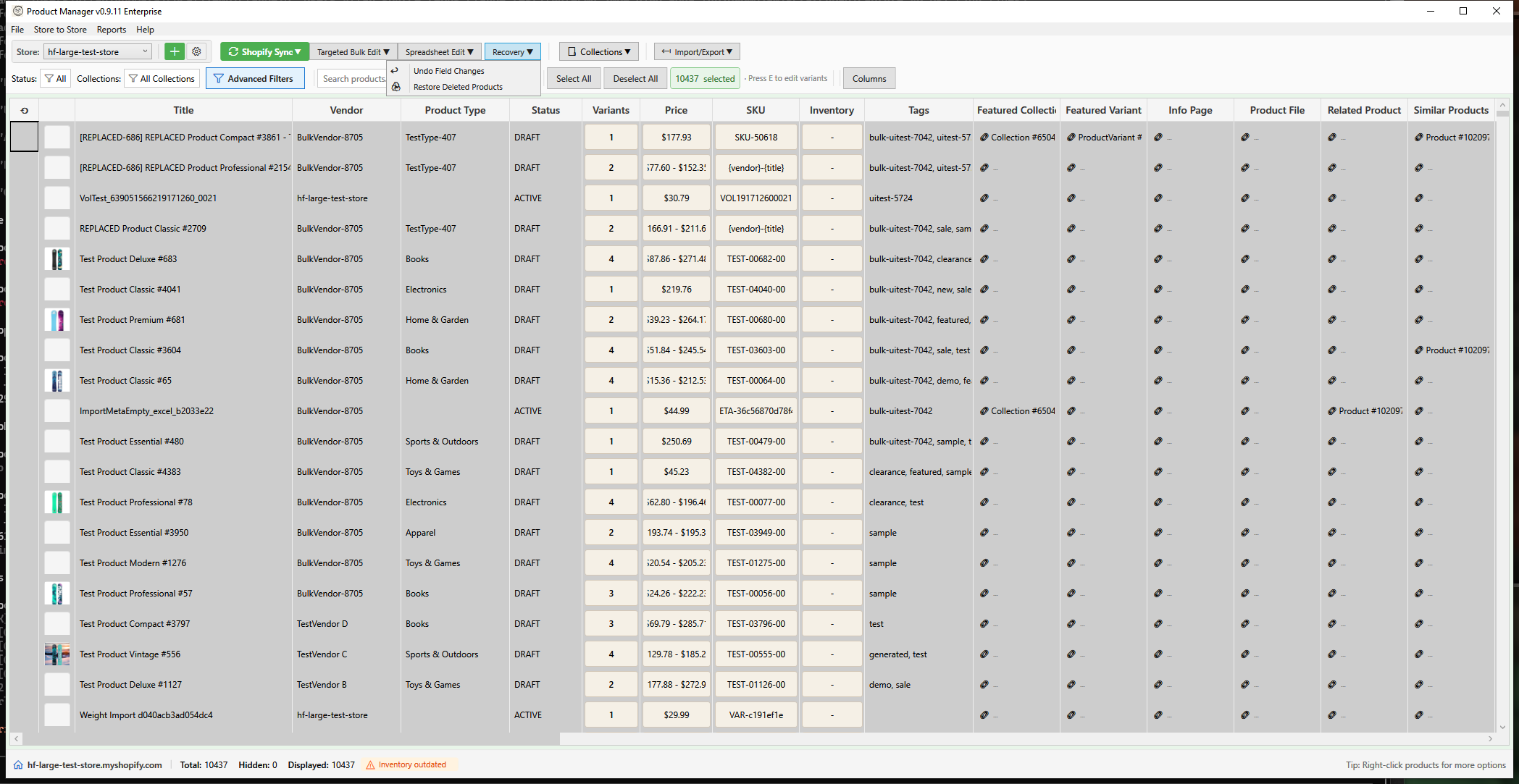
The Backup Manager allows you to browse and restore from automatic backups created before bulk operations.
Opening Backup Manager
Open using one of these methods:
- Toolbar: Recovery > Undo Field Changes
- After bulk operation: Click "View Backups" in the result dialog
Automatic Backups
Backups are created automatically before:
- Bulk Price Edit
- Bulk Inventory Edit
- Bulk Description Edit
- Bulk Field Edit (Tags, Status, Vendor, Product Type)
- Bulk Variant Field Edit (Weight, SKU, Barcode, etc.)
- Bulk SEO Edit
- Bulk Metafield Edit (product metafields)
- Bulk Variant Metafield Edit (variant metafields)
- Bulk Publish/Unpublish (sales channel visibility)
- AI Title Generation
- AI Description Generation
- Product Deletion (full product backup for recovery)
Backup Types
| Type | Color | Data Stored |
|---|---|---|
| Description | Blue | Product ID, title, HTML description |
| Title | Blue | Product ID, original title |
| Price | Green | Variant ID, price, compare-at price |
| Inventory | Orange | Variant ID, inventory item ID, location, quantity |
| Field | Purple | Product ID, field name, original value |
| Variant Field | Purple | Variant ID, field name (weight, SKU, barcode, etc.), original value |
| SEO | Teal | Product ID, SEO title, SEO description |
| Metafield | Teal | Product ID, namespace, key, type, original value |
| Variant Metafield | Teal | Variant ID, namespace, key, type, original value |
| Publication | Blue | Product ID, sales channel name, original visibility |
| Deleted Product | Red | Full product data for recovery |
Interface Overview
Backup List
The left panel shows all backups:
- Date/Time - When the backup was created
- Type - Color-coded backup type
- Count - Number of items in the backup
- Store - Which store the backup is from
Backup Details
Select a backup to see:
- Individual items backed up
- Original values
- Product/variant information
Filtering Backups
By Type
Use the dropdown to filter:
- All Types - Show all backups
- Descriptions - Description backups only
- Titles - Title backups only
- Prices - Price backups only
- Inventory - Inventory backups only
- Fields - Field (tags, status, etc.) backups only
- Variant Fields - Variant field backups only
- SEO - SEO backups only
- Metafields - Product metafield backups only
- Variant Metafields - Variant metafield backups only
- Publications - Sales channel visibility backups only
- Deleted Products - Deleted product backups only
By Date
Backups are sorted newest first. Scroll to find older backups.
By Store
If using multiple stores, backups are labeled by store domain.
Restoring from Backup
Restore Entire Backup
- Select a backup from the list
- Click Restore
- Review the confirmation dialog
- Click Confirm
- Wait for restoration to complete
All items in the backup are restored to their original values.
Restore Selected Items
- Select a backup
- In the details panel, select specific items
- Click Restore Selected
- Confirm the operation
Only selected items are restored.
Restoration Process
During restoration:
- Original values are retrieved from backup
- Changes are sent to Shopify via API
- Progress is shown for each item
- Results summary displays successes/failures
What Gets Restored
| Backup Type | Restored Data |
|---|---|
| Description | Product description HTML |
| Title | Product title |
| Price | Variant price and compare-at price |
| Inventory | Quantity at specific location |
| Field | Original field value (tags, status, etc.) |
| Variant Field | Variant field value (weight, SKU, barcode, cost, etc.) |
| SEO | SEO title and description |
| Metafield | Product metafield value (or deletion if originally empty) |
| Variant Metafield | Variant metafield value (or deletion if originally empty) |
| Publication | Sales channel visibility (published/unpublished state) |
| Deleted Product | Entire product with variants, images, and metafields |
Managing Backups
Deleting Backups
- Select a backup
- Click Delete
- Confirm deletion
Warning: Deleted backups cannot be recovered.
Clear All Backups
- Click Clear All
- Choose backup type to clear (or all)
- Confirm the operation
Storage Limits
- Maximum 20 backups per item (oldest auto-deleted)
- Backups stored in local SQLite database
- Storage location:
%LocalAppData%\HFProductManager\
Best Practices
- Review before restoring - Check the items to be restored
- Restore promptly - Products may have changed since backup
- Keep important backups - Don't delete until you're sure
- Regular cleanup - Delete old, unnecessary backups
Storage Information
The Backup Manager shows total storage used:
- Combined size of all backup databases
- Per-store breakdown if multiple stores
Reducing Storage
- Delete old backups you don't need
- Clear backups for specific types
- The oldest backups auto-delete when limit reached
Troubleshooting
"Backup not found"
- The backup may have been auto-deleted (limit reached)
- Check the backup type filter
- Ensure you're viewing the correct store
"Restore failed for some items"
Common causes:
- Product was deleted on Shopify
- Variant no longer exists
- API error (try again)
"Cannot restore inventory"
- Inventory location may have changed
- Product may have inventory tracking disabled
- Check for inventory app conflicts
"Storage full"
- Delete old backups
- Clear all backups of a specific type
- Backups auto-cleanup at 20 per item
Backup File Location
Backups are stored locally:
%LocalAppData%\HFProductManager\description_backups.db
This SQLite database contains all backup types.
Manual Backup
To manually backup the backup database:
- Close HF Product Manager
- Copy
description_backups.dbto a safe location - Restart HF Product Manager
Data Retention
| Item | Retention |
|---|---|
| Backup batches | Until manually deleted or auto-cleanup |
| Items per product | 20 most recent (per backup type) |
| Old items | Automatically deleted when limit reached |