Bulk SEO Edit
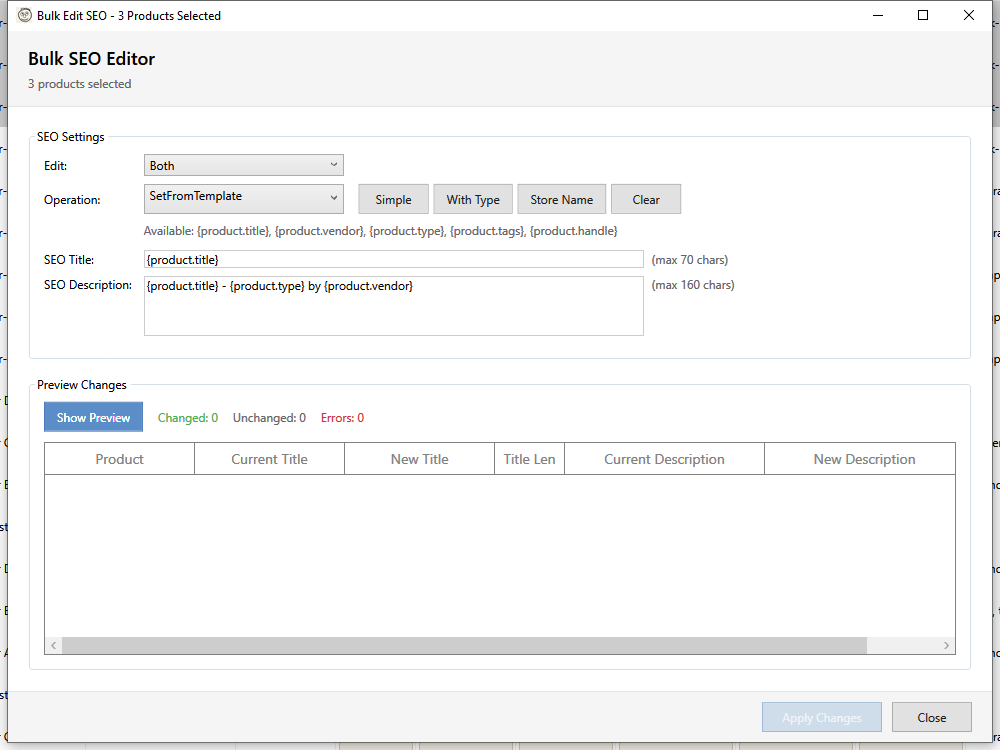
The Bulk SEO Edit feature allows you to optimize SEO titles and meta descriptions for multiple products using templates.
Opening Bulk SEO Edit
- Select one or more products in the grid
- Open using one of these methods:
- Click Targeted Bulk Edit > SEO in the toolbar
- Right-click and select Bulk SEO Edit
SEO Fields
| Field | Description | Character Limit |
|---|---|---|
| SEO Title | Search engine page title | 60 characters |
| SEO Description | Meta description for search results | 160 characters |
Template System
Use templates with placeholders to generate consistent SEO content:
Available Placeholders
| Placeholder | Replaced With | Example |
|---|---|---|
{product.title} |
Product name | "Blue Running Shoes" |
{product.vendor} |
Brand/vendor | "Nike" |
{product.type} |
Product type | "Shoes" |
{product.tags} |
First 3 tags | "running, athletic" |
{product.handle} |
URL slug | "blue-running-shoes" |
SEO Title Template
Example templates:
| Template | Result |
|---|---|
{product.title} |
Blue Running Shoes |
{product.title} by {product.vendor} |
Blue Running Shoes by Nike |
{product.title} \| MyStore |
Blue Running Shoes | MyStore |
Buy {product.title} - Free Shipping |
Buy Blue Running Shoes - Free Shipping |
SEO Description Template
Example templates:
Shop {product.title} by {product.vendor}. High quality {product.type} with free shipping on orders over $50.
Discover our {product.title}. Premium {product.type} from {product.vendor}. Shop now with easy returns.
Preset Templates
Quick-start templates available:
| Preset | Title | Description |
|---|---|---|
| Simple | {product.title} |
{product.title} by {product.vendor} |
| With Type | {product.title} - {product.type} |
Includes product type |
| Store Name | {product.title} \| Store |
Branded title |
| Clear | (empty) | Clears SEO fields |
Click a preset to load its templates, then customize as needed.
Character Limits
Why Limits Matter
- SEO Title: Google displays ~60 characters
- SEO Description: Google displays ~160 characters
- Longer text gets truncated with "..."
Character Count Display
The editor shows:
- Current character count
- Warning when approaching limit (yellow)
- Error when exceeding limit (red)
Handling Long Content
If your template produces text longer than limits:
- Consider shorter placeholder values
- Use abbreviations
- Remove less important elements
- Preview shows truncation warnings
Preview
Always preview before applying:
- Configure your templates
- Click Preview
- Review generated content per product
Preview shows:
| Column | Description |
|---|---|
| Product | Product title |
| SEO Title | Generated title with character count |
| SEO Description | Generated description with count |
| Warnings | Length or content warnings |
Applying Changes
- Review the preview carefully
- Check for character limit warnings
- Click Apply
- Confirm when prompted
A backup is created automatically before applying.
SEO Best Practices
SEO Titles
- Front-load keywords - Important words first
- Be specific - Include product details
- Include brand - If it's recognized
- Keep under 60 chars - Avoid truncation
- Make each unique - Avoid duplicate titles
Good: "Nike Air Max 90 - Men's Running Shoes | MyStore" Bad: "Product - Buy Now - Great Deals - MyStore"
SEO Descriptions
- Describe the product - What it is, who it's for
- Include benefits - Why buy this product
- Call to action - "Shop now", "Order today"
- Keep under 160 chars - Avoid truncation
- Natural language - Write for humans, not robots
Good: "Shop Nike Air Max 90 men's running shoes. Lightweight comfort with iconic style. Free shipping on orders over $50."
Bad: "Nike shoes cheap buy now best price free shipping sale discount mens athletic"
Common Scenarios
Add Store Name to Titles
Template: {product.title} | MyStore
Adds consistent branding to all product titles.
Include Shipping Info
Template: {product.title} - Free Shipping Available
Highlights shipping benefit in search results.
Clear All SEO Fields
Use the "Clear" preset to remove custom SEO fields. Products will use default title and auto-generated descriptions.
Vendor-Specific Descriptions
For products from specific vendors, filter first, then apply vendor-specific templates.
Restoring from Backup
If you need to undo changes:
- Go to Toolbar > Recovery > Undo Field Changes
- Filter by "SEO" type
- Find the backup by date/time
- Click Restore
- Select items to restore
Troubleshooting
"Template produces empty result"
- Check placeholder spelling (case-sensitive)
- Verify products have the referenced field values
- Some products may have empty vendor/type
"Character limit exceeded"
- Use shorter templates
- Remove less important elements
- Consider product-specific edits for long titles
"SEO not appearing in Google"
- Allow time for Google to re-crawl
- Use Google Search Console to request indexing
- Verify no SEO plugins are overriding
"Special characters not displaying"
- Use HTML entities for special characters
- Avoid emojis in SEO fields
- Test with simple text first
Keyboard Shortcuts
| Shortcut | Action |
|---|---|
| Tab | Move between fields |
| Enter | Preview (from text field) |
| Escape | Close dialog |