Inline Editing
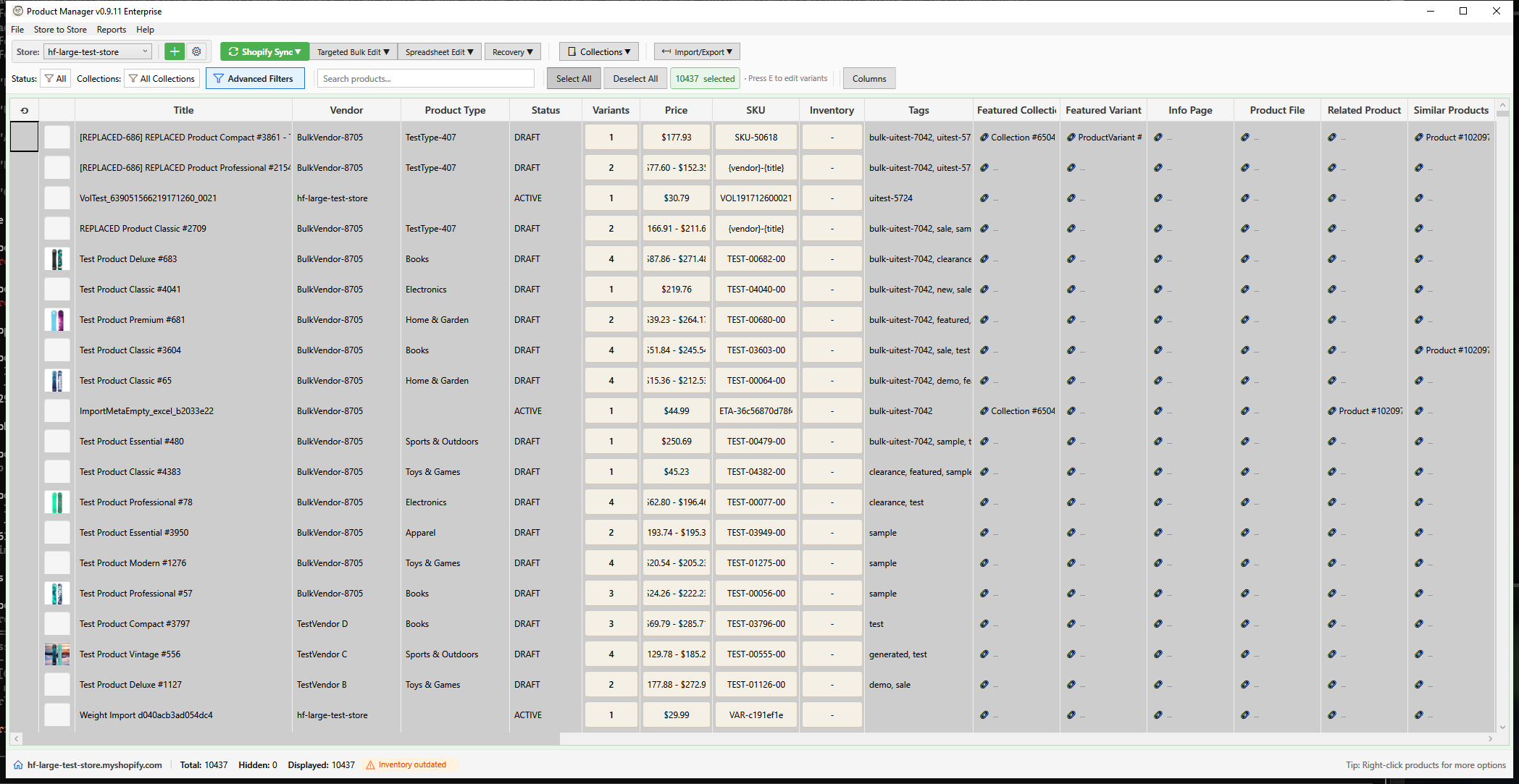
HF Product Manager allows you to edit many product fields directly in the grid without opening separate dialogs.
How Inline Editing Works
- Single-click on a cell to select it
- Double-click or press F2 to enter edit mode
- Make your changes
- Press Enter to confirm or Escape to cancel
- Changes are marked as pending until saved
Editable Fields
The following fields can be edited inline:
Standard Fields
| Field | Type | Notes |
|---|---|---|
| Title | Text | Product name (required) |
| Vendor | Text | Brand or manufacturer |
| Product Type | Text | Category classification |
| Tags | Text | Comma-separated list |
| Price | Number | First variant's price |
| Compare At Price | Number | Original/sale price |
| SKU | Text | Stock keeping unit |
| Barcode | Text | UPC, EAN, ISBN |
| Weight | Number | Shipping weight |
| Inventory | Number | Stock quantity |
| SEO Title | Text | Search engine title |
| SEO Description | Text | Meta description |
Metafield Columns
If your store has product metafield definitions, they appear as additional editable columns in the grid. The editor adapts to the metafield type:
| Metafield Type | Editor | Behaviour |
|---|---|---|
single_line_text_field |
Inline text | Type directly in cell |
number_integer, number_decimal |
Inline text | Validated as number |
boolean |
Checkbox | Single-click toggle (no double-click needed) |
money |
Popup | Click to open money editor (amount + currency) |
rating |
Popup | Click to open rating editor (value + scale) |
date, date_time |
Popup | Click to open date picker |
color |
Popup | Click to open colour picker |
weight, dimension, volume |
Popup | Click to open measurement editor |
url |
Inline text | Validated on focus loss |
rich_text_field |
Popup | Opens TinyMCE rich text editor |
json |
Popup | Opens JSON editor |
list.* |
Popup | Opens list editor |
| Reference types | Popup | Opens reference picker |
Enable metafield columns via Column Settings (gear icon in toolbar).
Metafield Validation
Metafield values are validated client-side when you leave the field:
- Invalid values show a red border and light red background
- Hover over the cell to see the error message in a tooltip
- All validation errors must be resolved before saving
- A Validation Summary Dialog appears before save if any errors remain
Read-Only Fields
Some fields cannot be edited inline:
- ID - System-generated
- Handle - Auto-generated from title
- Created At - System timestamp
- Updated At - System timestamp
- Images - Use Media Editor
- Description - Use Description Editor (HTML)
- Variants - Use Variant Editor
Pending Changes
When you edit a field:
- The cell background changes color (yellow/orange)
- A pending changes indicator appears in the status bar
- The Save button becomes enabled
- Changes remain local until you save
Viewing Pending Changes
- Cells with changes show a colored background
- The status bar shows the count of modified products
- Hover over a modified cell to see original value
Saving Changes
Save all pending changes to Shopify:
- Click the Save Changes button in the toolbar
- Or press Ctrl+S
- A progress dialog shows sync status
- Successful saves clear the pending state
Save Behavior
- All pending changes are saved in a single batch
- If some items fail, you'll see an error summary
- Successfully saved items are no longer marked as pending
- Failed items remain pending for retry
Discarding Changes
To discard pending changes:
- Click Discard Changes in the toolbar
- Or press Ctrl+Z on a modified cell
- Confirm when prompted
Discard Options
- Discard All - Remove all pending changes
- Discard Selected - Remove changes for selected products only
- Revert Cell - Right-click a cell and select "Revert"
Multi-Cell Editing
Edit the same field for multiple products:
- Select multiple rows in the grid
- Right-click on the field column
- Select Set Value for Selected
- Enter the new value
- All selected products are updated
Copy and Paste
Copy values between cells:
- Select a cell and press Ctrl+C
- Select target cell(s)
- Press Ctrl+V to paste
Paste to Multiple Cells
- Copy a value
- Select multiple rows
- Paste - same value applies to all selected
Validation
Inline editing includes validation:
| Field | Validation |
|---|---|
| Price | Must be a valid number >= 0 |
| Inventory | Must be a whole number |
| Weight | Must be a valid number >= 0 |
| Title | Cannot be empty |
Invalid values show a red border and tooltip explaining the issue.
Auto-Save (Optional)
Enable auto-save in Settings:
- Go to File > Settings
- Check Auto-save changes after edit
- Changes save automatically when you move to another row
Keyboard Shortcuts
| Shortcut | Action |
|---|---|
| F2 | Enter edit mode |
| Enter | Confirm edit and move down |
| Tab | Confirm edit and move right |
| Escape | Cancel edit |
| Ctrl+S | Save all pending changes |
| Ctrl+Z | Undo last edit (before save) |
| Ctrl+C | Copy cell value |
| Ctrl+V | Paste value |
| Delete | Clear cell (where allowed) |
Best Practices
- Save regularly - Don't accumulate too many pending changes
- Review before saving - Check the pending changes indicator
- Use bulk edit for many changes - Inline is best for quick fixes
- Watch for validation errors - Fix red-bordered cells before saving
Troubleshooting
"Cannot edit this cell"
Some cells are read-only. Use the appropriate editor:
- Description - Open Description Editor
- Images - Open Media Editor
- Variants - Open Variant Editor
"Changes not saving"
- Check your internet connection
- Verify Shopify credentials are valid
- Look for error messages in the status bar
- Try saving again after a moment
"Lost my changes"
If you close without saving:
- Changes are lost (no auto-recovery)
- Consider enabling auto-save in Settings