AI Prompt Presets
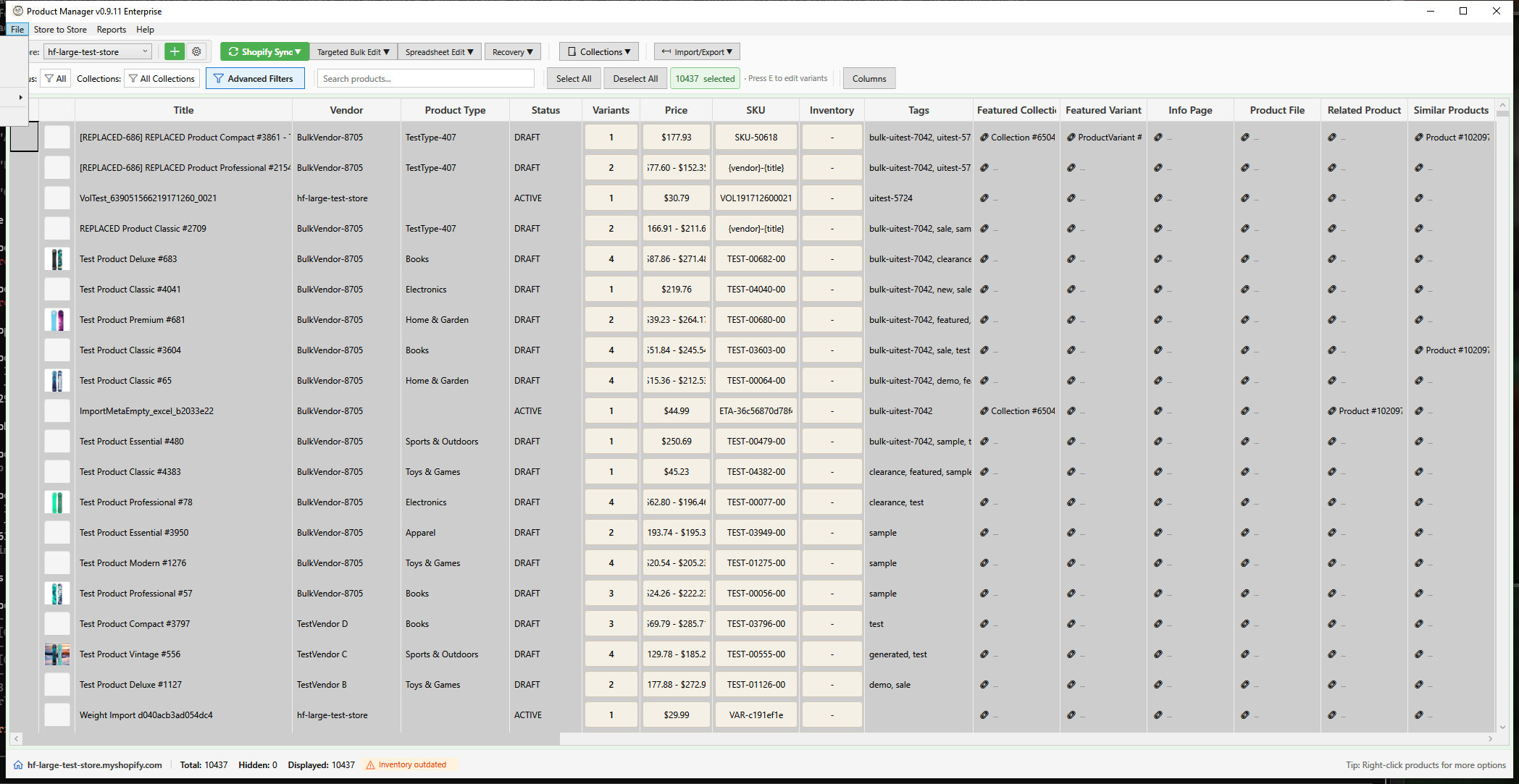
HF Product Manager includes a comprehensive library of AI prompt presets for generating and transforming product content. You can also create custom presets tailored to your brand voice and requirements.
Opening the Preset Editor
Access the AI Prompt Preset Editor:
- Menu: File > AI Prompt Presets
Understanding Presets
What is a Preset?
A preset is a saved prompt template that can be quickly applied when using the AI Content Generator. Each preset includes:
- Name - Display name shown in dropdowns
- Category - Grouping for organization (Title, Tone, Length, etc.)
- Applies To - Whether it works with Titles, Descriptions, or Both
- Prompt Template - The actual AI instructions with placeholders
Built-in Presets
HF Product Manager includes 18 built-in presets organized by purpose:
Title Presets: | Preset | Purpose | |--------|---------| | Improve Title Clarity | Make titles clearer and more descriptive | | SEO Optimize Title | Optimize for search engines | | Make Title Compelling | Add attention-grabbing elements | | Standard Title Format | Reformat as Brand - Product - Feature | | Shorten Title | Condense to under 50 characters |
Clarity Presets: | Preset | Purpose | |--------|---------| | Fix Grammar & Spelling | Correct errors only | | Improve Clarity | Remove ambiguous language | | Simplify Language | Plain English for general audiences |
Length Presets: | Preset | Purpose | |--------|---------| | Expand & Add Detail | Add depth while staying accurate | | Condense & Shorten | Remove redundancy | | Convert to Bullet Points | Create scannable lists |
Tone Presets: | Preset | Purpose | |--------|---------| | Professional & Formal | B2B/corporate appropriate | | Friendly & Conversational | Warm, approachable | | Luxury & Premium | Sophisticated, exclusive | | Urgent & Action-Driven | Create urgency |
Marketing Presets: | Preset | Purpose | |--------|---------| | SEO Optimize Description | Natural keyword integration | | Focus on Benefits | Feature-to-benefit conversion | | Add Social Proof Hooks | Insert testimonial placeholders |
Formatting Presets: | Preset | Purpose | |--------|---------| | Clean Up HTML | Fix formatting issues | | Add Headings & Structure | Organize with H3/H4 sections |
Using the Preset Editor
Preset List (Left Panel)
The left panel shows all available presets:
- Built-in presets are marked and cannot be deleted
- Custom presets can be edited or deleted
- Click a preset to select it for editing
Preset Actions
| Button | Action |
|---|---|
| Add | Create a new custom preset |
| Delete | Remove selected custom preset |
| Duplicate | Copy preset as starting point |
| Reset to Defaults | Restore built-in presets |
Editing a Preset (Right Panel)
When a preset is selected:
- Name - Enter a descriptive name
- Category - Choose or type a category
- Applies To - Select Title, Description, or Both
- Prompt - Edit the prompt template
- Edit Full Screen - Open expanded editor
Full-Screen Prompt Editor
For complex prompts, click Edit Full Screen to open the expanded editor:
Features
- Large editing area with monospace font
- Placeholder insertion panel
- Live preview with sample data
- Character and word count
Inserting Placeholders
Click placeholder buttons to insert at cursor position:
| Placeholder | Content |
|---|---|
{product.title} |
Product name |
{product.vendor} |
Brand/vendor |
{product.type} |
Product category |
{product.tags} |
Comma-separated tags |
{product.description} |
Current description |
Live Preview
The preview panel shows how your prompt looks with sample data:
{product.title}becomes "Sample Product Title"{product.vendor}becomes "Sample Vendor"- etc.
This helps verify placeholders are correctly placed.
Creating Custom Presets
Step 1: Add New Preset
- Click Add button
- New preset appears in list as "New Preset"
- Select it to edit
Step 2: Configure Details
- Enter a descriptive Name
- Choose or create a Category
- Set Applies To (Title/Description/Both)
Step 3: Write the Prompt
Write clear, specific instructions:
Rewrite this product description for outdoor enthusiasts.

Product: {product.title}
Type: {product.type}
Vendor: {product.vendor}

Requirements:
- Emphasize durability and weather resistance
- Use active, adventurous language
- Keep between 100-150 words
- Include features AND benefits
- Use HTML formatting (<p>, <ul>, <li>)
- Do not add specifications not in the original
Step 4: Save
Click Save to save all preset changes.
Best Practices
Writing Effective Prompts
- Be specific - Tell the AI exactly what you want
- Set constraints - Word count, format, style
- Provide context - Brand voice, target audience
- Include prohibitions - "Do not invent features"
- Request format - HTML tags, structure
Organizing Presets
- Use consistent category names
- Put frequently-used presets first
- Create brand-specific categories
- Delete unused custom presets
Prompt Tips
| Do | Don't |
|---|---|
| Be explicit about length | Leave length open-ended |
| Specify HTML requirements | Assume format is understood |
| Include "do not fabricate" | Trust AI to be accurate |
| Provide tone guidance | Assume brand voice is known |
| Test with sample products | Apply to all products untested |
Examples
Brand-Specific Preset
Name: [Brand] Voice
Category: Brand
Applies To: Description

Prompt:
Rewrite this product description in our brand voice.

Product: {product.title}
Current: {product.description}

Brand Guidelines:
- Friendly but professional tone
- Focus on quality and craftsmanship
- Use "you" and "your" to connect with customers
- Mention sustainability where relevant
- Keep to 100-150 words
- Use HTML formatting

Do not add features, materials, or claims not in the original.
Seasonal Campaign Preset
Name: Holiday Campaign
Category: Marketing
Applies To: Both

Prompt:
Add holiday-themed language to this content without
changing the core message.

Content: {product.title}

Requirements:
- Add seasonal warmth without being clichéd
- Emphasize gift-giving potential
- Keep changes subtle and tasteful
- Maintain original length
Troubleshooting
"Preset not showing in AI Generator"
- Check Applies To setting matches (Title vs Description)
- Verify preset was saved
- Close and reopen generator window
"Placeholders not replaced"
- Check placeholder spelling exactly
- Use lowercase:
{product.title}not{Product.Title} - Include curly braces
"Results don't match expectations"
- Make prompt more specific
- Add explicit constraints
- Include examples of desired output
- Lower AI temperature in Settings
"Built-in preset modified accidentally"
- Built-in presets cannot be modified
- Changes to built-in create a copy
- Use Reset to Defaults if needed
Keyboard Shortcuts
| Shortcut | Action |
|---|---|
| Ctrl+S | Save presets |
| Escape | Close without saving |