Export Products
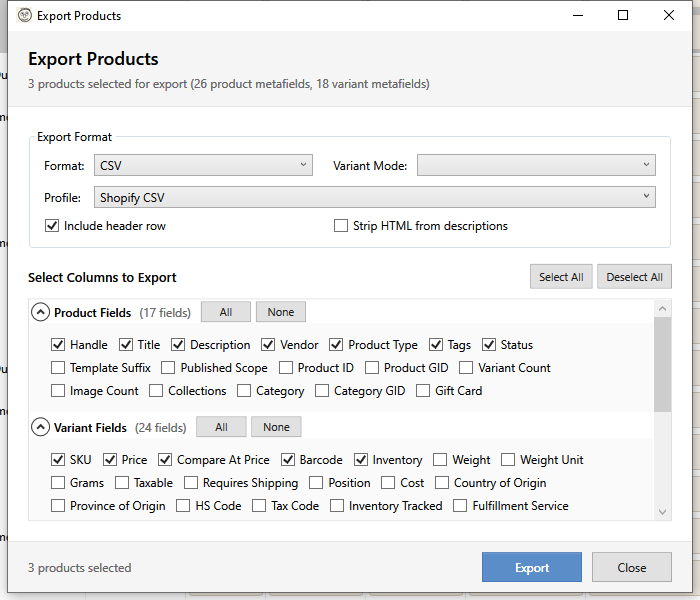
The Export feature allows you to export products to various formats for backup, analysis, or use in other systems.
Opening Export
Open using one of these methods:
- Toolbar: Import/Export dropdown > Export Products (N)
The number in parentheses shows how many products are selected.
What Gets Exported
The export scope controls which products are included:
| Scope | Description |
|---|---|
| Selected | Only the products you have highlighted in the grid. The toolbar shows the count in parentheses, e.g., "Export Products (12)". |
| All | Every product currently loaded in the grid, regardless of selection or filters. |
| Filtered | Only products that match the currently active filter. This is useful when you have applied an advanced filter or search and want to export just the matching results without manually selecting them. |
Tip: If you need to export a specific subset, apply a filter first (e.g., by collection, vendor, or status), then choose the Filtered scope to capture exactly those products.
Supported Formats
| Format | Extension | Use Case |
|---|---|---|
| CSV | .csv | Universal compatibility |
| Excel | .xlsx | Spreadsheet analysis |
| TSV | .tsv | Tab-delimited data |
| Google Shopping | .xml | Product feeds |
Export Options
Format Selection
Choose your output format from the dropdown.
Variant Mode
How to export products with multiple variants:
| Mode | Description | Use Case |
|---|---|---|
| One row per product | Product fields only, first variant | Product-level analysis |
| One row per variant | Separate row for each variant | Full variant data |
| Summary | Product with variant count | Quick overview |
Column Selection
Choose which fields to include. Columns are organized into groups:
Product Fields
- Title, Handle, Description (Body HTML)
- Vendor, Product Type, Tags
- Status, Template Suffix
- Category Name, Category GID
- Collection Names
- Product ID, Product GID
- Variant Count, Image Count
- Gift Card
- Published Scope (legacy compatibility)
Publication Channels
- Published: Online Store
- Published: Point of Sale
- Published: Instagram
- Published: Facebook
- Published: TikTok
- Published: Google
Each publication column exports TRUE or FALSE indicating whether the product is published to that sales channel.
Variant Fields
- Price, Compare At Price, Cost
- SKU, Barcode
- Weight, Weight Unit, Grams (legacy compatibility)
- Inventory Tracked, Inventory Policy, Inventory Management
- Taxable, Requires Shipping, Tax Code
- Country of Origin, Province of Origin, HS Code
- Fulfillment Service, Variant Position, Variant Title
- Variant ID, Variant GID, Inventory Item ID
Options
- Option 1 Name, Option 1 Value
- Option 2 Name, Option 2 Value
- Option 3 Name, Option 3 Value
Option Names contain the option label (e.g., "Size", "Color") and Option Values contain the variant's selected value (e.g., "Large", "Red").
SEO Fields
- SEO Title, SEO Description
Image Fields
- Image Source URL, Image Alt Text, Image Position
Timestamps
- Created At, Updated At, Published At (product level)
- Variant Created At, Variant Updated At
All timestamps are exported in ISO 8601 format (e.g., 2026-03-15T10:30:00Z).
Metafields (Product)
Product metafield columns are loaded from your store's metafield definitions. Each column is named using the format Metafield.[namespace].[key] (e.g., Metafield.custom.material).
Any unstructured metafields (metafields that exist on products but have no formal definition) are also detected and included as additional columns so no data is silently dropped from the export.
Metafields (Variant)
Variant metafield columns work the same way as product metafields but use the format Variant Metafield.[namespace].[key] (e.g., Variant Metafield.custom.color_code). These columns export metafield values attached to individual variants rather than the product itself.
Variant metafield columns are only meaningful in One row per variant mode, since each row corresponds to a specific variant. Both defined and unstructured variant metafields are included.
Tip: When using variant metafields, choose "One row per variant" mode so each variant's metafield values appear on their own row.
Inventory Per Location
When your store has multiple warehouse or fulfillment locations, the export dialog automatically detects them and adds dynamic inventory columns. These appear in a separate Inventory column group with one column per location, named "Inventory: [Location Name]".
For example, if your store has locations named "Main Warehouse" and "Retail Store", you will see:
| Column | Content |
|---|---|
| Inventory: Main Warehouse | Stock quantity at Main Warehouse |
| Inventory: Retail Store | Stock quantity at Retail Store |
These columns are selected by default. Each column shows the available inventory quantity for that variant at that specific location.
How it works:
- Location columns load automatically when the Export dialog opens
- Inventory data is fetched from Shopify during export, batched in groups of 200 variants to stay within API limits
- Every active location in your store gets its own column
- Data is per-variant: in "One row per variant" mode, each row shows stock at that location for that specific variant
Use cases:
- Multi-warehouse stocktake -- Export inventory across all locations to compare stock levels
- Location rebalancing -- Identify which locations are overstocked or understocked
- Reporting -- Create location-specific inventory reports in Excel
If inventory locations cannot be loaded (for example, due to a network issue), the export continues without those columns and a status message is shown.
Content Toggles
These options control how certain content types are handled during export:
| Toggle | Default | Description |
|---|---|---|
| Strip HTML from Descriptions | Off | Removes HTML tags from the Description field, exporting plain text instead of raw HTML. Useful when the export is for data analysis or systems that do not support HTML. |
| Include Metafields | Off | When enabled, selects all product metafield columns. When disabled, deselects them. You can still individually select or deselect specific metafield columns after toggling. |
| Include Images | On | Controls whether image columns (Image URL, Image Alt, Image Position) are included in the export. |
Note: The "Strip HTML" option applies to all formats including Google Shopping XML, where it controls whether the
<description>element contains raw HTML or plain text.
Select All / Deselect All
Quickly toggle all columns on or off. You can also expand/collapse column groups and select individual columns within a group.
Mapping Profile
Apply a mapping profile to:
- Rename columns for compatibility
- Reorder columns
- Apply transformations
Built-in Profiles
| Profile | Description |
|---|---|
| Shopify CSV | Standard Shopify export format |
| Google Shopping | Google Merchant Center feed |
| Custom | Your saved profiles |
Export Process
- Select products to export
- Choose format and options
- Click Export
- Choose save location
- Wait for completion
Progress
- Progress bar shows completion
- Cancel available for large exports
- Success message with file location
File Output
CSV/TSV Format
- Header row with column names
- UTF-8 encoding with BOM
- Properly escaped special characters
- Quoted fields containing delimiters
Excel Format
The Excel exporter uses the Syncfusion XlsIO engine and offers several formatting options:
| Option | Default | Description |
|---|---|---|
| Sheet Name | "Products" | Name of the worksheet tab |
| Auto-Fit Columns | On | Automatically sizes columns to fit their content |
| Apply Formatting | On | Bolds the header row for visual distinction |
Output characteristics:
- Single worksheet with the configured sheet name
- Numeric fields stored as numbers (not text)
- UTF-8 encoding
.xlsxformat (Excel 2007+)
Tip: If you plan to re-import the exported file, keep Auto-Fit Columns enabled so column headers are fully visible during mapping.
Google Shopping XML
The Google Shopping format produces an RSS 2.0 feed ready for upload to Google Merchant Center. The following options control how the feed is generated:
| Option | Default | Description |
|---|---|---|
| Store Name | (empty) | Appears as the feed <title> element |
| Store URL | (empty) | Used for product links (<link>) and as the feed <link> |
| Currency | USD | ISO currency code appended to prices (e.g., "29.99 USD") |
| Default Condition | new | Value for <g:condition> -- typically "new", "refurbished", or "used" |
| Default Availability | in_stock | Fallback availability -- overridden to "out_of_stock" for tracked variants with zero inventory |
The feed automatically maps:
- g:id -- Variant SKU (falls back to product handle)
- g:price -- Variant price with currency
- g:availability -- Computed from inventory tracking status
- g:brand -- Product vendor
- g:gtin -- Variant barcode
- g:mpn -- Variant SKU
- g:product_type -- Product type
- g:image_link -- First product image URL
- g:sale_price -- Included when Compare At Price is higher than the selling price
Each variant produces a separate <item> entry in the feed, so multi-variant products generate multiple items.
Column Customization
Reordering Columns
- Click Customize Columns
- Drag columns to reorder
- Changes apply to current export
Renaming Columns
- Select a column
- Enter custom header name
- Original data is preserved
Common Export Scenarios
Backup All Products
- Clear all filters
- Import/Export dropdown > Export Products
- Choose Excel format
- Select all columns
- Use "One row per variant" mode
- Save with date in filename
Price List Export
- Select products for price list
- Export to CSV
- Select: Title, SKU, Price, Compare At
- "One row per variant" mode
Google Shopping Feed
- Export all active products
- Choose Google Shopping XML format
- Google Shopping profile auto-applies
- Upload to Merchant Center
Inventory Report
- Export with Inventory column
- Include: Title, SKU, Inventory
- "One row per variant" mode
- Use for stocktake
Re-importing Exports
Exports can be re-imported:
- Make changes in Excel/CSV
- Import back to HF Product Manager
- Use same mapping profile
- Choose "Update Only" mode
This enables bulk editing in spreadsheet software.
Performance
Large Exports
For exports with many products:
- Excel format is fastest
- Progress updates in real-time
- Memory usage increases with size
- Consider exporting in batches for very large catalogs
Estimated Times
| Products | CSV | Excel |
|---|---|---|
| 100 | Seconds | Seconds |
| 1,000 | ~10 sec | ~5 sec |
| 10,000 | ~1 min | ~30 sec |
Troubleshooting
"No products to export"
- Select products in the grid
- Clear filters if needed
- Verify products are loaded
"Export failed"
- Check available disk space
- Verify write permissions to save location
- Try a different format
"File won't open in Excel"
- Check file encoding (UTF-8)
- Try importing as text with delimiter
- Use .xlsx format instead of CSV
"Special characters corrupted"
- Ensure UTF-8 encoding
- Excel may need "Import from Text" for CSV
- Use Excel format for best compatibility
"Google Shopping validation errors"
- Check required fields are included
- Verify data format (prices, availability)
- Review Google Merchant Center requirements
Best Practices
- Regular backups - Export all products weekly
- Use Excel - Best compatibility for editing
- Include SKU - Enables re-import matching
- Date filenames - products_2026-02-08.xlsx
- Test re-import - Verify export is importable