Column Mapping
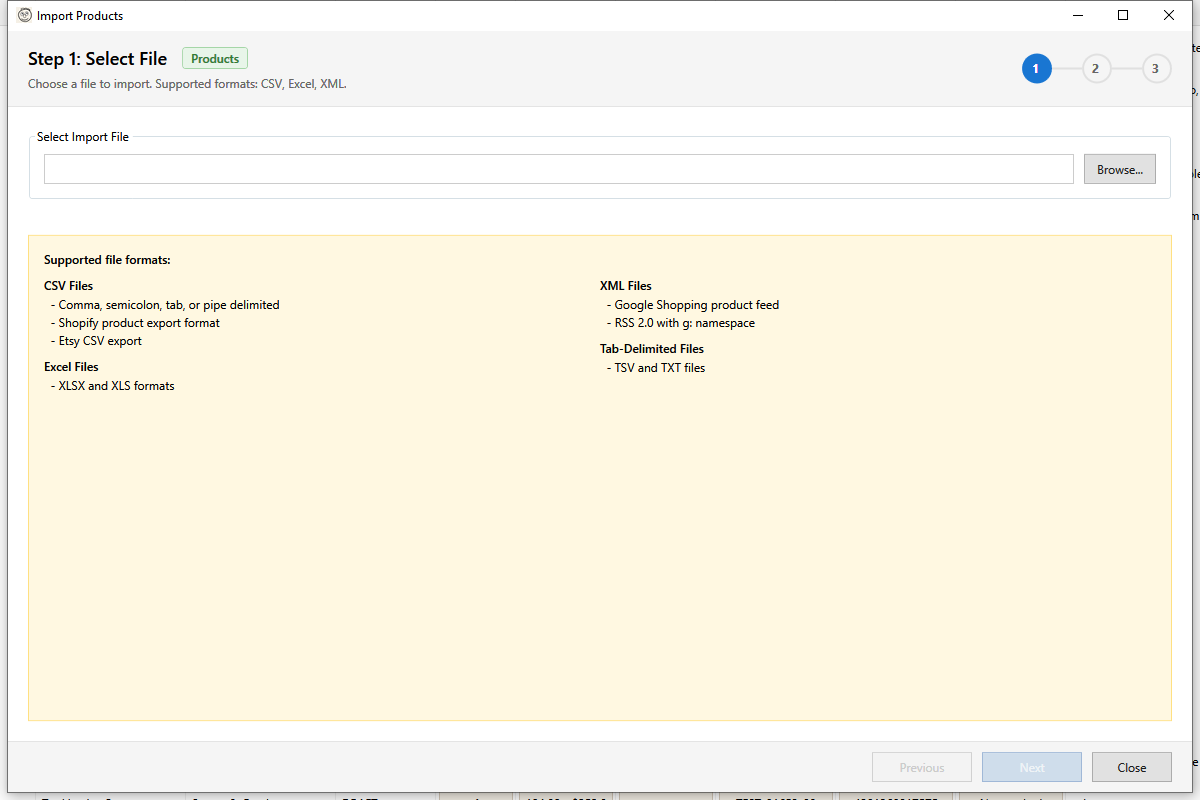
Column mapping defines how fields from your import file correspond to Shopify product fields. Effective mapping ensures your data imports correctly.
Opening Column Mapping
The Column Mapping editor opens automatically:
- During import after file selection
- When editing mapping profiles
- From the Import dialog's mapping step
Mapping Interface
The mapping editor displays:
| Column | Description |
|---|---|
| Source Column | Column from your import file |
| Sample Values | Preview of data in that column |
| Target Field | Shopify field to map to |
| Transform | Optional value transformation |
Creating Mappings
Manual Mapping
- For each source column, click the Target Field dropdown
- Select the corresponding Shopify field
- Add transformation if needed
- Repeat for all columns
Auto-Mapping
Click Auto-Map to automatically match columns:
- Exact name matches (case-insensitive)
- Common aliases ("Product Name" → Title)
- Previous successful mappings
Review auto-mapped fields and adjust as needed.
Target Fields Reference
Required Fields
| Field | Description | Notes |
|---|---|---|
| Title | Product name | Required for new products |
Product Fields
| Field | Description |
|---|---|
| Handle | URL slug (auto-generated if blank) |
| Description | Product description (HTML allowed) |
| Vendor | Brand or manufacturer |
| Product Type | Category classification |
| Tags | Comma-separated tags |
| Status | Active, Draft, or Archived |
| Published At | Publication date/time |
SEO Fields
| Field | Description |
|---|---|
| SEO Title | Meta title for search engines |
| SEO Description | Meta description |
Variant Fields
| Field | Description |
|---|---|
| Price | Selling price |
| Compare At Price | Original price (for sales) |
| SKU | Stock keeping unit |
| Barcode | UPC, EAN, ISBN |
| Weight | Shipping weight |
| Weight Unit | g, kg, lb, oz |
| Inventory | Stock quantity |
| Taxable | Whether tax applies |
| Requires Shipping | Physical product flag |
Option Fields
| Field | Description |
|---|---|
| Option1 Name | First option name (e.g., "Size") |
| Option1 Value | First option value (e.g., "Large") |
| Option2 Name | Second option name |
| Option2 Value | Second option value |
| Option3 Name | Third option name |
| Option3 Value | Third option value |
Image Fields
| Field | Description |
|---|---|
| Image URL | Primary image URL |
| Image Alt Text | Alt text for primary image |
| Additional Images | Comma-separated image URLs |
Transformations
Apply transformations to clean and format data:
| Transform | Description | Example |
|---|---|---|
| Trim | Remove leading/trailing whitespace | " text " → "text" |
| Uppercase | Convert to uppercase | "text" → "TEXT" |
| Lowercase | Convert to lowercase | "TEXT" → "text" |
| Title Case | Convert to title case | "BLUE SHIRT" → "Blue Shirt" |
| HTML Encode | HTML encode special characters | & → & |
| HTML Decode | Decode HTML entities | & → & |
| Strip HTML | Remove HTML tags | <b>text</b> → "text" |
Mapping Profiles
Built-in Profiles
| Profile | Use For |
|---|---|
| Shopify CSV | Shopify's standard export format |
| Etsy CSV | Etsy listing exports |
| Google Shopping | Google Merchant Center feeds |
| Generic | Common field names |
Saving Custom Profiles
- Configure your mappings
- Click Save Profile
- Enter a profile name
- Profile is saved for future use
Loading Profiles
- Click Load Profile
- Select from saved profiles
- Mappings are applied immediately
- Adjust as needed for specific file
Managing Profiles
Manage mapping profiles within the Import dialog to:
- Edit existing profiles
- Rename profiles
- Delete profiles
- Export/import profiles
Validation
The mapping editor validates:
- Required fields - Title must be mapped
- Data types - Numbers, dates, booleans
- Format errors - Invalid URLs, prices
- Conflicts - Duplicate mappings
Validation Indicators
| Icon | Meaning |
|---|---|
| ✓ Green | Valid mapping |
| ⚠ Yellow | Warning (review recommended) |
| ✗ Red | Error (must fix) |
Common Mapping Scenarios
Shopify Export Re-import
When re-importing a Shopify export:
- Load "Shopify CSV" profile
- All fields auto-map
- No changes needed
Etsy Migration
When importing from Etsy:
- Load "Etsy CSV" profile
- Review Etsy-specific fields
- Map variations to options
- Handle materials as tags
Price Updates Only
When importing just price changes:
- Map only: SKU, Price, Compare At
- Leave other fields unmapped
- Use "Update Only" import mode
- Existing data preserved
Inventory Sync
For inventory updates:
- Map only: SKU, Inventory
- Use SKU as match key
- "Update Only" mode
- Location-specific if needed
Troubleshooting
"Field not mapping correctly"
- Check source data format
- Apply appropriate transformation
- Verify sample values match expected
"Missing required field"
- Map the Title field
- Or check if field is in source file
"Profile not loading"
- Check profile wasn't deleted
- Re-create mapping manually
- Save new profile
"Transformation not working"
- Verify transformation type matches data
- Check input format
- Test on single row first
Best Practices
- Save profiles - Don't recreate mappings each time
- Use auto-map - Then review and adjust
- Test first - Map 5-10 rows before full import
- Document custom profiles - Note what each profile is for
- Clean source data - Easier mapping with clean data