License Activation
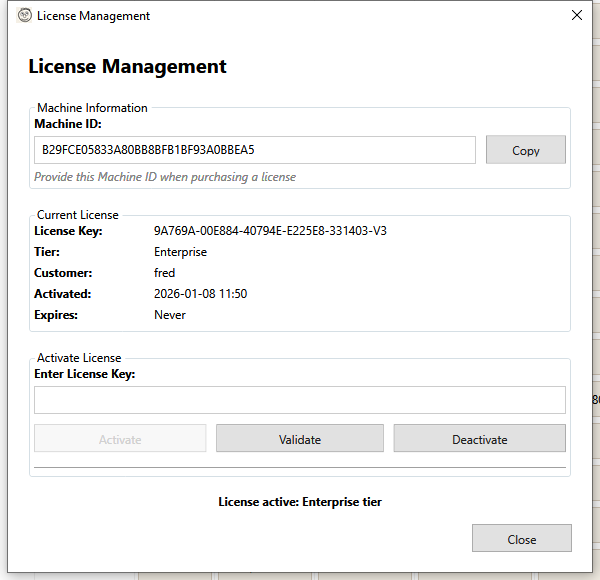
HF Product Manager requires a valid license to access all features. This guide covers how to activate, validate, and manage your license.
License Tiers
| Tier | Features |
|---|---|
| Trial | Limited functionality for evaluation |
| Essentials | Core features for small stores |
| Professional | Full features including AI and multi-store |
| Enterprise | All features plus priority support |
Opening License Management
Access the License window using one of these methods:
- Menu: File > License
- Startup: Automatically shown if no valid license exists
Machine ID
Each license is tied to a specific machine using a unique Machine ID.
Finding Your Machine ID
- Open the License window
- The Machine ID is displayed in the Machine Information section
- Click Copy to copy it to your clipboard
When You Need Your Machine ID
Provide your Machine ID when:
- Purchasing a new license
- Requesting license transfer to a new computer
- Contacting support about license issues
Activating a License
Step 1: Obtain a License Key
Purchase a license from the HF Product Manager website or your reseller. You'll receive a license key that looks like:
XXXX-XXXX-XXXX-XXXX-XXXX
Step 2: Enter the License Key
- Open the License window
- Paste your license key in the Enter License Key field
- Click Activate
Step 3: Confirmation
On successful activation, you'll see:
- License tier (Essentials, Professional, Enterprise)
- Customer name
- Activation date
- Expiry date (if applicable)
Validating a License
To check if your current license is still valid:
- Open the License window
- Click Validate
- The system checks with the license server
- Status message confirms validity
When to validate:
- After a long period of offline use
- If you see license warning messages
- After system date/time changes
- When troubleshooting license issues
Deactivating a License
Deactivate your license to use it on a different computer:
- Open the License window
- Click Deactivate
- Confirm the deactivation
- The license is freed for use elsewhere
Important:
- You must have internet connection to deactivate
- Deactivation removes the license from this machine
- You can then activate on a new machine
- Contact support if you cannot access the old machine
Current License Information
When a license is active, the License window displays:
| Field | Description |
|---|---|
| License Key | Your activated license key |
| Tier | License tier (Essentials, Professional, Enterprise) |
| Customer | Registered customer name |
| Activated | Date and time of activation |
| Expires | Expiration date, or "Never" for perpetual licenses |
License Storage
License information is cached locally:
- Location:
%LocalAppData%\HFProductManager\license.db - Format: SQLite database (encrypted)
- Backup: Automatically synced with license server
Offline Use
HF Product Manager can work offline with a valid license:
- License is cached locally after activation
- Periodic validation required (configurable)
- Extended offline use may trigger re-validation prompt
Troubleshooting
"License key not valid"
- Check the key is entered correctly
- Ensure no extra spaces before/after the key
- Verify the key hasn't been used on another machine
- Contact support if the key should be valid
"Machine ID mismatch"
- License is tied to a different machine
- Request license transfer from support
- Deactivate from the other machine first (if accessible)
"License expired"
- Your subscription has ended
- Renew your license to continue using all features
- Basic functionality may still work (check your tier)
"Cannot connect to license server"
- Check your internet connection
- Verify firewall isn't blocking the connection
- Try again later (server may be temporarily unavailable)
- Offline cached license should still work
"License validation failed"
- Your license may have been revoked
- Contact support for assistance
- Check if payment is up to date (for subscriptions)
"Already activated on maximum machines"
- Your license has a machine limit
- Deactivate from unused machines
- Contact support to increase machine count
- Consider upgrading to a higher tier
Moving to a New Computer
To transfer your license to a new computer:
- On old computer: Open License window, click Deactivate
- On new computer: Install HF Product Manager
- On new computer: Copy your Machine ID
- On new computer: Enter license key and click Activate
If you cannot access the old computer, contact support with:
- Your license key
- Old Machine ID (if known)
- New Machine ID
- Reason for transfer
License for Multiple Users
For team use:
- Each user/machine needs a separate activation
- Consider Enterprise tier for multiple seats
- Volume licensing available - contact sales
Subscription vs Perpetual
| Type | Description |
|---|---|
| Subscription | Monthly/annual payment, includes all updates |
| Perpetual | One-time payment, includes updates for 1 year |
Check your license tier for details on your license type.
Getting Help
For license issues:
- Include your Machine ID and license key (first 8 characters only) when contacting support