Sales Data Sync
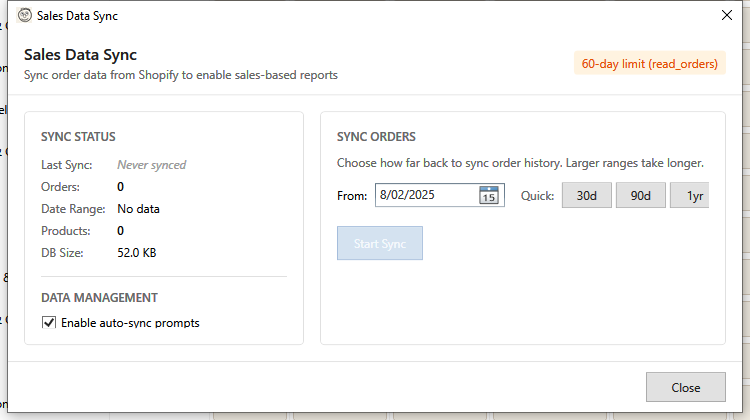
HF Product Manager can sync order data from Shopify to enable powerful sales-based reports. This local sync provides fast access to sales analytics without repeated API calls.
Overview
Sales Data Sync:
- Downloads order history from Shopify
- Stores data locally for fast reporting
- Enables sales quantity and revenue filters
- Supports incremental (delta) sync
Opening Sales Sync
Access via: Toolbar > Shopify Sync dropdown > Sync Sales Data
Access Scope
Your Shopify app's permissions determine how much order history you can access:
read_orders (Standard)
- Access to orders from last 60 days only
- Shows as orange badge: "60-day limit"
- Sufficient for recent sales reports
read_all_orders (Full History)
- Access to complete order history
- Shows as green badge: "Full history"
- Required for year-over-year comparisons
- Request this scope in your Shopify app settings
Sync Status Panel
The left panel shows current sync state:
| Metric | Description |
|---|---|
| Last Sync | When orders were last synchronized |
| Orders | Total orders in local database |
| Date Range | Span of synced order dates |
| Products | Unique products with sales data |
| DB Size | Local database storage used |
Never Synced
If you haven't synced yet:
- "Never synced" appears in italics
- No order data available
- Sales reports will be empty
Syncing Orders
Initial Sync
For first-time sync or full re-sync:
- Select a From date using the date picker
- Or use quick buttons: 30d, 90d, 1yr, 2yr
- Click Start Sync
All orders from the selected date forward are downloaded.
Delta Sync (New Orders Only)
After initial sync, use delta sync for updates:
- Click Sync New Orders
- Only orders since last sync are downloaded
- Much faster than full sync
Delta sync button appears after your first sync.
Quick Date Selection
| Button | Sets From Date |
|---|---|
| 30d | 30 days ago |
| 90d | 90 days ago |
| 1yr | 1 year ago |
| 2yr | 2 years ago |
Sync Progress
During sync:
- Progress bar shows completion percentage
- Status text shows current operation
- Order count updates in real-time
- Cancel button stops sync (keeps partial data)
Progress Details
Processing orders...
1,234 of 5,000 orders processed (25%)
Sync Results
After sync completes:
Sync complete: 5,000 orders, 1,234 products (05:23)
Shows:
- Orders processed
- Unique products found
- Time elapsed
Data Management
Auto-Sync Prompts
Toggle "Enable auto-sync prompts" to:
- Show reminder when opening sales reports
- Prompt to sync new orders before reporting
Clear All Data
Click Clear All Data to:
- Delete all synced order data
- Reset to "Never synced" state
- Free up local storage
Use when:
- Starting fresh
- Switching stores
- Troubleshooting sync issues
Using Sales Data
In Advanced Filter
After sync, new filter fields appear:
| Field | Description |
|---|---|
| Sales Quantity | Units sold |
| Sales Revenue | Total revenue |
Filter by threshold with optional date range:
>50- More than 50 units sold>=1000with date range - $1000+ revenue in period
In Reports
Sales-based reports become available:
- Best Sellers - Products by units sold
- Revenue Analysis - Products by revenue
- Dead Inventory - Products with no sales
Reports use synced data for fast performance.
Sync Recommendations
Sync Frequency
| Use Case | Recommendation |
|---|---|
| Daily reporting | Daily delta sync |
| Weekly review | Weekly delta sync |
| Ad-hoc analysis | Sync before reporting |
| Historical analysis | Initial sync with full history |
Initial Sync Size
| Period | Typical Sync Time |
|---|---|
| 30 days | 1-5 minutes |
| 90 days | 5-15 minutes |
| 1 year | 15-60 minutes |
| 2 years | 30-120 minutes |
Times vary based on order volume and network speed.
Storage Usage
- Approximately 1 KB per order
- 10,000 orders ≈ 10 MB
- 100,000 orders ≈ 100 MB
Troubleshooting
"60-day limit" message
Your Shopify app only has read_orders scope:
- Only last 60 days of orders accessible
- Request
read_all_ordersfor full history - Update app permissions in Shopify admin
Sync taking too long
- Start with shorter date range
- Use delta sync for regular updates
- Check network connection
"Orders not appearing in reports"
- Verify sync completed successfully
- Check date range includes relevant orders
- Try re-running the report
"Database size growing"
- Clear data periodically if not needed
- Limit sync date range
- Consider shorter retention
"Sync failed" error
- Check Shopify API status
- Verify store connection is valid
- Check network connectivity
- Try again after a few minutes
"Products missing from sales data"
- Product may have been deleted
- Check if orders exist in date range
- Verify sync date includes orders
Keyboard Shortcuts
| Shortcut | Action |
|---|---|
| Escape | Close window |