Store Management
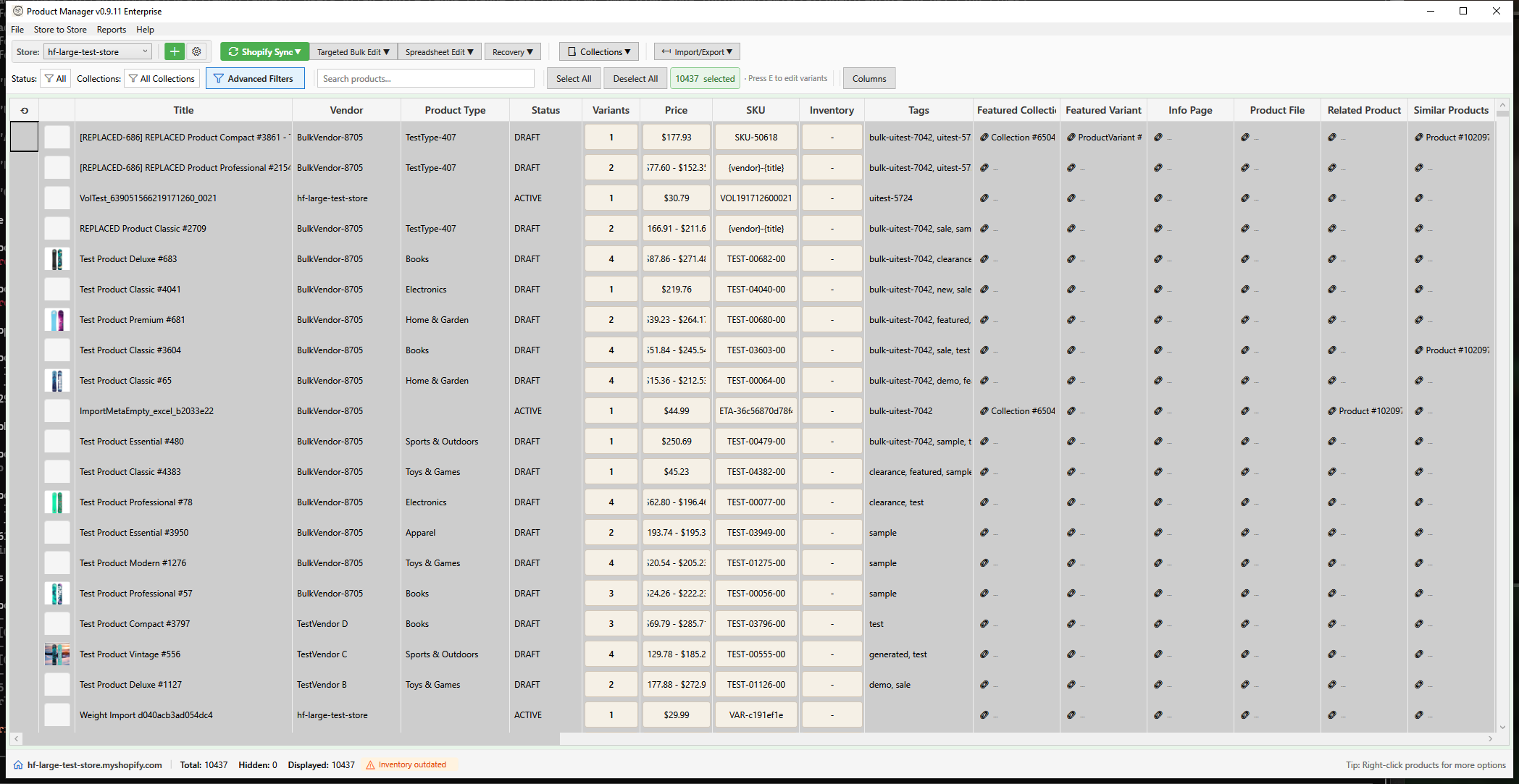
HF Product Manager supports connecting to multiple Shopify stores, allowing you to manage products across different stores from a single application.
Why Multiple Stores?
Common scenarios:
- Development & Production - Test changes before going live
- Regional Stores - Different stores for different markets
- Brand Portfolios - Multiple brands under one company
- Wholesale & Retail - Separate B2B and B2C stores
Adding Your First Store
When you first launch HF Product Manager:
- Welcome dialog appears
- Click Connect to Shopify
- Follow the connection wizard
See Connecting to Shopify for detailed steps.
Managing Connected Stores
Open Store Management
- Toolbar: Click the Manage Stores button (gear icon) next to the store dropdown
Store List
The Manage Stores window shows:
| Column | Description |
|---|---|
| Store Name | Your store's myshopify domain |
| Status | Connected, Error, or Expired |
| Last Sync | When products were last loaded |
| Products | Cached product count |
Adding a New Store
- Click Add Store
- Enter store details:
- Store Domain - yourstore.myshopify.com
- Client ID - From Shopify custom app
- Client Secret - From Shopify custom app
- Click Test Connection
- If successful, click Save
Required Shopify Setup
Before connecting, create a custom app in Shopify:
- Go to Shopify Admin > Settings > Apps and sales channels
- Click Develop apps
- Create new app
- Configure Admin API scopes:
read_products,write_productsread_inventory,write_inventoryread_locationsread_content,read_files(optional, for page/file reference metafields)
- Install app
- Copy Client ID and Client Secret
Switching Between Stores
Quick Switch
- Click the store dropdown in the toolbar
- Select the store to switch to
- Products load automatically
What Happens on Switch
- Current store products are cached (if enabled)
- New store products load
- Grid refreshes with new data
- Filters reset
Store Settings
Per-Store Options
Click Edit next to a store to configure:
| Setting | Description |
|---|---|
| Display Name | Custom name (optional) |
| Auto-sync | Load products on switch |
| Cache Products | Keep products cached locally |
| Default View | Initial filter/sort on switch |
Cache Settings
Control product caching:
- Enabled - Products cached between switches
- Auto-refresh - Refresh cache on store switch
- Clear on close - Remove cache when app closes
Removing a Store
- Open Manage Stores
- Select the store
- Click Remove
- Confirm removal
Note: This only removes the connection from HF Product Manager. Your Shopify store and data are not affected.
Connection Status
Status Indicators
| Status | Meaning |
|---|---|
| Connected ✓ | Active connection |
| Error ✗ | Connection failed |
| Expired ⚠ | Token needs refresh |
| Syncing ↻ | Currently loading data |
Fixing Connection Issues
Error Status:
- Click Test Connection
- Check error message
- Verify credentials in Shopify
- Re-enter Client ID/Secret if needed
Expired Status:
- Tokens auto-refresh on next use
- Click Reconnect to force refresh
- Check app is still installed in Shopify
Data Isolation
Each store's data is separate:
- Products - Each store has its own product list
- Backups - Backups are per-store
- Settings - Some settings are per-store
- Cache - Cached data is store-specific
Transferring Products
To copy products between stores:
- Load source store
- Select products to transfer
- Click Send to Store
- Select target store
- Configure options
- Execute transfer
See Send to Store for details.
Best Practices
- Use display names - Distinguish dev/prod easily
- Enable caching - Faster store switching
- Regular sync - Keep cached data fresh
- Secure credentials - Don't share Client Secrets
- Test on dev first - Make changes on test store
Security
Credential Storage
- Client ID and Secret encrypted locally
- Uses Windows DPAPI encryption
- Stored in user profile only
- Never transmitted except to Shopify
Token Management
- Access tokens expire after 24 hours
- Automatic refresh when needed
- Tokens scoped to granted permissions
Revoking Access
To remove HF Product Manager access to a store:
- Go to Shopify Admin > Settings > Apps
- Find the custom app
- Click Uninstall
Troubleshooting
"Connection failed"
- Verify store domain is correct
- Check Client ID and Secret
- Ensure app is installed in Shopify
- Check internet connection
"Insufficient permissions"
- Verify API scopes in Shopify app
- May need to reinstall app with new scopes
- Check you're using Admin API, not Storefront
"Store not loading"
- Check connection status
- Try Test Connection
- Clear cache and reload
- Check for Shopify outages
"Products outdated"
- Click Refresh to reload
- Check auto-sync settings
- Clear cache if needed
Keyboard Shortcuts
| Shortcut | Action |
|---|---|
| F5 | Refresh current store |