Collection Editor
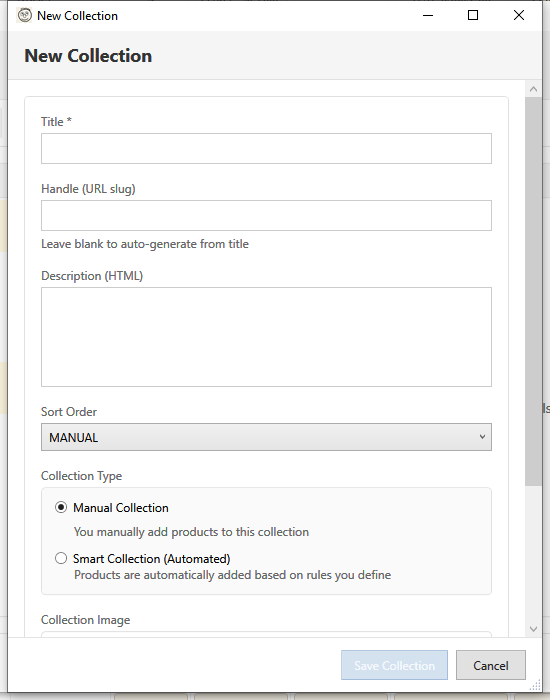
The Collection Editor allows you to create new collections or modify existing ones. It supports both manual collections (you choose products) and smart collections (products are added automatically based on rules).
Opening the Editor
Create New Collection
- Open Collection Manager (Bulk Actions > Manage Collections)
- Click New Collection
- Editor opens with empty form
Edit Existing Collection
- Open Collection Manager
- Select a collection
- Click Edit or double-click the collection
Collection Details
Title (Required)
The display name of the collection shown to customers.
- Must be unique
- Appears on your store's collection page
- Used for navigation menus
Handle (URL Slug)
The URL-friendly identifier:
- Auto-generated from title if left blank
- Example: "Summer Sale" becomes "summer-sale"
- URL:
yourstore.com/collections/summer-sale
Tip: Leave blank for auto-generation, or customize for SEO.
Description (HTML)
Rich content displayed on the collection page:
- Supports HTML formatting
- Appears above products on collection page
- Can include images, links, formatted text
Sort Order
How products are ordered in the collection:
| Option | Description |
|---|---|
| Manual | You control the order |
| Best Selling | By sales volume |
| Alphabetically A-Z | By title ascending |
| Alphabetically Z-A | By title descending |
| Price High to Low | Most expensive first |
| Price Low to High | Least expensive first |
| Date New to Old | Newest products first |
| Date Old to New | Oldest products first |
Collection Types
Manual Collection
You manually add and remove products:
- Full control over collection membership
- Products stay until you remove them
- Good for curated collections, featured products
Smart Collection (Automated)
Products are automatically included based on rules:
- Products matching rules are auto-added
- Products not matching are auto-removed
- Good for dynamic collections like "Sale Items", "New Arrivals"
Note: You cannot change collection type after creation.
Smart Collection Rules
Rule Logic
Choose how rules combine:
| Option | Meaning |
|---|---|
| All rules (AND) | Products must match EVERY rule |
| Any rule (OR) | Products must match AT LEAST ONE rule |
Adding Rules
- Click + Add Rule
- Select the Column (field to check)
- Select the Relation (how to match)
- Enter the Condition (value to match)
Available Columns
| Column | What it Matches |
|---|---|
| Title | Product name |
| Type | Product type |
| Vendor | Brand/manufacturer |
| Tag | Product tags |
| Price | Variant price |
| Compare At Price | Original price |
| Weight | Product weight |
| Inventory Stock | Stock quantity |
| Variant's Title | Variant name |
Available Relations
Relations vary by column type:
Text Fields: | Relation | Meaning | |----------|---------| | is equal to | Exact match | | is not equal to | Does not match | | starts with | Begins with value | | ends with | Ends with value | | contains | Includes value | | does not contain | Excludes value |
Numeric Fields: | Relation | Meaning | |----------|---------| | is equal to | Equals number | | is not equal to | Not equals | | is greater than | Above number | | is less than | Below number |
Rule Examples
Sale Items:
Tag is equal to "sale"
High-Value Products:
Price is greater than 100
Brand Collection:
Vendor is equal to "Nike"
New Category:
Type is equal to "Accessories"
AND
Tag contains "new"
Removing Rules
Click the X button on any rule to remove it.
Collection Image
Adding an Image
- Click Browse... to select a local image
- Or paste an image URL in the text field
Image Requirements
- Recommended: Square aspect ratio
- Format: JPG, PNG, WebP
- Size: At least 800x800 pixels
Alt Text
Enter descriptive text for:
- Accessibility (screen readers)
- SEO (search engines)
Removing Image
Click Clear to remove the collection image.
Saving the Collection
Save Collection
Click Save Collection to:
- Create new collection in Shopify
- Update existing collection
- Apply smart collection rules
Cancel
Click Cancel to discard changes.
Status Messages
The footer shows operation status:
- "Saving to Shopify..."
- "Collection saved successfully"
- Error messages if save fails
Common Use Cases
Featured Products Collection
- Create manual collection
- Title: "Featured Products"
- Add specific products manually
- Set sort order to Manual
Clearance Collection
- Create smart collection
- Add rule: Tag is equal to "clearance"
- Products tagged "clearance" auto-appear
New Arrivals
- Create smart collection
- Add rule: Tag is equal to "new-arrival"
- Tag products as "new-arrival" when they arrive; remove the tag after 30 days
Seasonal Collection
- Create smart collection
- Add rule: Tag contains "summer"
- Products with summer tags auto-included
Price-Based Collection
- Create smart collection
- Add rule: Price is less than 50
- All products under $50 appear
Troubleshooting
"Title is required"
Enter a collection title before saving.
"Handle already exists"
Another collection has this handle. Enter a unique handle or modify the title.
"Smart collection not updating"
- Check rule syntax
- Verify products have matching values
- Allow time for Shopify to process
"Image upload failed"
- Check file format (JPG, PNG, WebP)
- Verify file size is under limit
- Try a different image
Keyboard Shortcuts
| Shortcut | Action |
|---|---|
| Enter | Save collection (when in form) |
| Escape | Cancel |