Smart Collections
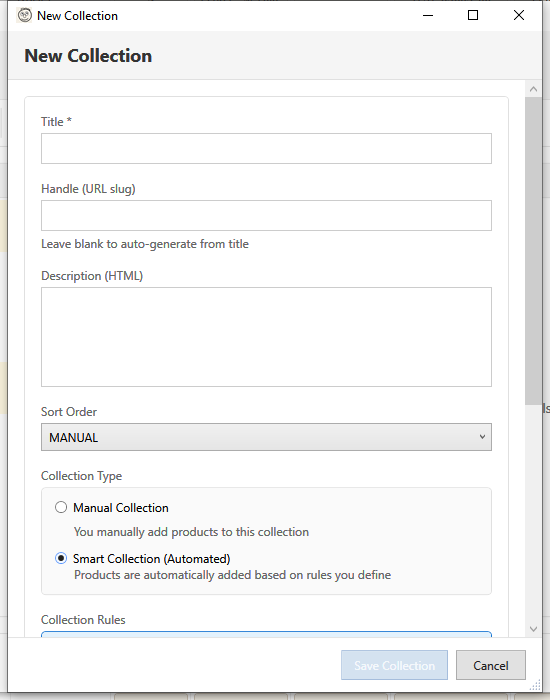
Smart collections automatically include products based on rules you define. Products are added or removed automatically as their data changes.
What Are Smart Collections?
Unlike manual collections where you hand-pick products, smart collections use conditions:
| Manual | Smart |
|---|---|
| Hand-picked products | Rule-based products |
| Static membership | Dynamic membership |
| You add/remove | Auto add/remove |
| Good for curated sets | Good for categories |
Creating a Smart Collection
- Open Collection Manager
- Click New Collection
- Select Smart Collection
- Enter collection details
- Add one or more rules
- Choose rule logic (AND/OR)
- Click Create
Rule Components
Each rule has three parts:
1. Column (Field)
What product data to check:
| Column | Description |
|---|---|
| Title | Product title |
| Type | Product type |
| Vendor | Brand/vendor |
| Tag | Product tags |
| Price | Variant price |
| Compare At Price | Original price |
| Weight | Product weight |
| Inventory | Stock quantity |
| Variant Title | Variant name |
2. Relation (Operator)
How to compare:
| Relation | Used With | Example |
|---|---|---|
| Equals | Text, Numbers | Title equals "Blue Shirt" |
| Not Equals | Text, Numbers | Vendor not equals "Nike" |
| Contains | Text | Title contains "Summer" |
| Starts With | Text | Title starts with "New" |
| Ends With | Text | SKU ends with "-XL" |
| Greater Than | Numbers | Price > 50 |
| Less Than | Numbers | Inventory < 10 |
3. Condition (Value)
The value to compare against:
- Text values: "Summer", "Nike", "sale"
- Numbers: 50, 100, 0
- For tags: Just the tag name
Rule Logic
All Conditions (AND)
Product must match ALL rules:
Type equals "Shoes"
AND
Vendor equals "Nike"
AND
Price greater than 100
Result: Only Nike shoes over $100
Any Condition (OR)
Product must match ANY rule:
Tag equals "sale"
OR
Tag equals "clearance"
OR
Tag equals "discount"
Result: Products with any sale-related tag
Rule Examples
By Product Type
Column: Product Type
Relation: Equals
Condition: "T-Shirts"
All products with type "T-Shirts"
By Vendor
Column: Vendor
Relation: Equals
Condition: "Nike"
All Nike products
By Tag
Column: Tag
Relation: Equals
Condition: "bestseller"
Products tagged "bestseller"
By Price Range
Rule 1: Price greater than 50
Rule 2: Price less than 100
Logic: All conditions (AND)
Products priced $50-$100
On Sale Items
Column: Compare At Price
Relation: Greater Than
Condition: 0
Products with a compare-at price (on sale)
Low Stock Alert
Column: Inventory
Relation: Less Than
Condition: 10
Products with less than 10 in stock
New Arrivals (by tag)
Column: Tag
Relation: Equals
Condition: "new-arrival"
Products tagged as new arrivals
Editing Smart Collections
- Select the smart collection
- Click Edit
- Modify rules:
- Add Rule - New condition
- Edit Rule - Change existing
- Delete Rule - Remove condition
- Change logic if needed
- Click Save
Preview Matches
While editing, click Preview to see which products match current rules.
Complex Rule Sets
Multiple Tags (OR)
For products in multiple categories:
Tag equals "summer" OR
Tag equals "beach" OR
Tag equals "outdoor"
Vendor + Type (AND)
For specific brand categories:
Vendor equals "Nike" AND
Type equals "Running Shoes"
Price + Inventory (AND)
For expensive items in stock:
Price greater than 200 AND
Inventory greater than 0
Smart Collection Best Practices
Do
- Use consistent data - Tags, types, vendors must match exactly
- Test rules - Preview before saving
- Start simple - Begin with one rule, add more as needed
- Use tags strategically - Plan tag taxonomy for smart collections
- Document rules - Note why rules were set up
Don't
- Over-complicate - Too many rules are hard to maintain
- Use inconsistent data - "Tshirt" vs "T-Shirt" won't match
- Forget case sensitivity - Some rules are case-sensitive
- Ignore empty matches - Check rules actually match products
Converting Manual to Smart
You cannot directly convert, but you can:
- Note which products are in manual collection
- Identify common attributes (type, vendor, tags)
- Create smart collection with rules matching those attributes
- Delete old manual collection
Limitations
- Maximum 64 rules per smart collection
- Rules can only use visible product fields
- Cannot use "created date" in rules (use tags instead)
- No nested logic (all AND or all OR, not mixed)
Troubleshooting
"No products match"
- Check rule spelling (exact match required)
- Verify products have the required data
- Try relaxing conditions
- Check rule logic (AND might be too restrictive)
"Wrong products appearing"
- Review all rules
- Check OR logic isn't too broad
- Verify product data is correct
- Test with Preview
"Products not updating"
- Smart collections update automatically
- May take a few minutes to sync
- Check product data actually changed
- Verify no sync errors
"Case sensitivity issues"
- Tags are case-insensitive in rules
- Title/vendor may be case-sensitive
- Use consistent casing in product data
See Also
- Collection Manager
- Product Assignment
- Bulk Field Edit - Add tags for smart collections