Product Assignment
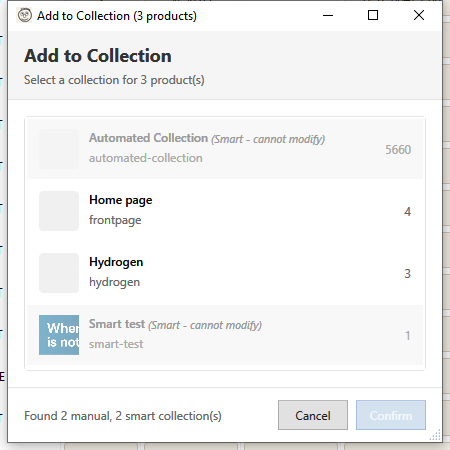
Learn how to add products to collections and remove them, both from the Collection Manager and directly from the product grid.
Adding Products to Collections
From Collection Manager
- Open Collection Manager
- Select a manual collection
- Click Add Products
- Product Picker opens:
- Search for products
- Filter by status/type/vendor
- Check products to add
- Click Add to Collection
From Product Grid
- Select products in the main grid
- Click + Collection button in toolbar
- Collection Picker opens:
- Shows all manual collections
- Search by name
- Select target collection
- Click Add
Bulk Add Multiple Products
- Select many products (Ctrl+A for all)
- Click + Collection
- Choose collection
- All selected products are added
Removing Products from Collections
From Collection Manager
- Open Collection Manager
- Select a manual collection
- View products in the collection
- Select products to remove
- Click Remove from Collection
- Confirm removal
From Product Grid
- Filter products by collection (optional)
- Select products to remove
- Click - Collection button in toolbar
- Select the collection to remove from
- Confirm removal
Bulk Remove
- Select multiple products
- Click - Collection
- Choose collection
- All selected are removed from that collection
Product Picker
The Product Picker helps you find products to add:
Search
Type to search by:
- Product title
- SKU
- Vendor
Filters
Filter the product list:
- Status - Active, Draft, Archived
- Type - Product type
- Vendor - Brand/vendor
- In Collection - Already in a collection
Selection
- Click - Select single product
- Ctrl+Click - Add to selection
- Shift+Click - Select range
- Select All - All visible products
Already in Collection
Products already in the target collection show:
- Grayed out
- "Already in collection" label
- Cannot be selected again
Collection Picker
When adding from the grid, the Collection Picker shows:
- All manual collections
- Collection product count
- Search by name
- Recently used collections first
Note: Smart collections don't appear - they're managed by rules.
Understanding Manual vs Smart
Manual Collections
✓ Can add/remove products directly ✓ Products stay until removed ✓ Full control over membership
Smart Collections
✗ Cannot add/remove directly ✗ Products auto-managed by rules ✓ To include a product: Make it match the rules ✓ To exclude: Make it not match rules
Example: To add a product to a "On Sale" smart collection:
- Set a Compare At Price on the product
- Product automatically appears in collection
Workflow Examples
Creating a Featured Collection
- Create manual collection "Featured Products"
- Select your best 10 products
- Click + Collection
- Add to "Featured Products"
Seasonal Curation
- Create "Spring Collection" manual collection
- Use search to find spring-related products
- Add products in batches
- Remove winter products from display
Managing Sale Items
For manual control:
- Create "Sale Items" manual collection
- Add products going on sale
- Remove when sale ends
For automatic:
- Create "Sale Items" smart collection
- Rule: Compare At Price > 0
- Products auto-add when sale-priced
Collection Membership View
From Product Grid
See which collections a product belongs to:
- Enable "Collections" column in grid
- Shows comma-separated collection names
- Click to see full list
From Product Details
- Select a product
- View product details
- Collections section shows membership
Best Practices
- Use meaningful names - "Summer Sale" not "Collection 1"
- Don't over-assign - Not every product needs many collections
- Plan structure - Decide collection hierarchy first
- Use smart for scale - Manual works for small sets
- Regular cleanup - Remove old seasonal collections
Bulk Assignment Strategies
By Vendor
- Filter grid by vendor
- Select all
- Add to vendor collection
By Type
- Filter by product type
- Select all
- Add to type-based collection
By Tag
- Search for tag
- Select matching products
- Add to thematic collection
Troubleshooting
"Cannot add to collection"
- Verify it's a manual collection (not smart)
- Check you have edit permissions
- Ensure products are saved
"Product doesn't appear after adding"
- Collection may need to sync
- Check product status (Active?)
- Verify collection is published
"Cannot remove from collection"
- Smart collection: Change product data instead
- Manual: Ensure product is actually in collection
- Check for sync errors
"Collection full"
Shopify has no hard limit, but:
- Very large collections can be slow
- Consider using smart collections for scale
- Split into sub-collections if needed
Keyboard Shortcuts
In Product Picker
| Shortcut | Action |
|---|---|
| Ctrl+A | Select all visible |
| Escape | Cancel and close |
| Enter | Confirm selection |
In Product Grid
Use the right-click context menu or toolbar Collections dropdown to add/remove products from collections.