Collection Manager
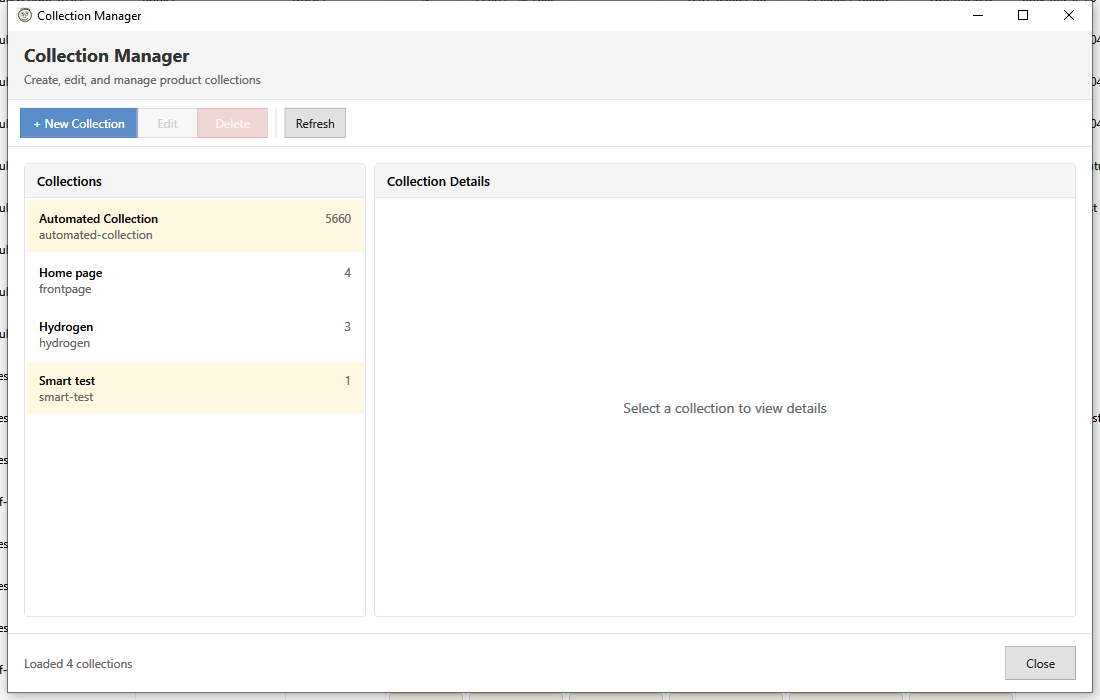
The Collection Manager provides a central interface for viewing, creating, editing, and managing all your Shopify collections.
Opening Collection Manager
Open using one of these methods:
- Toolbar: Collections dropdown > Manage Collections
Understanding Collections
Shopify has two types of collections:
| Type | Description | Product Assignment |
|---|---|---|
| Manual | Hand-picked products | You add/remove products manually |
| Smart | Rule-based, automatic | Products auto-added based on conditions |
Interface Overview
Collection List (Left Panel)
Lists all collections with:
- Name - Collection title
- Type - Manual or Smart badge
- Count - Number of products
- Image - Collection image thumbnail
Collection Details (Right Panel)
Shows selected collection:
- Title and handle
- Description
- Image
- Products (for manual) or Rules (for smart)
Viewing Collections
Sort Options
Sort the collection list by:
- Name - Alphabetical
- Product Count - Most/least products
- Updated - Recently modified
- Created - Newest/oldest
Filter Options
Filter collections:
- All - Show all collections
- Manual - Manual collections only
- Smart - Smart collections only
Search
Type in the search box to find collections by name.
Creating Collections
Create Manual Collection
- Click New Collection
- Select Manual Collection
- Fill in details:
- Title - Collection name (required)
- Handle - URL slug (auto-generated)
- Description - Collection description
- Image - Upload or URL
- Click Create
Create Smart Collection
- Click New Collection
- Select Smart Collection
- Fill in details (same as manual)
- Add rules (see Smart Collections)
- Click Create
Editing Collections
- Select a collection from the list
- Click Edit or double-click
- Modify details in the Collection Editor
- Click Save
Editable Fields
| Field | Description |
|---|---|
| Title | Collection name |
| Handle | URL slug |
| Description | HTML description |
| Image | Collection image |
| SEO Title | Meta title |
| SEO Description | Meta description |
For Smart Collections
Additional options:
- Add/remove/modify rules
- Change rule logic (AND/OR)
- Preview matching products
Managing Products
Manual Collections
Add or remove products manually:
Add Products:
- Select a manual collection
- Click Add Products
- Select products from the picker
- Click Add
Remove Products:
- Select products in the collection
- Click Remove from Collection
- Confirm removal
Smart Collections
Products are managed by rules. To change which products appear:
- Edit the collection
- Modify the rules
- Save changes
- Products update automatically
Deleting Collections
- Select the collection
- Click Delete
- Confirm deletion
Note: Deleting a collection does NOT delete the products in it.
Collection Actions
Duplicate Collection
- Select a collection
- Click Duplicate
- New collection created with "(Copy)" suffix
- Edit as needed
Copy Products to Collection
Copy products from one collection to another:
- Select a collection with products
- Right-click and choose Copy Products to...
- Select the target collection
- Products are added to target (remain in source)
Move Products to Collection
Move products from one collection to another:
- Select a collection with products
- Right-click and choose Move Products to...
- Select the target collection
- Products are moved (removed from source, added to target)
View on Shopify
- Select a collection
- Click View in Admin
- Opens Shopify admin in browser
Bulk Operations
Add Products to Collection
From the main product grid:
- Select products
- Click + Collection button
- Choose the target collection
- Confirm the operation
Remove Products from Collection
From the main product grid:
- Filter by collection (optional)
- Select products
- Click - Collection button
- Choose the collection to remove from
- Confirm
Collection Statistics
View collection stats:
- Product Count - Total products
- Active Products - Published products
- Total Inventory - Combined stock
- Average Price - Mean product price
Best Practices
- Use descriptive names - Clear, customer-friendly titles
- Optimize handles - SEO-friendly URL slugs
- Add descriptions - Help with SEO and navigation
- Include images - Visual appeal in store
- Smart vs Manual - Use smart for dynamic groupings
- Regular review - Clean up unused collections
Common Scenarios
Seasonal Collection
Create a manual collection for holiday products:
- Create a seasonal manual collection (e.g. "Summer Sale")
- Add relevant products
- Feature in navigation during season
- Archive after season
Sale Items
Create a smart collection for products on sale:
- Create "On Sale" smart collection
- Rule: "Compare At Price" is greater than 0
- Products auto-appear when sale-priced
New Arrivals
Smart collection for recent products:
- Create "New Arrivals" smart collection
- Rule: "Created" within last 30 days
- Products auto-rotate as new items arrive
Troubleshooting
"Collection not showing on store"
- Check collection is published
- Verify navigation menu includes it
- Check collection has products
"Products not appearing in smart collection"
- Review rule logic (AND vs OR)
- Verify product data matches rules
- Check product status is Active
"Cannot edit collection"
- Verify you have edit permissions
- Check for sync errors
- Refresh the collection list
"Products removed unexpectedly"
- Smart collection rules may have changed
- Product data may have been modified
- Check rule conditions
Keyboard Shortcuts
| Shortcut | Action |
|---|---|
| Ctrl+N | New collection |
| Delete | Delete selected |
| Enter | Edit selected |
| Escape | Close manager |