Settings
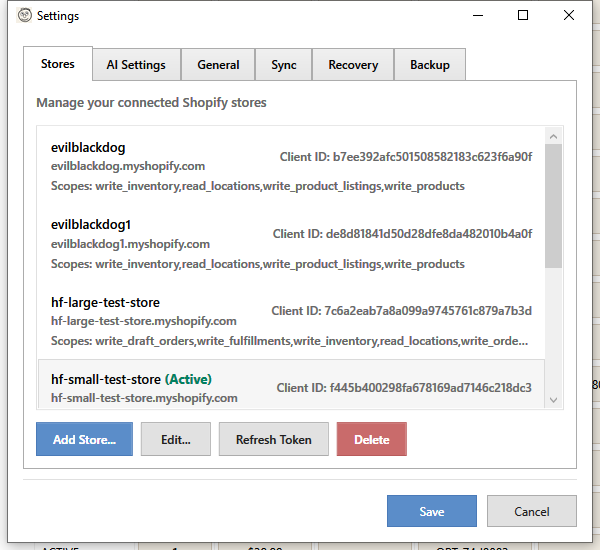
The Settings window allows you to configure store connections, AI providers, confirmation dialogs, and synchronization options.
Opening Settings
- Menu: File > Settings
Settings Tabs
The Settings window is organized into six tabs:
- Stores - Manage Shopify store connections
- AI Settings - Configure AI providers for content generation
- General - Application behavior and confirmation dialogs
- Sync - Product and inventory synchronization options
- Recovery - Product deletion and backup settings
- Backup - Export and import application settings
Stores Tab
Manage your connected Shopify stores from this tab.
Store List
View all connected stores with:
- Store display name and domain
- Active store indicator
- Client ID
- API scopes granted
Store Actions
| Button | Description |
|---|---|
| Add Store | Connect a new Shopify store |
| Edit | Modify selected store's connection settings |
| Refresh Token | Refresh the access token. Tokens are automatically refreshed, but use this if you encounter authentication errors after changing app scopes. |
| Delete | Remove store from the application |
See Connecting to Shopify for detailed setup instructions.
AI Settings Tab
Configure AI providers for description and title generation.
Provider Tabs
The AI Settings tab contains sub-tabs for each supported provider:
- Google Gemini
- Anthropic Claude
- OpenAI ChatGPT
Provider Configuration
Each provider requires:
| Setting | Description |
|---|---|
| API Key | Your API key from the provider (stored encrypted) |
| Model | Select which AI model to use |
| Temperature | Creativity level (0 = focused, 1 = creative) |
| Max Tokens | Maximum response length |
Getting API Keys
| Provider | Where to Get Key |
|---|---|
| Google Gemini | Google AI Studio |
| Anthropic Claude | Anthropic Console |
| OpenAI | OpenAI Platform |
Recommended Models
| Provider | Model | Best For |
|---|---|---|
| Gemini | gemini-2.0-flash | Fast, cost-effective generation |
| Claude | claude-sonnet-4 | High-quality writing |
| OpenAI | gpt-4o-mini | Balance of speed and quality |
AI Prompt Presets
Access File > AI Prompt Presets to create and manage custom prompt templates for titles and descriptions. See AI Prompt Presets for details.
General Tab
Application Behavior
Configure general application settings:
| Setting | Description |
|---|---|
| Check for updates on startup | Automatically check for new versions when the application starts |
| Auto-close Variant Grid Editor after saving | Automatically close the Variant Grid Editor window after successfully saving changes |
| Auto-close progress windows after | Time before progress windows automatically close on success (Immediately, 3, 5, or 10 seconds) |
| Date Format | Controls how dates are displayed. Set to "Auto-detect from store country" to use your store's locale, or choose a specific format manually. |
Confirmation Dialogs
Control which operations show confirmation prompts:
| Setting | Description |
|---|---|
| Bulk price changes | Confirm before applying price changes |
| Bulk inventory changes | Confirm before adjusting inventory |
| Bulk description changes | Confirm before updating descriptions |
| Bulk field changes | Confirm before changing tags/status/vendor |
| Bulk SEO changes | Confirm before updating SEO fields |
| Bulk AI description generation | Confirm before AI generates content |
| Delete media | Confirm before deleting product images/videos |
| Sync operations | Confirm before syncing to Shopify |
| Add to collection | Confirm before adding products to a collection |
| Remove from collection | Confirm before removing products from a collection |
Each confirmation dialog includes a "Don't ask again" checkbox. Once checked, that specific confirmation is suppressed.
Reset Confirmations
Click Reset All to Default to re-enable all confirmation dialogs that were previously dismissed.
Sync Tab
Configure how HF Product Manager synchronizes data with Shopify. For a complete guide to the sync feature, see Product Sync.
Inventory Management
A master toggle controls all inventory-related features:
| Setting | Description |
|---|---|
| Enable Inventory Management | Master toggle for all inventory features |
When disabled: inventory sync, bulk inventory edit, inventory columns, and inventory reports are all hidden. Use this if you manage inventory outside HF Product Manager.
Automatic Synchronization
Choose when each data type syncs from Shopify:
Products
| Mode | Behavior |
|---|---|
| On Startup (All Stores) | Syncs every connected store when the app starts. If you have multiple stores, a multi-store progress window appears showing per-store status. The active store syncs first so you can start working immediately. |
| On Startup (Current Store) | Syncs only the active store when the app starts. Other stores are not touched until you switch to them or sync manually. |
| On Store Switch | Syncs a store when you switch to it. Useful if you rarely use some stores and want to avoid syncing them on every startup. |
| Manual Only | Only syncs when you click the Sync button in the toolbar. Choose this if you prefer full control over when data is downloaded. |
After the first full sync, subsequent automatic syncs use Quick Sync (delta), which only downloads products that changed since the last sync. This makes startup syncs fast -- typically a few seconds rather than minutes.
Inventory
| Mode | Behavior |
|---|---|
| After Product Sync | Automatically sync inventory after products finish syncing |
| Manual Only | Only sync via the Refresh Inventory option |
Sales Data
| Mode | Behavior |
|---|---|
| On Startup (All Stores) | Sync sales when app opens |
| On Startup (Current Store) | Sync only the active store's sales when app opens |
| On Store Switch | Sync sales when switching stores |
| When Reports Opened | Sync when opening the Reports window (default) |
| Manual Only | Only sync via the Shopify Sync dropdown > Sync Sales Data |
Product Loading Strategy
Choose how products are loaded from Shopify during full sync:
| Strategy | Description | Best For |
|---|---|---|
| Auto-detect | Automatically selects based on store size | Most users (recommended) |
| Standard API | Paginated loading, page by page | Small stores (<8,000 data objects) |
| Bulk Operations | Single background job with JSONL download | Large stores with many variants |
How Auto-Detection Works
When set to Auto-detect, HF Product Manager analyzes your store before syncing to choose the best strategy:
- Product count check -- If the product count alone exceeds the threshold, Bulk Operations is used immediately
- Historical data -- If a previous sync has been recorded, the app uses the known variant/image/metafield counts from last time (no extra API calls needed)
- Sampling -- For first-time syncs of stores under the threshold, the first 50 products are sampled to estimate variant density, image count, and metafield count per product, then extrapolated to the full catalog
The decision is based on total data objects = products + variants + images + metafields.
Auto-Detection Threshold
- Default threshold: 8,000 objects
- Adjustable: Use the slider to set between 2,000 and 20,000
Variant Metafield Override
Stores that have variant metafield definitions always use Bulk Operations for full syncs, regardless of the threshold setting. This is because the Standard API cannot efficiently fetch variant-level metafields -- it would require separate queries per variant. The override is automatic and requires no configuration.
Inventory Loading Strategy
Similar options for loading inventory data:
| Strategy | Description | Best For |
|---|---|---|
| Auto-detect | Automatically selects based on variant count | Most users (recommended) |
| Standard API | Per-location paginated loading | Stores with <5,000 variants |
| Bulk Operations | Background job for all inventory | Stores with 5,000+ variants |
Inventory Threshold
- Default threshold: 5,000 variants
- Adjustable: Use the slider to set between 1,000 and 20,000
When to Use Bulk Operations
Bulk Operations are beneficial when:
- Your store has many variants (5,000+)
- Standard sync takes more than 60 seconds
- You experience API rate limiting during sync
The tradeoff is a ~5-8 second overhead for the bulk job to start, but much faster overall for large catalogs.
Recovery Tab
Configure how product deletion works and how deleted products are backed up for potential recovery.
Deletion Confirmation
| Setting | Description |
|---|---|
| Require typing 'DELETE' to confirm | When enabled, you must type 'DELETE' in the confirmation dialog before products can be deleted. This prevents accidental deletions. |
Image Storage
| Setting | Description |
|---|---|
| Store product images locally when deleting | Downloads full-resolution images before deletion for complete recovery. Images are stored in %LocalAppData%\HFProductManager\DeletedProductImages\. |
About Product Recovery
When you delete products, a complete backup is stored locally including all product data, variants, and optionally images. You can restore deleted products using the Recovery dropdown in the toolbar.
Note: Restored products will receive new Shopify product IDs. Collection memberships are not automatically restored.
Backup Tab
Export and import your application settings for backup or migration to another machine.
Export Settings
Create a backup of your current configuration:
- Optionally check Include store credentials and AI API keys
- When checked, a red warning banner reminds you that credentials will be stored in plaintext
- When unchecked, credentials are stripped for safe sharing
- Click Export Settings...
- Choose a save location (filename includes timestamp)
- A JSON file is created containing your configuration
What's included in exports:
- All store connections (domains, client IDs)
- AI provider settings (models, temperature, max tokens)
- General settings (confirmations, auto-close behaviour)
- Sync settings (modes, thresholds, strategies)
- Recovery settings
Optionally included (with credentials checkbox):
- Store client secrets and access tokens
- AI provider API keys
Import Settings
Restore settings from a backup file:
- Click Import Settings...
- Select a JSON settings file
- Review the summary dialog showing:
- Stores being kept (existing data preserved)
- Stores being added (new)
- Stores being removed (cached data will be deleted)
- Whether credentials are included
- Confirm to proceed
Safety features:
- Automatic backup of current settings created before import (
settings.json.pre-import-backup) - Smart store matching by domain preserves existing cached data
- License tier validation prevents importing more stores than your license allows
- Supports both export format and raw
settings.jsonfiles
First-Run Import
When setting up HF Product Manager on a new machine, you can import settings during first launch to quickly configure your stores and preferences.
Warning: Importing settings replaces all current configuration. Removed stores will have their cached product data, backups, and sales data permanently deleted.
Saving Settings
Click Save to apply all changes. Click Cancel to close without saving.
Most settings take effect immediately. Some may require restarting the application.
Settings Storage
Settings are stored in:
%AppData%\HFProductManager\settings.json
Backup Your Settings
To backup settings:
- Close HF Product Manager
- Copy
settings.jsonto a safe location - Restore by copying back
Per-Store Data
Some data is stored separately per store:
- Product cache
- Session state (filters, sort, selection)
- Sync history
- Window positions
These are stored in:
%LocalAppData%\HFProductManager\
Troubleshooting
"Settings not saving"
- Ensure you click Save before closing
- Check write permissions to
%AppData%\HFProductManager - Try running HF Product Manager as administrator once
"API key not working"
- Check key is entered correctly (no extra spaces)
- Verify key is active in provider's dashboard
- Check API quota/billing status
"Store connection failing"
- Verify Client ID and Secret are correct
- Ensure the Shopify app is installed (not just created)
- Check required API scopes are enabled
"Sync taking too long"
- Switch to Bulk Operations strategy for large stores
- Lower the auto-detection threshold
- Consider syncing during off-peak hours