Activate at Location
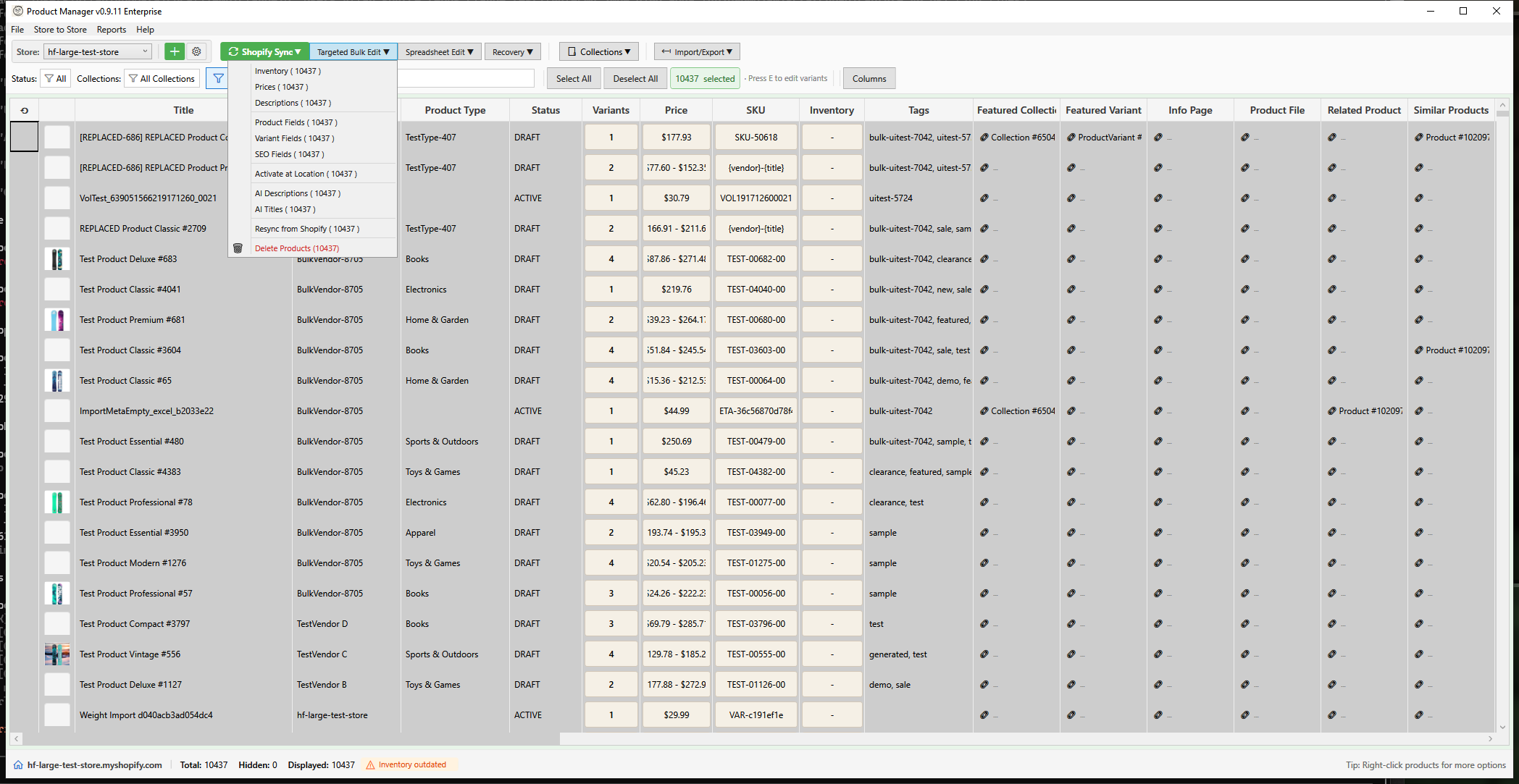
The Activate at Location feature enables inventory tracking for variants at a specific inventory location. This is required before you can set inventory quantities for variants at that location.
When Do You Need This?
In Shopify, a variant must be "stocked" at a location before you can manage its inventory there. Variants may not be stocked at a location if:
- You added a new inventory location after creating products
- Products were imported without location-specific inventory data
- The variant was created but never activated at secondary locations
Opening Activate at Location
- Select one or more products in the grid
- Click Targeted Bulk Edit > Activate at Location in the toolbar
Interface Overview
Location Selection
Choose the inventory location where you want to activate variants. The dropdown shows all your Shopify inventory locations with an indicator for the primary location.
Options
| Option | Description |
|---|---|
| Set initial inventory quantity | When checked, sets an initial quantity for newly activated variants (default: 0) |
Summary Panel
Shows counts before clicking Preview:
- Selected products - Number of products selected
- Total variants - Total variants across selected products
After clicking Preview, additional counts appear:
- Already active - Variants already stocked at this location (skipped)
- Will activate - Variants that need activation
- Not tracked - Variants with tracking disabled (cannot be activated)
- Estimated time - Approximate time to complete the operation
Preview Grid
The preview grid shows all variants with their activation status:
| Column | Description |
|---|---|
| Product | Product title |
| Variant | Variant title |
| SKU | Stock keeping unit |
| Current Status | "Active", "Not stocked", or "Not tracked" |
| Action | What will happen: "Activate", "Skip", or "Cannot activate" |
Row coloring:
- Green background - Will be activated
- Gray text - Already active or not tracked (skipped)
Workflow
- Select products containing variants to activate
- Open the Activate at Location dialog
- Choose location from the dropdown
- Click Preview to check stocking status
- Review which variants will be activated
- Optionally enable "Set initial inventory quantity" and enter a value
- Click Activate to proceed
After Activation
Once variants are activated at a location:
- They appear in the inventory list for that location
- You can set and adjust inventory quantities
- They count toward that location's stock levels
Use Cases
New Location Setup
When you add a new fulfillment location:
- Select all products that should be stocked there
- Open Activate at Location
- Select the new location
- Set initial quantity (e.g., 0 for receiving stock later)
- Activate all variants
Imported Products
Products imported via CSV/Excel may only be active at your primary location:
- Filter to imported products
- Select all
- Activate at each additional location
Seasonal Products
Enable variants at temporary or pop-up locations:
- Select seasonal product collection
- Activate at the temporary location
- Set initial inventory quantities
Comparison: Bulk Inventory Edit vs Activate at Location
| Feature | Bulk Inventory Edit | Activate at Location |
|---|---|---|
| Purpose | Adjust inventory quantities | Enable tracking at location |
| Prerequisite | Variant must be active at location | None |
| Sets quantity | Yes (primary purpose) | Optional (initial value only) |
| Shows stocking status | Shows "Not stocked" as info | Primary focus |
| Activation option | Checkbox to activate before update | Dedicated operation |
When to use which:
- Use Bulk Inventory Edit when most variants are already active and you want to adjust quantities
- Use Activate at Location when setting up a new location or ensuring all variants are stocked
Troubleshooting
"No variants need activation"
All selected variants are already active at the chosen location. No action needed.
"Cannot activate" status
Variants showing "Cannot activate" have inventory tracking disabled. To fix:
- Open the product in Shopify Admin
- Enable "Track quantity" for the variant
- Retry the activation
Operation takes a long time
Activation uses individual API calls for each variant:
- Under 50 variants: ~1 second per variant
- 50+ variants: Batched with ~10 concurrent requests
For very large batches (1000+ variants), consider activating in smaller groups.