AI Content Generator
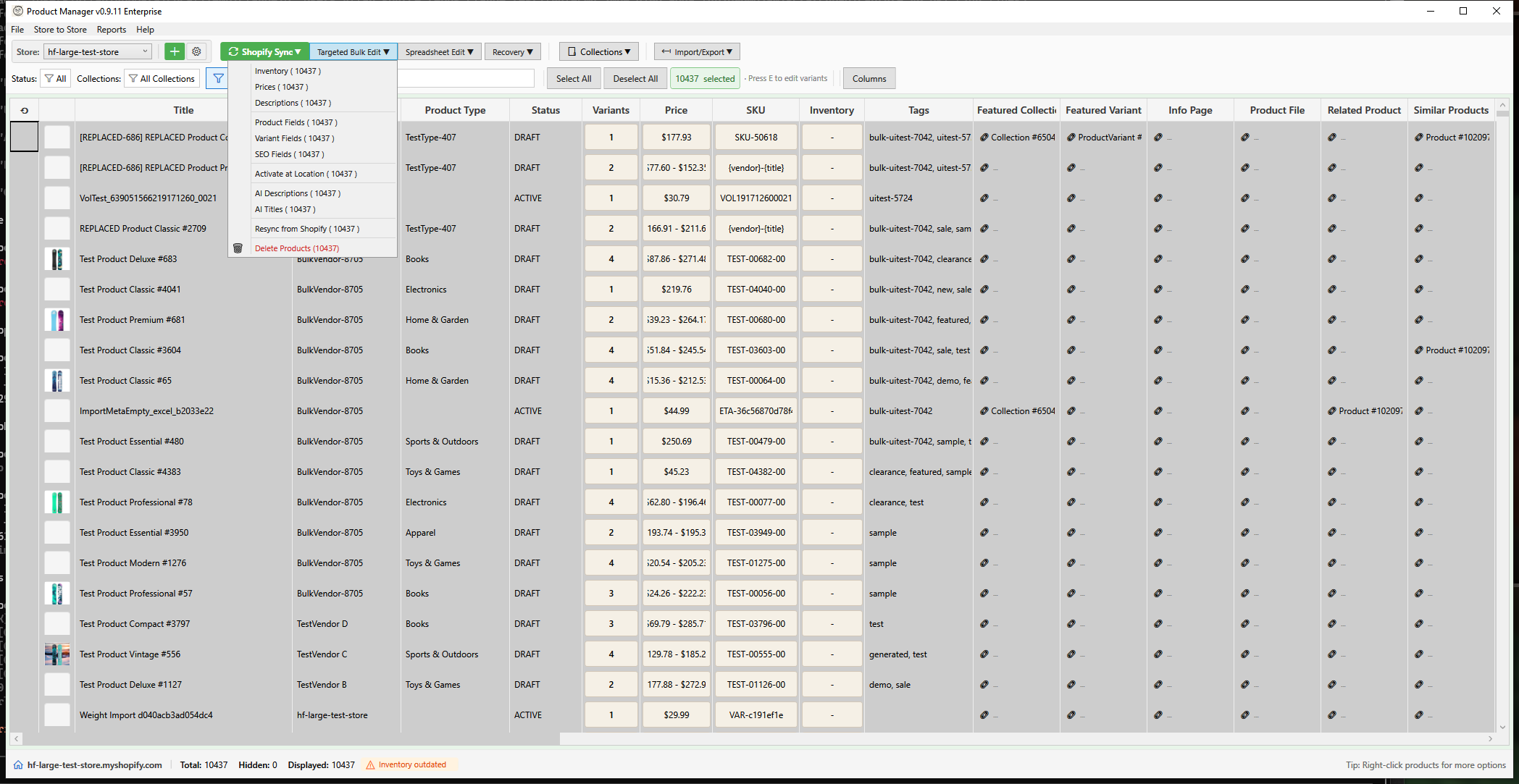
HF Product Manager includes powerful AI-powered content generation for both product titles and descriptions. Generate compelling, optimized content for multiple products using your choice of AI provider.
Overview
The AI Content Generator provides:
- Title Generation - Create SEO-optimized, compelling product titles
- Description Generation - Write engaging product descriptions with proper HTML formatting
- Multiple AI Providers - Choose from Google Gemini, Anthropic Claude, or OpenAI
- Customizable Prompts - Use built-in presets or create your own templates
- Batch Processing - Generate content for multiple products simultaneously
- Preview & Select - Review results before applying
Opening the AI Generators
AI Description Generator
- Select products in the main grid
- Open using one of these methods:
- Toolbar: Click Targeted Bulk Edit > AI Descriptions
- Right-click: Select AI Descriptions from context menu
AI Title Generator
- Select products in the main grid
- Open using one of these methods:
- Toolbar: Click Targeted Bulk Edit > AI Titles
- Right-click: Select AI Titles from context menu
Requirements
API Key Configuration
You need an API key from at least one supported provider:
| Provider | Get API Key | Best For |
|---|---|---|
| Google Gemini | Google AI Studio | Fast, cost-effective, generous free tier |
| Anthropic Claude | Anthropic Console | High-quality writing, nuanced tone |
| OpenAI | OpenAI Platform | Reliable, widely tested |
Configure your API key in File > Settings > AI Settings.
Supported Models
Available models are loaded dynamically from each provider's API. Go to File > Settings > AI Settings and click Load Models to see the current list for your configured provider. Each provider typically offers models ranging from fast/economical to high-quality.
Using Prompt Presets
HF Product Manager includes 18 built-in prompt presets organized by category. Access presets via the dropdown in either generator.
Title Presets
| Preset | Purpose |
|---|---|
| Improve Title Clarity | Make titles clearer and more descriptive |
| SEO Optimize Title | Optimize for search engines (under 60 chars) |
| Make Title Compelling | Add attention-grabbing elements |
| Standard Title Format | Reformat as "Brand - Product - Feature" |
| Shorten Title | Condense to under 50 characters |
Description Presets
Clarity:
| Preset | Purpose |
|---|---|
| Fix Grammar & Spelling | Correct errors without changing meaning |
| Improve Clarity | Remove ambiguous language |
| Simplify Language | Plain English for general audiences |
Length:
| Preset | Purpose |
|---|---|
| Expand & Add Detail | Add depth while staying accurate |
| Condense & Shorten | Remove redundancy, keep key points |
| Convert to Bullet Points | Create scannable HTML lists |
Tone:
| Preset | Purpose |
|---|---|
| Professional & Formal | B2B/corporate appropriate |
| Friendly & Conversational | Warm, approachable |
| Luxury & Premium | Sophisticated, exclusive |
| Urgent & Action-Driven | Create urgency, drive action |
Marketing:
| Preset | Purpose |
|---|---|
| SEO Optimize Description | Natural keyword integration |
| Focus on Benefits | Feature-to-benefit conversion |
| Add Social Proof Hooks | Insert testimonial placeholders |
Formatting:
| Preset | Purpose |
|---|---|
| Clean Up HTML | Fix formatting issues |
| Add Headings & Structure | Organize with H3/H4 sections |
Custom Presets
Create your own presets via File > AI Prompt Presets. See AI Prompt Presets for details.
Placeholders
Use placeholders in prompts to insert product data:
| Placeholder | Content |
|---|---|
{product.title} |
Product name |
{product.vendor} |
Brand/vendor |
{product.type} |
Product type/category |
{product.tags} |
Comma-separated tags |
{product.description} |
Current description |
Example Custom Prompt
Write a product description for {product.title} by {product.vendor}.

Product Type: {product.type}
Tags: {product.tags}

Requirements:
- 100-150 words
- Emphasize quality and value
- Include a call to action
- Use HTML formatting (<p>, <ul>, <li>)
Generation Options
Skip Existing Content
For descriptions only:
- Enabled - Skip products that already have descriptions
- Disabled - Generate for all selected products
This speeds up batch operations and preserves existing content.
Concurrency Control
Control parallel processing:
| Setting | Speed | API Usage |
|---|---|---|
| 1 | Slowest | Lowest cost, safest |
| 2 | Balanced | Default setting |
| 3-5 | Fastest | Higher quota usage |
Rate Limiting
Delay between requests (milliseconds):
| Setting | Use Case |
|---|---|
| 100-200ms | Fast generation, high API quota |
| 500ms | Default, balanced |
| 1000-2000ms | Conservative, avoid rate limits |
Backup Option
For titles:
- Create backup before applying - Saves original titles for restoration via Backup Manager
Descriptions always create automatic backups.
Generation Workflow
Step 1: Configure
- Select AI model from dropdown
- Choose a preset or enter custom prompt
- Adjust options (skip existing, concurrency, delay)
Step 2: Generate
- Click Generate Titles or Generate button
- Watch progress bar and status updates
- Cancel anytime if needed
Step 3: Review
The results grid shows:
| Column | Description |
|---|---|
| Apply | Checkbox to include in final apply |
| Current | Original title/description |
| Generated | AI-generated content |
| Chars | Character count (titles only) |
| Status | Completed, Failed, Skipped |
| Error | Error message if failed |
Step 4: Select
- Select All - Include all successful generations
- Select None - Deselect all
- Individually check/uncheck specific items
- Review generated content before applying
Step 5: Apply
- Verify selection count in footer
- Click Apply Selected
- Confirm when prompted
- Wait for Shopify sync
- Backup created automatically
Cost Estimation
AI APIs charge per token (roughly 4 characters = 1 token):
| Provider | Model | Est. Cost per Product |
|---|---|---|
| Gemini | gemini-2.0-flash | Free tier / ~$0.001 |
| Claude | claude-sonnet-4 | ~$0.01-0.02 |
| Claude | claude-haiku-4 | ~$0.002-0.005 |
| OpenAI | gpt-4o | ~$0.01-0.03 |
| OpenAI | gpt-4o-mini | ~$0.001-0.003 |
Costs vary based on prompt length, output length, and current API pricing.
Best Practices
General Tips
- Test with small batches - Try 2-3 products before large runs
- Review all results - AI can produce inconsistent quality
- Use specific prompts - Detailed instructions yield better results
- Match your brand voice - Include tone guidance in prompts
- Check character counts - Especially for SEO titles (60 char limit)
Title Generation Tips
- Keep titles under 70 characters for SEO
- Include key product attributes
- Maintain consistent format across catalog
- Don't over-promise or add false claims
Description Generation Tips
- Specify desired word count (100-200 typical)
- Request specific HTML formatting
- Include "do not invent features" in prompts
- Ask for call-to-action when appropriate
Prompt Writing Tips
- Be explicit - State exactly what you want
- Set constraints - Word count, format, tone
- Provide context - Brand, audience, purpose
- Request structure - Paragraphs, bullets, headings
- Prohibit fabrication - "Do not add features not in original"
Troubleshooting
"No AI provider configured"
- Go to File > Settings > AI Settings
- Enter API key for at least one provider
- Save settings and reopen generator
"API key not valid"
- Check key copied correctly (no extra spaces)
- Verify key is active in provider dashboard
- Check API quota/billing status
"Rate limit exceeded"
- Increase delay between requests
- Reduce concurrent request count
- Wait 60 seconds and retry
- Check provider quota limits
"Generation failed for some products"
- View error column for details
- Common causes: timeout, API errors, content filters
- Retry failed items only
- Try different AI model
"Results are inconsistent"
- Use more specific prompts
- Lower temperature setting (in AI Settings)
- Include examples in prompt
- Try different preset
"Content is too short/long"
- Add explicit length requirements to prompt
- Example: "Write exactly 150-200 words"
- Adjust max tokens in Settings
"Results don't match brand voice"
- Add brand guidelines to prompt
- Specify tone explicitly
- Include example phrases
- Create custom preset with brand rules
Keyboard Shortcuts
| Shortcut | Action |
|---|---|
| Enter | Start generation (when in prompt field) |
| Escape | Cancel generation / Close window |