Keyboard Shortcuts
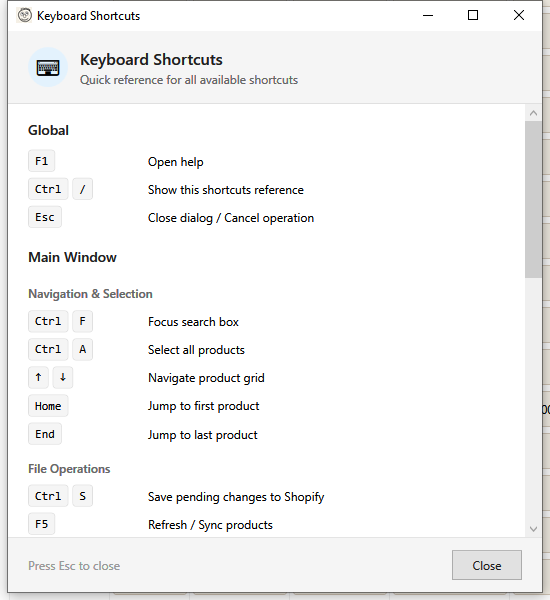
This page lists all keyboard shortcuts available in HF Product Manager, organized by context.
Global Shortcuts
These shortcuts work from anywhere in the application:
| Shortcut |
Action |
| F1 |
Open context-sensitive help |
| Escape |
Close current dialog / Cancel operation |
Main Window
Navigation & Selection
| Shortcut |
Action |
| Ctrl+F |
Focus search box |
| Ctrl+A |
Select all products (in current filter) |
| Up/Down |
Navigate product grid |
| Ctrl+Click |
Add/remove product from selection |
| Shift+Click |
Select range of products |
| Home |
Jump to first product |
| End |
Jump to last product |
Actions
| Shortcut |
Action |
| Ctrl+S |
Save pending changes to Shopify |
| F5 |
Refresh / Sync products from Shopify |
| Ctrl+/ |
Open keyboard shortcuts reference |
| Escape |
Deselect all products |
Opening Editors
| Shortcut |
Action |
| E |
Open Variant Grid Editor for selected products |
| Enter |
Open description editor for selected product |
| Double-click cell |
Edit cell inline or open appropriate editor |
Product Grid (Inline Editing)
| Shortcut |
Action |
| F2 |
Enter edit mode for selected cell |
| Enter |
Confirm edit, move to next row |
| Tab |
Confirm edit, move to next column |
| Escape |
Cancel current edit |
| Delete |
Clear cell contents (when editing) |
Description Editor
Text Formatting
| Shortcut |
Action |
| Ctrl+B |
Bold |
| Ctrl+I |
Italic |
| Ctrl+U |
Underline |
| Ctrl+K |
Insert link |
| Ctrl+Shift+L |
Bulleted list |
| Ctrl+Shift+N |
Numbered list |
Editor Actions
| Shortcut |
Action |
| Ctrl+S |
Save description |
| Ctrl+Z |
Undo |
| Ctrl+Y |
Redo |
| Escape |
Close editor |
Variant Grid Editor
Navigation
| Shortcut |
Action |
| Tab |
Move to next cell |
| Shift+Tab |
Move to previous cell |
| Enter |
Confirm edit, move down |
| Arrow keys |
Navigate between cells |
| Home |
Move to first cell in row |
| End |
Move to last cell in row |
| Ctrl+Home |
Move to first cell |
| Ctrl+End |
Move to last cell |
Editing
| Shortcut |
Action |
| F2 |
Enter edit mode |
| Escape |
Cancel current edit |
| Delete |
Clear cell contents |
| Ctrl+C |
Copy selected cells |
| Ctrl+V |
Paste into selected cells |
| Ctrl+S |
Save all changes |
Dialogs (General)
Most dialog windows support:
| Shortcut |
Action |
| Enter |
Activate default button (usually Save/Apply/OK) |
| Escape |
Close dialog / Cancel |
| Alt+S |
Save (when Save button has underline) |
| Alt+C |
Cancel (when Cancel button has underline) |
Bulk Operation Dialogs
| Shortcut |
Action |
| Enter |
Start operation (when in input field) |
| Escape |
Cancel and close |
Reports Window
| Shortcut |
Action |
| Enter |
Generate report |
| Ctrl+E |
Export to Excel |
| Ctrl+Shift+E |
Export to CSV |
Settings Window
| Shortcut |
Action |
| Ctrl+S |
Save settings |
| Escape |
Close without saving |
Tips
Efficient Selection
- Filter first - Use filters to narrow down products, then Ctrl+A to select all matching
- Shift-click for ranges - Click first item, Shift+click last to select a continuous range
- Ctrl-click to toggle - Add or remove individual items from your selection
Quick Editing
- Double-click to edit - Works on most cells in the grid
- F2 to edit in place - When a cell is selected but not in edit mode
- Tab through cells - Move horizontally through editable columns
- Enter to confirm and move down - Efficient for column-by-column data entry
Keyboard-First Workflow
For maximum efficiency:
- Ctrl+F → Type search term → Enter
- Ctrl+A to select all results
- Open bulk operation dialog
- Configure options → Enter to execute
- Escape to close and return to grid
Customization
Currently, keyboard shortcuts cannot be customized. This feature may be added in a future version.
See Also