Variant Grid Editor
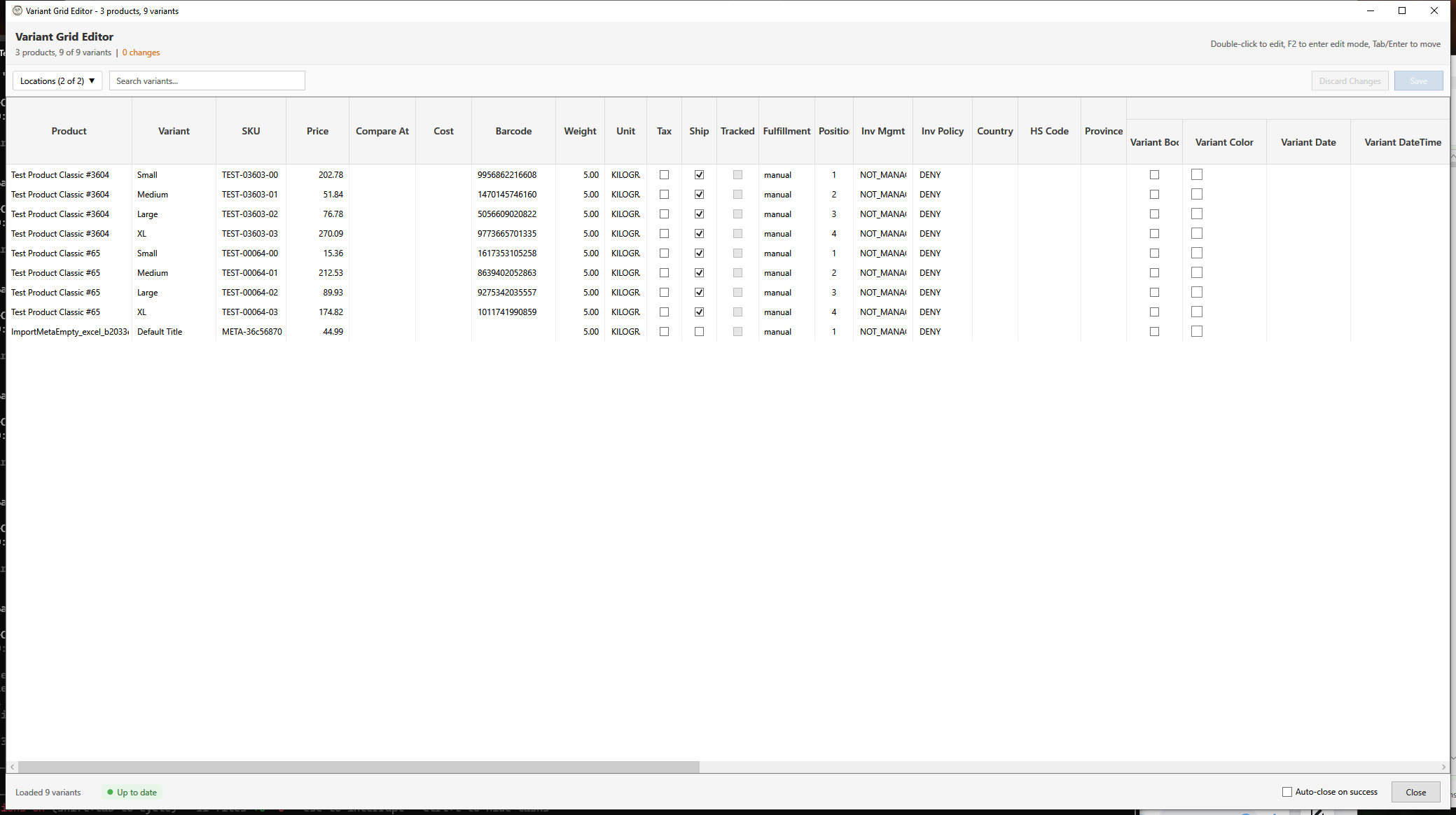
The Variant Grid Editor provides Excel-like spreadsheet editing for variants across multiple products. Edit prices, SKUs, inventory, and other variant fields in a familiar grid interface.
Overview
The Variant Grid Editor is designed for scenarios where you need to set different values for each variant. Unlike Targeted Bulk Edit (which applies the same value to all), the grid lets you edit each row individually.
Key Features:
- Excel-like navigation and editing
- Edit multiple fields per variant
- Per-location inventory columns
- Change tracking with visual highlights
- Automatic backup before saving
- Copy/paste support
Opening the Editor
- Select products in the main grid
- Click Spreadsheet Edit > Variants in the toolbar
The editor loads all variants from your selected products into a single editable grid.
Grid Layout
Frozen Columns (Read-Only)
The first two columns are frozen and cannot be edited:
| Column | Description |
|---|---|
| Product | Product title for context |
| Variant | Variant title (e.g., "Large / Blue") |
Editable Columns
| Column | Description | Notes |
|---|---|---|
| SKU | Stock Keeping Unit | Text field |
| Price | Variant price | Decimal, 2 places |
| Compare At | Compare-at/original price | Decimal, 2 places |
| Cost | Cost per item | Decimal, 2 places |
| Barcode | UPC, EAN, ISBN, etc. | Text field |
| Weight | Product weight | Decimal |
| Unit | Weight unit | Dropdown: lb, oz, kg, g |
| Tax | Is taxable | Checkbox |
| Inv Policy | Inventory policy | Dropdown: DENY, CONTINUE |
| Country | Country of origin | 2-letter ISO code |
| Province | Province/state of origin | Code validated against country |
| HS Code | Harmonized System code | 6-13 digits |
Metafield Columns
If your store has variant metafield definitions, the grid automatically adds columns for each defined metafield. Metafield columns appear after the standard fields.
Supported metafield types:
| Type | Editor | Notes |
|---|---|---|
single_line_text_field |
Inline text | Direct editing |
number_integer, number_decimal |
Inline text | Validated as number |
boolean |
Checkbox | Single-click toggle |
money |
Popup editor | Amount + currency JSON |
rating |
Popup editor | Value + scale bounds |
date, date_time |
Popup editor | Date picker dialog |
color |
Popup editor | Colour picker dialog |
weight, dimension, volume |
Popup editor | Measurement + unit |
url |
Inline text | URL validation on edit |
json |
Popup editor | JSON editor dialog |
rich_text_field |
Popup editor | TinyMCE editor |
list.* types |
Popup editor | List editor dialog |
| Reference types | Popup editor | Reference picker |
Hybrid editing: Simple types (text, numbers) edit inline. Complex types show a small button (▸) in the cell — click it to open the popup editor.
Metafield validation: Each cell validates against its type constraints. Invalid values show a red border with an error tooltip. For example, a number_integer field rejects decimal values, and a rating field enforces scale bounds.
Inventory Location Columns
If your store has multiple inventory locations, additional columns appear for each location showing current inventory levels.
Managing Location Columns:
- Click the Locations dropdown in the toolbar
- Check/uncheck locations to show/hide their columns
- Maximum 10 locations can be displayed at once
- First 3 locations are selected by default
Editing Cells
Navigation
| Key | Action |
|---|---|
| Tab | Move to next cell |
| Shift+Tab | Move to previous cell |
| Enter | Confirm edit, move down |
| Arrow keys | Navigate between cells |
| F2 | Enter edit mode |
| Escape | Cancel current edit |
Editing
- Double-click a cell to enter edit mode
- Type the new value
- Press Enter to confirm or Escape to cancel
- Modified rows are highlighted in yellow
Copy/Paste
- Ctrl+C - Copy selected cells
- Ctrl+V - Paste into selected cells
- Works with Excel and other spreadsheet applications
Metafield paste support:
Pasting into metafield columns validates the value against the metafield type. Supported paste formats:
| Metafield Type | Paste Format |
|---|---|
money |
19.99 or {"amount":"19.99","currency_code":"USD"} |
rating |
4.5 or {"value":"4.5","scale_min":"1","scale_max":"5"} |
boolean |
true, false, yes, no, 1, 0 |
number_integer |
Whole numbers only |
number_decimal |
Decimal numbers |
json |
Valid JSON string |
Invalid paste values are rejected with a validation summary dialog showing which cells failed and why.
Validation Summary
When saving or pasting, if any cells have validation errors, a Validation Summary Dialog groups errors by type and shows affected rows. You must fix all errors before saving.
Change Tracking
The editor tracks all changes and provides visual feedback:
- Yellow row background - Row has pending changes
- Header counter - Shows "X changes" in the header
- Status bar - Displays total products, variants, and change count
Discarding Changes
Click Discard Changes to revert all modifications to their original values.
Saving Changes
- Make your edits in the grid
- Review the change count in the header
- Click Save to apply changes to Shopify
- Wait for the save operation to complete
What happens on save:
- Automatic backup is created (for variants with price/cost changes)
- Changes are sent to Shopify in batches
- Local cache is updated
- Progress is shown in the status bar
Auto-Close Option
Enable Auto-close on success to automatically close the dialog after a successful save.
Inventory Editing
Single Location
If you have only one inventory location, its column appears automatically.
Multiple Locations
For multi-location stores:
- Click Locations dropdown
- Select which locations to display (max 10)
- Edit inventory quantities per location
- All location changes are saved together
Inventory Policy
The Inv Policy column controls overselling behavior:
| Policy | Behavior |
|---|---|
| DENY | Cannot sell when out of stock |
| CONTINUE | Can oversell (allow backorders) |
Common Use Cases
Update Prices Individually
When each variant needs a different price:
- Select products with variants to reprice
- Open Variant Grid Editor
- Edit the Price column for each row
- Save when complete
Bulk SKU Entry
Enter unique SKUs from a spreadsheet:
- Copy SKU column from Excel
- Select first SKU cell in grid
- Paste (Ctrl+V)
- Verify and save
Adjust Inventory Across Locations
Review and adjust inventory at multiple warehouses:
- Open Variant Grid Editor
- Show relevant location columns
- Adjust quantities as needed
- Save changes
Update Costs After Supplier Change
Update cost-per-item for margin tracking:
- Select affected products
- Open grid editor
- Update Cost column values
- Save
Set Weights for Shipping
Add or update weights for shipping calculations:
- Select products needing weights
- Open grid editor
- Enter Weight and select Unit
- Save
Best Practices
- Work in batches - Select 20-50 products at a time for manageable grids
- Review before saving - Check the change count matches expectations
- Use filters first - Filter in main grid to select related products
- Copy from Excel - Prepare data in Excel, then paste into grid
- Check inventory locations - Ensure correct locations are selected
Comparison: Grid Editor vs Bulk Variant Fields
| Scenario | Use This Tool |
|---|---|
| Set same value for all variants | Bulk Variant Fields |
| Set different value per variant | Variant Grid Editor |
| Apply formula (e.g., +10%) | Bulk Variant Fields |
| Review and adjust individually | Variant Grid Editor |
| Pattern-based SKU generation | Bulk Variant Fields |
| Manual SKU entry from list | Variant Grid Editor |
Troubleshooting
"Loading takes a long time"
- Large selections with many variants take longer
- Try selecting fewer products (20-50 at a time)
- Variants are loaded in batches from Shopify API
"Some inventory columns missing"
- Click Locations dropdown to show hidden locations
- Maximum 10 locations can be displayed
- First 3 are shown by default
"Changes not saving"
- Check for validation errors (negative prices, etc.)
- Verify network connection
- Check Shopify API rate limits
- Review error messages in status bar
"Inventory not updating"
- Ensure variant has inventory tracking enabled
- Check inventory item exists (some historical variants may lack this)
- Verify you have write_inventory permission
"Weight not saving"
- Ensure weight value is positive
- Select appropriate weight unit
- Variant must have inventory item for weight storage
Field Validation
The Variant Grid Editor validates field values as you type, showing a red border and error tooltip for invalid entries. Save is blocked until all validation errors are resolved.
Validation Rules
| Field | Rule | Example Error |
|---|---|---|
| SKU | Max 255 characters | "SKU cannot exceed 255 characters" |
| Barcode | Max 255 characters | "Barcode cannot exceed 255 characters" |
| Price | Cannot be negative | "Price cannot be negative" |
| Compare At | Cannot be negative, should be > Price | "Compare at price should be higher than price" |
| Cost | Cannot be negative | "Cost cannot be negative" |
| Weight | Cannot be negative | "Weight cannot be negative" |
| Country | Empty or valid ISO 3166-1 alpha-2 code (e.g., US, CN, GB) | "Must be a valid 2-letter country code" |
| Province | Empty or valid province/state code for the selected country | "Invalid province code for US" |
| HS Code | Empty or 6-13 digits (dots and spaces allowed as separators) | "HS Code must be 6-13 digits" |
Province/State Validation
Province codes are validated against the selected Country of Origin using ISO 3166-2 data. For example:
- US (United States): CA, NY, TX, FL, etc.
- CA (Canada): ON, BC, QC, AB, etc.
- AU (Australia): NSW, VIC, QLD, etc.
If the country field is empty, province validation is skipped.
Updating Province Codes (Developer)
Province/state codes are stored in an embedded JSON file. If codes change (rare):
- Download the latest data from: https://github.com/olahol/iso-3166-2.json
- Replace
HFProductManager/Resources/iso-3166-2.json - Rebuild the application
Province codes are updated by ISO approximately once per year.
Keyboard Shortcuts
| Shortcut | Action |
|---|---|
| F2 | Enter edit mode |
| Enter | Confirm edit |
| Escape | Cancel edit / Close dialog |
| Tab | Next cell |
| Shift+Tab | Previous cell |
| Ctrl+C | Copy |
| Ctrl+V | Paste |
| Ctrl+S | Save changes |